Analytics
Adobe Analytics
If your organization already subscribes to Adobe Analytics, rich PDF analytics is yours by default. You should use Analytics as you normally would; however, there are a few setup steps required to correctly map the incoming data to Adobe Analytics variables.
Set up the PDF Viewer
Since you want to track user interaction with the PDF viewer, you need to make sure events appear in the correct report suites. To automatically receive PDF analytics events, pass the Analytics report suite ID when creating the AdobeDC.View instance. You must ensure that Adobe Analytics is instrumented using the same reportSuiteId for the website where you are embedding the PDF Viewer.
var adobeDCView = new AdobeDC.View({
    clientId: "<YOUR_CLIENT_ID>",
    divId: "adobe-dc-view"
    reportSuiteId: "<YOUR_Adobe_Analytics_REPORT_SUITE ID>",
    ...
})
Find the code sample for Adobe Analytics integration in PDF Embed API here under /More Samples/Analytics/Adobe Analytics.
Configure Adobe Analytics
The current release requires a few configuration steps to correctly map PDF Embed API data collected from your PDF viewer to your report suite. Once you've logged in to Analytics, do the following:
Once you've logged in to Analytics, do the following:
- In the top menu, go to Admin > Report Suites.
- Select your report suite.
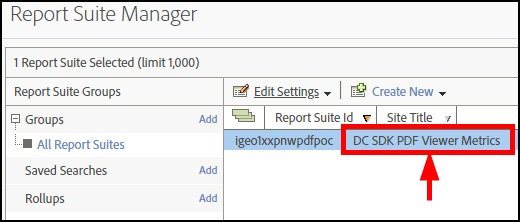
- Navigate to the Report Suite Manager.
- Highlight your report suite.
- Choose Edit Settings > General > Processing Rules.
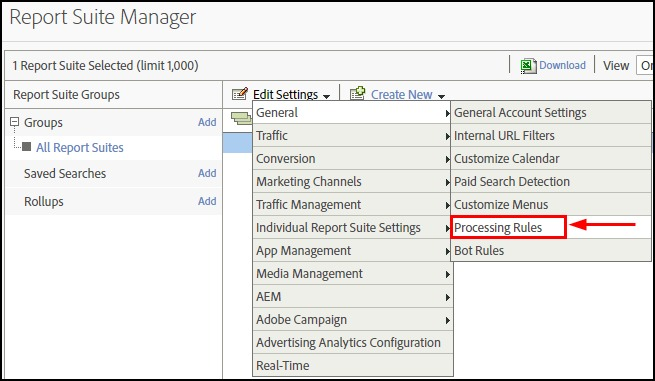
- Click the Processing Rules tab. You'll need to create two rules and configure them so that you can map collected events and event attributes to Analytics variables.
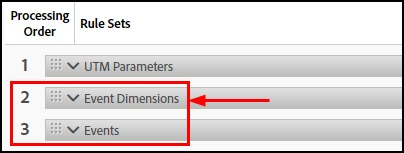
Mapping event attibutes
You'll need to create a new rule and map event attributes sent by the PDF Embed API to an Adobe Analytics variable. For example, an event attribute might be something like a page number or title. There could be many events with the same attribute (one for each event happening on a specific page). The following attributes eventually become dimensions in your reports:
- a.dc.searchTerm
- a.action
- a.dc.pageNum
- a.dc.filename
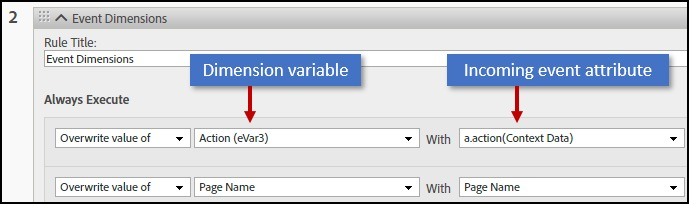
Map event attributes as follows:
- Choose Add Rule.
- Add a custom rule title such as "Event Dimensions".
- Choose Add Action until you have four (one for each attribute above).
- Select an item (event attribute) from the With drop down list (one of those above).
- Select an Analytics dimension variable from the drop down list on the left.
- The left hand columns should remain set to "Overwrite value of".
- Repeat the above steps for each incoming event attribute you track.
Mapping events
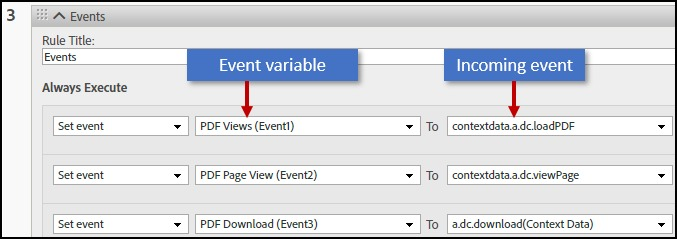
Create another new rule and map events sent by the PDF Embed API to an Adobe Analytics variable. Note that Analytics uses "metrics" and "events" interchangeably. An event is any user interaction your JavaScript event listener captures; for example, clicking on a button or commenting on a PDF. The following events eventually become metrics displayed in your reports:
- a.dc.zoomLevel
- a.dc.loadPDF
- a.dc.viewPage
- a.dc.download
- a.dc.search
- a.dc.bookmarkClicked
- a.dc.copyText
- a.dc.print
Map events as follows:
- Choose Add Rule.
- Add a custom rule title such as "Events".
- Choose Add Action until you have eight (one for each attribute above).
- Select a metric (an event) from the To drop down list (one of those above).
- Select an Analytics event variable from the drop down list on the left.
- The left hand column should remain set to "Set event".
- Repeat the above steps for each metric (incoming event).
Viewing your data
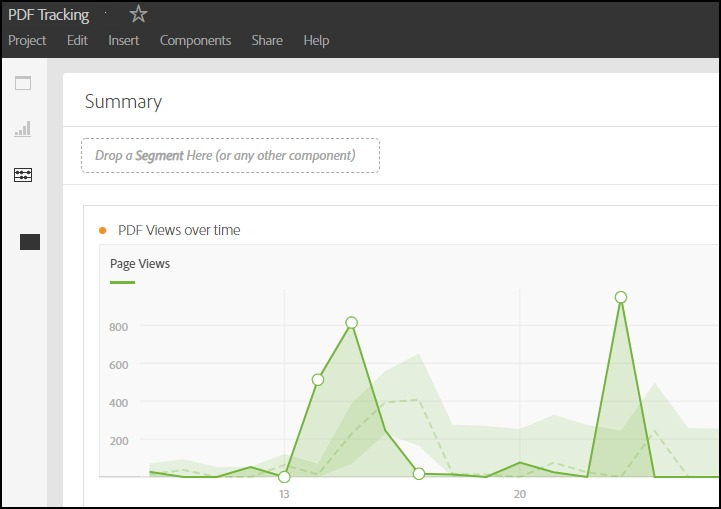
Set up your reporting as usual, and view the dimensions and metrics in your workspace.
Help, support, forum
For more detail about using this Adobe Analytics UI, refer to the help docs. You can also ask questions and get help here:
Google Analytics
If your website is already integrated with Google Analytics, you can collect PDF analytics from PDF Embed API in Google Analytics with a few simple setup steps.
Set up the PDF Viewer
Since you want to track user interaction with the PDF viewer, you need to make sure events appear in the correct Google Analytics property. To automatically receive PDF analytics events, pass the Google Analytics 4 measurement ID when creating the AdobeDC.View instance. You must ensure that Google Analytics is instrumented using the same measurement ID for the website where you are embedding the PDF Viewer.
data-slots=text
var adobeDCView = new AdobeDC.View({
    clientId: "<YOUR_CLIENT_ID>",
    divId: "adobe-dc-view"
    measurementId: "<YOUR_GA4_MEASUREMENT ID>",
    ...
})
Following PDF analytics will be tracked:
Find the code sample for Google Analytics integration in PDF Embed API here under /More Samples/Analytics/Google Analytics.
Configure Google Analytics
The current release requires a few configuration steps to correctly map PDF Embed API data collected from your PDF viewer to Google Analytics.
Custom Dimensions
You need to set up some custom dimensions in the Google Analytics 4 property, that will map to the attributes which are part of the event data sent by PDF Embed API.
Once you've logged in to Google Analytics, do the following:
- From the top bar, select the Google Analytics 4 property which contains your measurement ID.
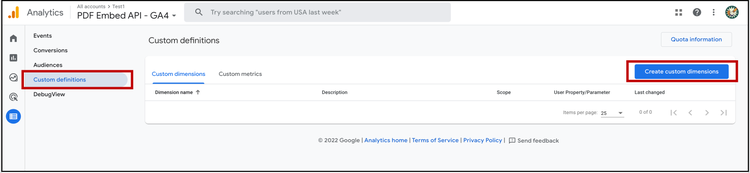
- Click Custom definitions under Configure (in the left navigation pane).
- Click Create custom dimensions.
-
Enter Dimension name.
-
Set the scope as Event.
-
Enter a description for this custom dimension.
-
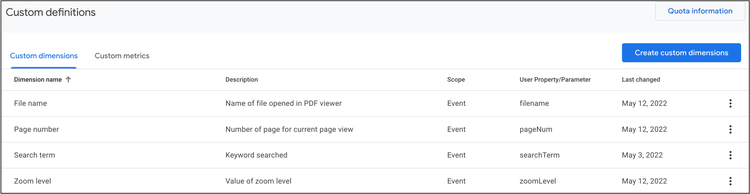
Enter the name of the event attribute sent from PDF Embed API. Custom dimensions need to be created for these event attributes: filename, pageNum, searchTerm and zoomLevel.
-
Click Save. (Note: You will see a value of "Not set" for a custom dimension during the first 48 hours. )
-
You need to set up four custom dimensions, as follows:
- File Name
- Page Number
- Search Term, and,
- Zoom Level
- Map these custom dimensions with the correct event attributes sent from PDF Embed API, as shown in the table below:
Viewing your data in Google Analytics 4
Once you start receiving PDF analytics in Google Analytics 4, set up your reporting as usual and view the dimensions and metrics in your workspace.
Creating a sample exploration to track page views
You can set up reports for different dimensions and metrics and view the data. This example below creates a sample exploration to track page views in the PDF.
- Select Explore from the left navigation pane and click the plus sign to create a new blank report.
- Select a custom timeline.
- Select Line Chart from the Visualisation.
- Drag and drop Event Name from Dimensions in Breakdowns.
- Remove Active Count from Values.
- Drag and drop Event Count from Metrics in Values.
- Go to Filters and select Event Name.
- Select match type 'contains' and enter 'Page View' in expression.
- Click Apply.
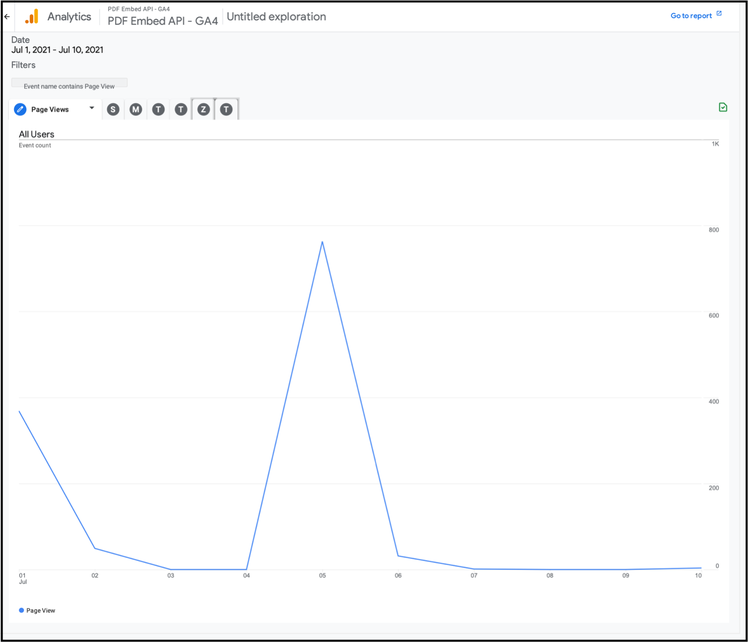
data-slots=text
Control analytics collection
If your website is already integrated with analytics tools such as Adobe Analytics or Google Analytics, then you can collect PDF analytics with few additional setup steps. To know more about the setup steps, see the sections Adobe Analytics and Google Analytics.
The sendAutoPDFAnalytics configuration controls the PDF analytics collection in these tools. The default value of sendAutoPDFAnalytics is true. Set this configuration to false if you would like to disable PDF analytics collection.
var adobeDCView = new AdobeDC.View({
    clientId: "<YOUR_CLIENT_ID>",
    divId: "adobe-dc-view"
    sendAutoPDFAnalytics: false,
    ...
})
Default analytics
If you are not subscribed to Adobe Analytics or Google Analytics, you can still collect PDF analytics events as users interact with PDFs. You enable PDF analytics events by registering a callback with the API to listen the events. Tracking PDF events provides insight into user actions and thereby helps you manage and evolve the PDF experience you're delivering to customers.
As always, initialize the AdobeDC.View object with your client ID, and then invoke the previewFile API on AdobeDC.View object as usual. Finally, register the callback to receive the events and set enablePDFAnalytics to true:
const eventOptions = {
  //Pass the PDF analytics events to receive.
  //If no event is passed in listenOn, then all PDF analytics events will be received.
  listenOn: [ AdobeDC.View.Enum.PDFAnalyticsEvents.PAGE_VIEW, AdobeDC.View.Enum.PDFAnalyticsEvents.DOCUMENT_DOWNLOAD],
  enablePDFAnalytics: true
}

adobeDCView.registerCallback(
  AdobeDC.View.Enum.CallbackType.EVENT_LISTENER,
  function(event) {
    console.log("Type " + event.type);
    console.log("Data " + event.data);
  }, eventOptions
);
Find the working example in the samples repo under /More Samples/Capture PDF Embed API Events/.
Supported analytics events
{fileName: <FILE_NAME>}{pageNumber: <PAGE_NUM>, fileName: <FILE_NAME>}{title: <BOOKMARK_TITLE>, fileName: <FILE_NAME>}{fileName: <FILE_NAME>}{printSupported: true, fileName: <FILE_NAME>}{type: “external”, pageNumber: <PAGE_NUM>, x: <X-coordinate of the link>, y: <Y-coordinate of the link>, url: <EXTERNAL_URL>}{copiedText: <COPIED_TEXT>, fileName: <FILE_NAME>}{searchedText: <SEARCHED_TEXT>, fileName: <FILE_NAME>}{zoomLevel: <ZOOM_LEVEL>, fileName: <FILE_NAME>}Basic events
In addition to the PDF analytics events, the PDF Embed API supports events which provide insight into user actions taken related to file preview. These events can be received through the events callback. After registering the events callback, the following file preview events are generated:
In order to receive additional file preview events, set enableFilePreviewEvents to true and pass it to the events callback. To receive specific events, pass the list of event types in the listenOn parameter. If nothing is passed to listenOn, then the API returns all the file preview events.
const eventOptions = {
     //Pass the events to receive.
     //If no event is passed in listenOn, then all file preview events will be received.
     listenOn: [ AdobeDC.View.Enum.Events.APP_RENDERING_START, AdobeDC.View.Enum.FilePreviewEvents.PREVIEW_KEY_DOWN,  AdobeDC.View.Enum.FilePreviewEvents.PREVIEW_PAGE_VIEW_SCROLLED ],
     enableFilePreviewEvents: true
}

adobeDCView.registerCallback(
     AdobeDC.View.Enum.CallbackType.EVENT_LISTENER,
     function(event) {
        console.log(event)
     }, eventOptions
);
List of file preview events
{ altKey: <BOOLEAN>, code: <KEY_VALUE>, composed: <BOOLEAN>, ctrlKey: <BOOLEAN>, key: <KEYBOARD_CHARACTER>, keyCode: <KEY_CODE>, location: <LOCATION>, metaKey: <BOOLEAN>, shiftKey: <BOOLEAN>, type: “keydown” }{ clientHeight: <CLIENT_HEIGHT>, clientWidth: <CLIENT_WIDTH>, scrollHeight: <SCROLL_HEIGHT>, scrollWidth: <SCROLL_WIDTH>, scrollLeft: <SCROLL_LEFT>, scrollTop: <SCROLL_TOP> }{ clientX: <CLIENT_WIDTH>, clientY: <CLIENT_HEIGHT>, pageX: <PAGE_WIDTH>, pageY: <PAGE_HEIGHT>, screenX: <SCREEN_WIDTH>, screenY: <SCREEN_HEIGHT> }{ pageNumber: <PAGE_NUMBER> }{ pageNumber: <PAGE_NUMBER> }{ pageNumber: <PAGE_NUMBER> }{ pageNumber: <PAGE_NUMBER> }{ pageNumber: <PAGE_NUMBER> }{ startPageNumber: <PAGE_NUMBER>, endPageNumber: <PAGE_NUMBER>, newSelection: <BOOLEAN>, selections: { page<PAGE_NUMBER>: { bbox0: { deviceBottom: <Ymin-coordinate>, deviceLeft: <Xmin-coordinate>, deviceRight: <Xmax-coordinate>, deviceTop: <Ymax-coordinate> }, bbox1: {…}, bbox2: {…}, …, bboxCount: <BBOX_COUNT> }} }<ZOOM_LEVEL>{ startPage: { pageNumber: <PAGE_NUMBER>, fractionVisible <PAGE_VISIBLE_FRACTION> }, endPage: { pageNumber: <PAGE_NUMBER>, fractionVisible <PAGE_VISIBLE_FRACTION> }}{ featureName: <FEATURE_NAME>, data: {hasJS: <BOOLEAN>, hasUnsupportedActions: <BOOLEAN, hasUnsupportedWidget: <BOOLEAN>, hasXFA: <BOOLEAN> }}Annotation events
Web developers can receive events when a user interacts with an annotation. These events are generated for annotation actions performed through the UI.
To register the events callback, set enableAnnotationEvents to true and pass it to the callback. To receive specific events, pass the list of annotation event types in the listenOn parameter. If nothing is passed to listenOn, then the API returns all the annotation events.
const eventOptions = {
   //Pass the events to receive.
   //If no event is passed in listenOn, then all annotation events will be received.
   listenOn: [ AdobeDC.View.Enum.AnnotationEvents.ANNOTATION_ADDED, AdobeDC.View.Enum.AnnotationEvents.ANNOTATION_UPDATED ],
   enableAnnotationEvents: true
 }

 adobeDCView.registerCallback(
   AdobeDC.View.Enum.CallbackType.EVENT_LISTENER,
   function(event) {
     console.log(event.type, event.data)
   }, eventOptions
 );
List of annotation events
ANNOTATION_TYPEANNOTATION_TYPEANNOTATION_TYPEANNOTATION_TYPEANNOTATION_TYPEANNOTATION_TYPEANNOTATION_TYPEANNOTATION_TYPEANNOTATION_TYPEANNOTATION_TYPENUMBER_OF_ANNOTATIONSdata-slots=text
- If annotation APIs are not enabled, the event data contains the type of annotation on which the event gets triggered.
- If annotation APIs are enabled, the event data contains the data of the annotation in JSON format on which the event gets triggered.