Adobe Analytics
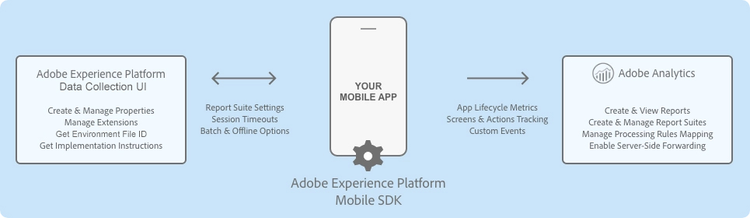
Configure the Analytics extension in the Data Collection UI
- In the Data Collection UI, select the Extensions tab.
- On the Catalog tab, locate the Adobe Analytics extension, and select Install.
- Type the extension settings. For more information, please read the configure the Analytics Extension section.
- Click Save.
- Follow the publishing process to update SDK configuration.
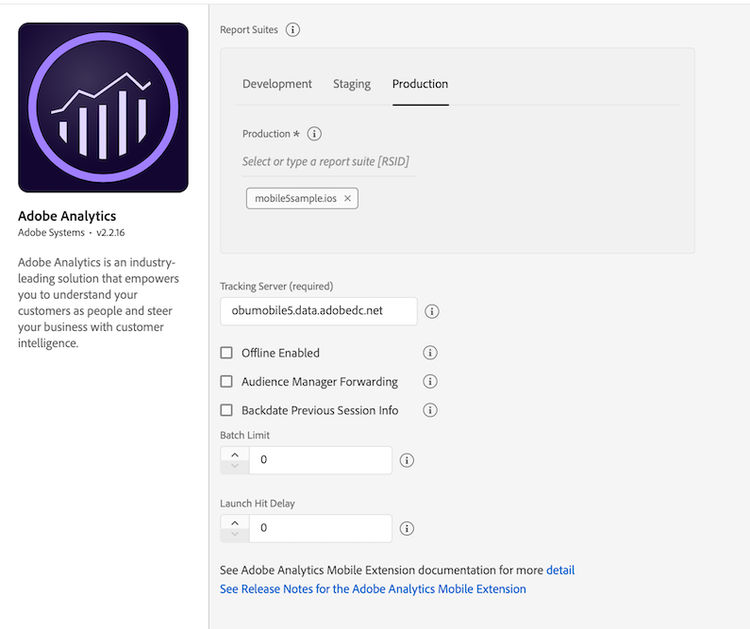
Configure the Analytics extension
Analytics company
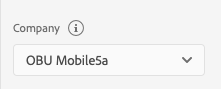
If you have access to more than one Analytics company, a select menu will appear, allowing you to choose which company you want to use. If you only have access to one Analytics company, this select menu will not appear.
Once you select an Analytics company, the list of report suites associated with that company will appear in the report suites section.
Report suites
data-variant=info
data-slots=text
Select one or more mobile-enabled report suite identifiers from the combo box to which the Analytics data should be sent. Only report suite identifiers that belong to a company and that are enabled for mobile can be selected. For information on how to enable mobile for your report suite, see the mobile management documentation.
To narrow the search for a report suite identifier, type a string in the combo box text field. After a valid report suite identifier has been selected, this identifier appears in a tag below the combo box. To remove a report suite ID, click on the X next to the ID you want to remove. Report suite IDs can also be configured for the Development and Staging environments.
Tracking server
data-variant=info
data-slots=text
The tracking server is the tracking domain that all the Analytics requests should be made.
Offline enabled
data-variant=info
data-slots=text
When the Offline Enabled checkbox is selected, Analytics hits are queued when your device is offline and are sent later when your device is back online. To use offline tracking, ensure that your report suite is timestamp enabled.
data-variant=warning
data-slots=text
data-variant=info
data-slots=text
s.timestamp variable. For more information, please contact Customer Care.Audience Manager forwarding
data-variant=info
data-slots=text
If you set up Analytics server-side forwarding to Audience Manager in your Analytics report suite, select the Audience Manager Forwarding checkbox. When this checkbox is selected, all SDK requests to Analytics servers are sent with an expected response code of 10. This step ensures that client-side Analytics response traffic is forwarded to the Audience Manager SDK so that the User Profile is correctly updated.
Backdate previous session info
data-variant=warning
data-slots=text
When you select this checkbox, the SDK backdates the end-of-session lifecycle information so that this information can be attributed into its correct session. Session information currently consists of crashes and session length.
The SDK also backdates the session information hit to one second after the last hit of the previous session. This means that crashes and session data will correlate with the correct date on which they occurred. One hit is backdated each time a new launch of the application is occurs.
For example, if you select the checkbox, Lifecycle session information or crash events are backdated to one second after the last hit was sent. If you do not select the checkbox, Lifecycle data is attached to the first hit of the subsequent session.
If this option is disabled, Mobile SDK attaches the session information to the current lifecycle.
Batch limit
This setting creates a threshold number of hits to be sent in consecutive calls. For example, if you type or select "10", each Analytics hit before the 10th hit is stored in the queue. When the 10th hit comes in, all 10 hits are sent to Analytics in the order in which they were generated.
data-variant=info
data-slots=text
The default value for this setting is 0, which means that hit batching is disabled, and all hits are immediately sent to Analytics as they are generated.
Launch hit delay
The number of seconds to wait before Analytics launch hits are sent from the SDK.
Add the Analytics extension to your app
Include Analytics extension as an app dependency
Add MobileCore, Identity, and Analytics extensions as dependencies to your project.
Android Kotlin
Add the required dependencies to your project by including them in the app's Gradle file.
implementation(platform("com.adobe.marketing.mobile:sdk-bom:3.+"))
implementation("com.adobe.marketing.mobile:core")
implementation("com.adobe.marketing.mobile:identity")
implementation("com.adobe.marketing.mobile:analytics")
data-variant=warning
data-slots=text
Android Groovy
implementation platform('com.adobe.marketing.mobile:sdk-bom:3.+')
implementation 'com.adobe.marketing.mobile:core'
implementation 'com.adobe.marketing.mobile:identity'
implementation 'com.adobe.marketing.mobile:analytics'
data-variant=warning
data-slots=text
iOS CocoaPods
Add the required dependencies to your project using CocoaPods. Add following pods in your Podfile:
use_frameworks!

target 'YourTargetApp' do
    pod 'AEPCore', '~> 5.0'
    pod 'AEPAnalytics', '~> 5.0'
    pod 'AEPIdentity', '~> 5.0'
end
Initialize Adobe Experience Platform SDK with Analytics Extension
Next, initialize the SDK by registering all the solution extensions that have been added as dependencies to your project with Mobile Core. For detailed instructions, refer to the initialization section of the getting started page.
Using the MobileCore.initialize API to initialize the Adobe Experience Platform Mobile SDK simplifies the process by automatically registering solution extensions and enabling lifecycle tracking.
Android Kotlin
data-variant=warning
data-slots=text
import com.adobe.marketing.mobile.LoggingMode
import com.adobe.marketing.mobile.MobileCore
...
import android.app.Application
...

class MainApp : Application() {
  override fun onCreate() {
    super.onCreate()
    MobileCore.setLogLevel(LoggingMode.DEBUG)
    MobileCore.initialize(this, "ENVIRONMENT_ID")
  }
}
Android Java
data-variant=warning
data-slots=text
import com.adobe.marketing.mobile.LoggingMode;
import com.adobe.marketing.mobile.MobileCore;
...
import android.app.Application;
...
public class MainApp extends Application {
  @Override
  public void onCreate(){
    super.onCreate();
    MobileCore.setLogLevel(LoggingMode.DEBUG);
    MobileCore.initialize(this, "ENVIRONMENT_ID");
  }
}
iOS Swift
data-variant=warning
data-slots=text
// AppDelegate.swift
import AEPCore
import AEPServices
...

final class AppDelegate: NSObject, UIApplicationDelegate {
  func application(_: UIApplication, didFinishLaunchingWithOptions _: [UIApplication.LaunchOptionsKey: Any]? = nil) -> Bool {
    MobileCore.setLogLevel(.debug)
    MobileCore.initialize(appId: "ENVIRONMENT_ID")
    ...
  }
}
iOS Objective-C
data-variant=warning
data-slots=text
// AppDelegate.m
#import "AppDelegate.h"
@import AEPCore;
@import AEPServices;
...
@implementation AppDelegate
- (BOOL)application:(UIApplication *)application didFinishLaunchingWithOptions:(NSDictionary *)launchOptions {
  [AEPMobileCore setLogLevel: AEPLogLevelDebug];
  [AEPMobileCore initializeWithAppId:@"ENVIRONMENT_ID" completion:^{
      NSLog(@"AEP Mobile SDK is initialized");
  }];
  ...
  return YES;
}
@end
Send Lifecycle metrics to Analytics
To automatically report on the application lifecycle details in Analytics, ensure that you properly configure the lifecycle data collection. For more information, see the documentation on Lifecycle metrics.
Send app states and actions to Analytics
To track mobile app states and actions in Adobe Analytics, implement the trackAction and trackState APIs from the Mobile Core extension. For more information, see the track app actions and track app states tutorials.
data-variant=info
data-slots=text
pagename=value).<br/><br/> trackAction reports the Action as an event and does not increment your page views in Analytics. The value is sent to Analytics by using the action variable (action=value).Integrations with Adobe Experience Platform solutions and services
Analytics for Adobe Target (A4T)
To see the performance of your Target activities for some segments, you can set up the Analytics extension for Target (A4T) cross-solution integration by enabling the A4T campaigns. This integration allows you to use Analytics reports to examine your results. If you use Analytics as the reporting source for an activity, all reporting and segmentation for that activity is based on Analytics data collection. For more information, see Target.
Server-side forwarding with Audience Manager
To enable server-side forwarding to share Analytics data with Audience Manager, see the documentation on Server-side Forwarding to enable server-side forwarding at the report suite level.
To enable client-side forwarding to share Analytics data with Audience Manager within the SDK, in the Data Collection UI, select the Audience Manager Forwarding checkbox. For more information, go to Audience Manager.
Audio and video analytics
For more information about collecting audio and video analytics, please read the documentation on Media Analytics for audio and video.
Event serialization
Event serialization is not supported by processing rules. To set serialized events directly on the hits sent to Analytics, use the following syntax in context data parameters:
Android Java
data-slots=heading, code
data-repeat=2
Syntax
cdata.put("&&events", "event1:12341234");
Example
//create a context data dictionary
HashMap cdata = new HashMap<String, Object>();

// add events
cdata.put("&&events", "event1:12341234");

// send a tracking call - use either a trackAction or TrackState call.
// trackAction example:
MobileCore.trackAction("Action Name", cdata);
// trackState example:
MobileCore.trackState("State Name", cdata);
Android Kotlin
data-slots=heading, code
data-repeat=1
Example
//create a context data dictionary
val cdata: Map<String, Any?> = mapOf(
    "&&events" to "event1:12341234"
)

// send a tracking call - use either a trackAction or TrackState call.
// trackAction example:
MobileCore.trackAction("Action Name", cdata);
// trackState example:
MobileCore.trackState("State Name", cdata);
iOS Swift
data-slots=heading, code
data-repeat=2
Syntax
contextdata["&&events"] = "event1:12341234"
Example
//create a context data dictionary
var contextData = [String: Any]()

// add events
contextData["&&events"] = "event1:12341234"

// send the tracking call - use either a trackAction or trackState call.
// trackAction example:
MobileCore.track(action: "Action Name" as String, data: contextData)

// trackState example:
MobileCore.track(state: "State Name" as String, data: contextData)
iOS Objective-C
data-slots=heading, code
data-repeat=2
Syntax
[contextData setObject:@"eventN:serial number" forKey:@"&&events"];
Example
//create a context data dictionary
NSMutableDictionary *contextData = [NSMutableDictionary dictionary];

// add events
[contextData setObject:@"event1:12341234" forKey:@"&&events"];

// send the tracking call - use either a trackAction or trackState call.
// trackAction example:
[AEPMobileCore trackAction:@"Action Name" data:contextData];
// trackState example:
[AEPMobileCore trackState:@"State Name" data:contextData];
Configuration keys
To update the SDK configuration programmatically, use the following information to change your Analytics configuration values.
Update Analytics configuration
Android Java
data-slots=heading, code
data-repeat=1
Example
HashMap<String, Object> data = new HashMap<String, Object>();
data.put("analytics.server", "sample.analytics.tracking.server");
data.put("analytics.rsids", "rsid1,rsid2");
data.put("analytics.batchLimit", 10);
data.put("analytics.offlineEnabled", true);

MobileCore.updateConfiguration(data);
Android Kotlin
data-slots=heading, code
data-repeat=1
Example
val data: Map<String, Any?> = mapOf(
    "analytics.server" to "sample.analytics.tracking.server",
    "analytics.rsids" to "rsid1,rsid2",
    "analytics.batchLimit" to 10,
    "analytics.offlineEnabled" to true
)

MobileCore.updateConfiguration(data)
iOS Swift
data-slots=heading, code
data-repeat=1
Example
let updatedConfig = ["analytics.server":"sample.analytics.tracking.server",
                     "analytics.rsids":"rsid1,rsid2",
                     "analytics.batchLimit":10,
                     "analytics.offlineEnabled":true] as [String: Any]
MobileCore.updateConfigurationWith(configDict: updatedConfig)
iOS Objective-C
data-slots=heading, code
data-repeat=1
Example
NSDictionary *updatedConfig = @{@"analytics.server":@"sample.analytics.tracking.server",
                                @"analytics.rsids":@"rsid1,rsid2",
                                @"analytics.batchLimit":@(10),
                                @"analytics.offlineEnabled":@YES};
[AEPMobileCore updateConfiguration:updatedConfig];
For more information, see the configuration API reference.