Adobe Analytics - Media Analytics for Audio and Video
data-variant=success
data-slots=heading, text
data-variant=warning
data-slots=text
Configure Media Analytics extension in the Data Collection UI
- In the Data Collection UI, select the Extensions tab.
- On the Catalog tab, locate the Adobe Media Analytics for Audio and Video extension, and select Install.
- Type the extension settings. For more information, see Configure Media Analytics Extension.
- Select Save.
- Follow the publishing process to update your SDK configuration.
Configure the Media Analytics extension
data-variant=info
data-slots=text
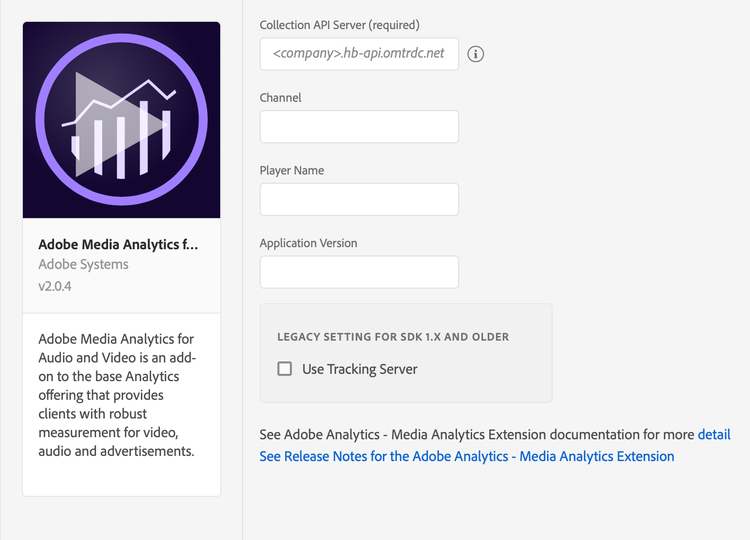
To configure the Media Analytics extension, complete the following steps:
Collection API Server
Type the name of the media collection API server. This is the server where the downloaded media tracking data is sent. Important: You need to contact your Adobe account representative for this information.
Channel
Type the channel name property.
Player name
Type the name of the media player in use (for example, AVPlayer, Native Player, or Custom Player).
Application version
Type the version of the media player application/SDK.
data-variant=info
data-slots=text
If you are using Media Extension v1.x, then go to Legacy settings section 1. Enable the Use Tracking Server checkbox. 2. In Tracking Server, Type the name of the tracking server to which all media tracking data should be sent.
Add Media extension to your app
Include Media extension as an app dependency
data-variant=info
data-slots=text
Add MobileCore, Analytics and Media Analytics extensions as dependencies to your project.
Android Kotlin
Add the required dependencies to your project by including them in the app's Gradle file.
implementation(platform("com.adobe.marketing.mobile:sdk-bom:3.+"))
implementation("com.adobe.marketing.mobile:core")
implementation("com.adobe.marketing.mobile:identity")
implementation("com.adobe.marketing.mobile:analytics")
implementation("com.adobe.marketing.mobile:media")
data-variant=warning
data-slots=text
Android Groovy
Add the required dependencies to your project by including them in the app's Gradle file.
implementation platform('com.adobe.marketing.mobile:sdk-bom:3.+')
implementation 'com.adobe.marketing.mobile:core'
implementation 'com.adobe.marketing.mobile:identity'
implementation 'com.adobe.marketing.mobile:analytics'
implementation 'com.adobe.marketing.mobile:media'
data-variant=warning
data-slots=text
iOS CocoaPods
Add the required dependencies to your project using CocoaPods. Add following pods in your Podfile:
use_frameworks!

target 'YourTargetApp' do
  pod 'AEPCore', '~> 5.0'
  pod 'AEPAnalytics', '~> 5.0'
  pod 'AEPMedia', '~> 5.0'
end
Initialize Adobe Experience Platform SDK with Media Extension
Next, initialize the SDK by registering all the solution extensions that have been added as dependencies to your project with Mobile Core. For detailed instructions, refer to the initialization section of the getting started page.
Using the MobileCore.initialize API to initialize the Adobe Experience Platform Mobile SDK simplifies the process by automatically registering solution extensions and enabling lifecycle tracking.
Android Kotlin
data-variant=warning
data-slots=text
import com.adobe.marketing.mobile.LoggingMode
import com.adobe.marketing.mobile.MobileCore
...
import android.app.Application
...

class MainApp : Application() {
  override fun onCreate() {
    super.onCreate()
    MobileCore.setLogLevel(LoggingMode.DEBUG)
    MobileCore.initialize(this, "ENVIRONMENT_ID")
  }
}
Android Java
data-variant=warning
data-slots=text
import com.adobe.marketing.mobile.LoggingMode;
import com.adobe.marketing.mobile.MobileCore;
...
import android.app.Application;
...
public class MainApp extends Application {
  @Override
  public void onCreate(){
    super.onCreate();
    MobileCore.setLogLevel(LoggingMode.DEBUG);
    MobileCore.initialize(this, "ENVIRONMENT_ID");
  }
}
iOS Swift
data-variant=warning
data-slots=text
// AppDelegate.swift
import AEPCore
import AEPServices
...

final class AppDelegate: NSObject, UIApplicationDelegate {
  func application(_: UIApplication, didFinishLaunchingWithOptions _: [UIApplication.LaunchOptionsKey: Any]? = nil) -> Bool {
    MobileCore.setLogLevel(.debug)
    MobileCore.initialize(appId: "ENVIRONMENT_ID")
    ...
  }
}
iOS Objective-C
data-variant=warning
data-slots=text
// AppDelegate.m
#import "AppDelegate.h"
@import AEPCore;
@import AEPServices;
...
@implementation AppDelegate
- (BOOL)application:(UIApplication *)application didFinishLaunchingWithOptions:(NSDictionary *)launchOptions {
  [AEPMobileCore setLogLevel: AEPLogLevelDebug];
  [AEPMobileCore initializeWithAppId:@"ENVIRONMENT_ID" completion:^{
      NSLog(@"AEP Mobile SDK is initialized");
  }];
  ...
  return YES;
}
@end
Configuration keys
To update your SDK configuration programmatically, use the following information to change your Media configuration values. For more information, see Configuration API reference.
media.collectionServermedia.playerNamemedia.appVersion