Building your first add-on with the Document API
This tutorial will guide you through the creation of your first Adobe Express add-on based on the Adobe Express Document API.
Introduction
Hello, and welcome to this Adobe Express Document API tutorial, where we'll build together a fully functional Grid System add-on from scratch. Grid systems are widely used in the design world to bring structure and consistency to all visual content, from flyers to web pages or social media posts.
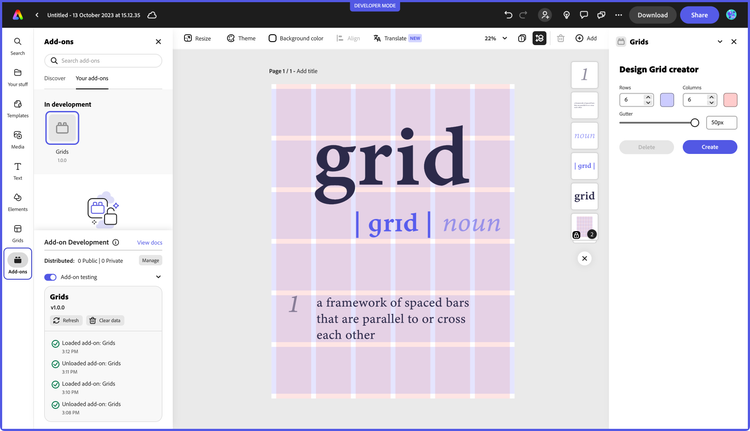
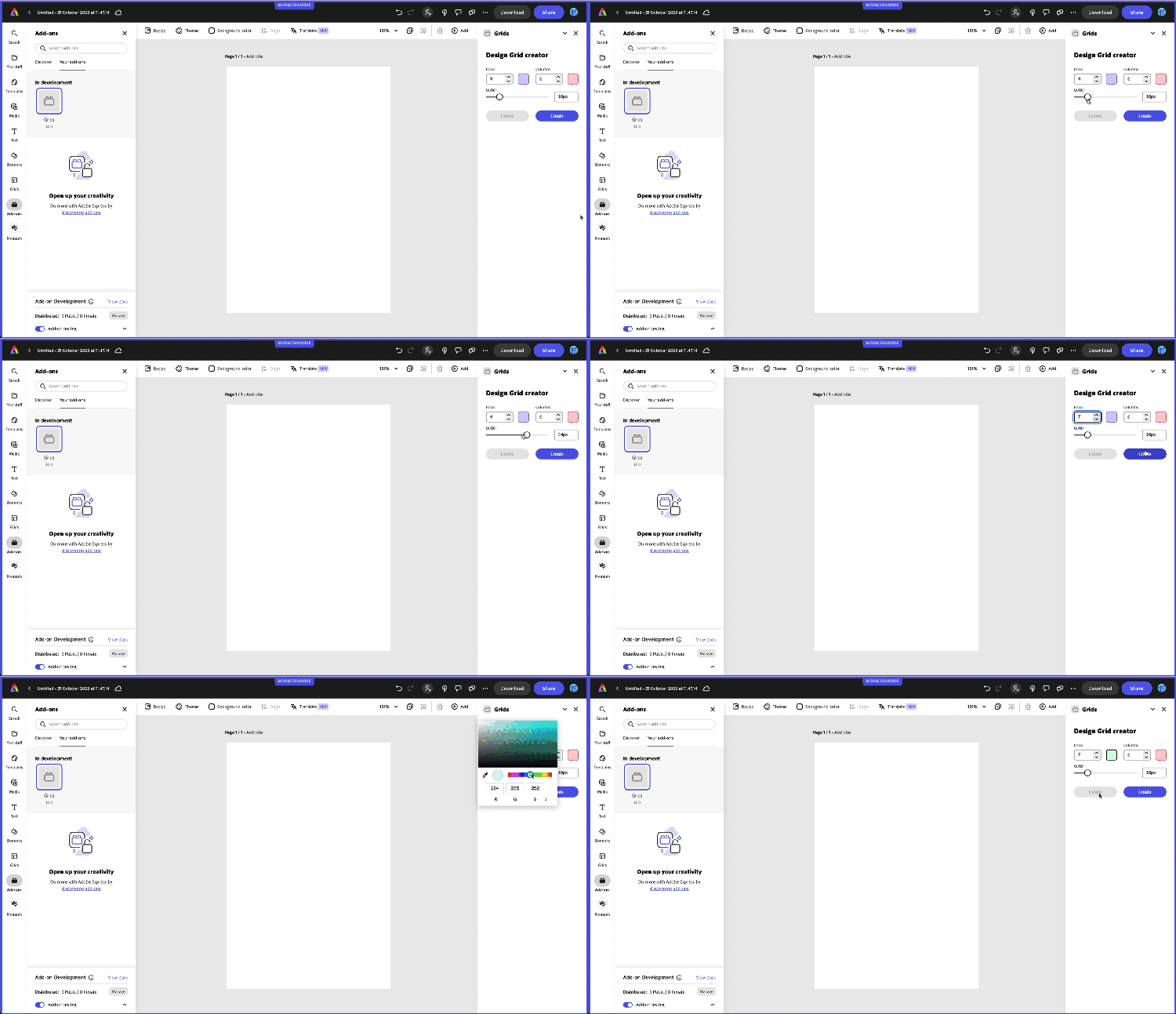
Your add-on will allow users to create a variable number of rows and columns, control the spacing between them (known as the gutter), and apply color overlays.
Prerequisites
- Familiarity with HTML, CSS, JavaScript.
- Familiarity with the Adobe Express add-ons environment; if you need a refresher, follow the quickstart guide.
- An Adobe Express account; use your existing Adobe ID or create one for free.
- Node.js version 20 or newer.
Topics Covered
data-slots=text1, text2
data-repeat=4
data-iconColor=#2ac3a2
data-icon=disc
data-variant=fullWidth
Getting Started with the Document API
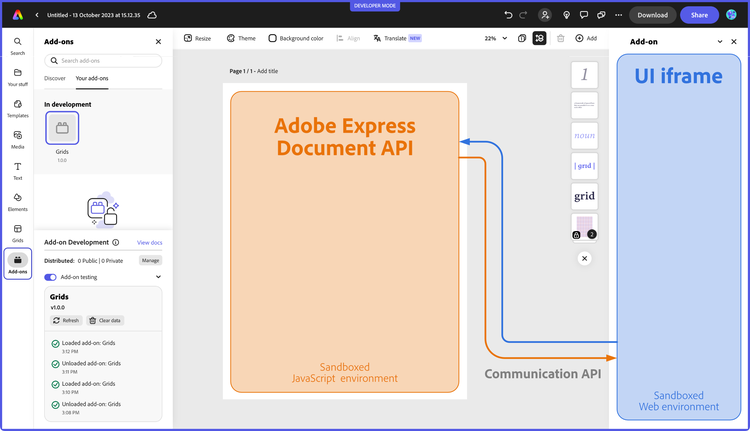
As part of the Document Model Sandbox, the Adobe Express Document API (from now on, Document API) is a powerful tool that extends the capabilities of Adobe Express add-ons, offering direct interaction with the open document. Let's take a moment to review the difference between the two core components of the architecture of an add-on.
- The iframe hosts the add-on User Interface and runs its internal logic. You can think about it as a web application operating in a sandboxed environment: it needs to be separate from the rest of the Adobe Express content for security reasons, which is precisely why the add-on is hosted within an
<iframe>element (a detailed technical description is found here). If you come from a CEP/UXP background, it's akin to developing the panel of an extension or plugin. - The Document Model Sandbox: allows you to operate on the document. It's a sandboxed JavaScript environment that communicates with the iframe (thanks to the Communication API), providing access to the Document API. Drawing the parallel with CEP and UXP again, it represents scripting; that is, the possibility to drive Adobe Express programmatically and, for example, add pages or artboards, create new shapes, rotate or group them, etc.
This is a high-level overview of the overall structure; while the implementation has more technical nuances, there's no need to dive deeper now.
The Project Structure
The complete code for the Grids System add-on can be found here: it is provided as a complete project, although it would be best if you followed along from this starting point, which sets up a JavaScript/Webpack environment with everything needed.1
You can either clone the entire repository:
git clone https://github.com/AdobeDocs/express-add-on-samples.git
Or download it as a .zip file (click the green "Code" button and then "Download ZIP").
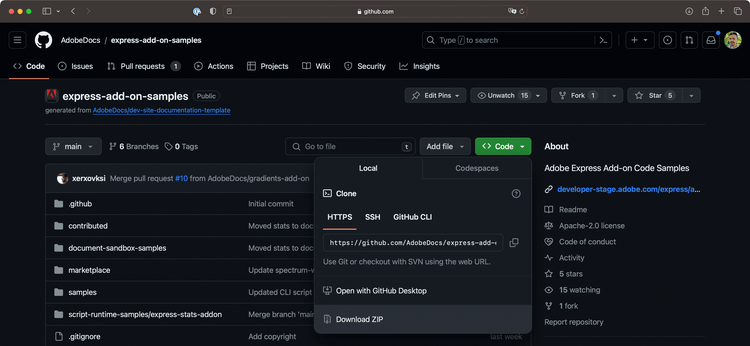
Then cd in the project folder (either the grids-design-start or grids-design-end one) and run the following commands:
cd express-add-on-samples/document-sandbox-samples/express-grids-addon/grids-design-end

npm install
npm run build
npm run start
This will install the required dependencies, build the project, and then serve it locally on port 5241; if you need more clarification about how to load an add-on in Adobe Express, please refer to the quickstart guide for a step-by-step walkthrough.
Before jumping into the code, let's look at how the project is structured. At the time of this writing, the CLI provides a few templates, but Only ReactJS-based ones include the Document Sandbox while also having a Webpack configuration, which is preferable when using Spectrum Web Components (SWC). This project provides support for both of them.
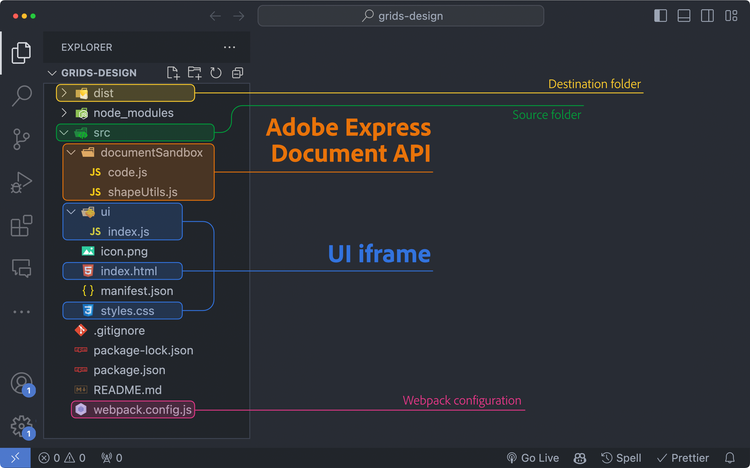
As usual, we'll work in the src folder while Webpack outputs the result in dist. The add-on entry point is index.html, which relies on ui/index.js for the iframe logic code (UI element handlers, etc.). The Document API entry point is instead documentSandbox/code.js, as defined in the manifest.json:
data-slots=heading, code
data-repeat=1
manifest.json
{
  // ...
  "entryPoints": [
    {
      "type": "panel",
      "id": "panel1",
      "main": "index.html",
      "documentSandbox": "code.js" // 👈 here
    }
  ]
}
If you're wondering about documentSandbox/shapeUtils.js, it is an auxiliary file containing private code consumed by code.js that doesn't need to be exposed to the iframe in this specific project. The code of the blank template is as follows.
data-slots=heading, code
data-repeat=4
data-languages=index.html, index.js, code.js, shapeUtils.js
iframe
<!-- index.html -->
<!DOCTYPE html>
<html lang="en">
  <head>
    <meta charset="UTF-8" />
    <meta
      name="description"
      content="Adobe Express Add-on tutorial using JavaScript and the Document Sandbox"
    />
    <meta
      name="keywords"
      content="Adobe, Express, Add-On, JavaScript, Document Sandbox, Document API"
    />
    <meta
      name="viewport"
      content="width=device-width, initial-scale=1.0"
    />
    <title>Grids add-on</title>
    <link
      rel="stylesheet"
      href="styles.css"
    />
  </head>

  <body>
    <sp-theme
      scale="medium"
      color="light"
      system="express"
    >
      <sp-button id="createShape">Create shape</sp-button>
    </sp-theme>
  </body>
</html>
iframe
// ui/index.js

// Spectrum imports
import "@spectrum-web-components/styles/typography.css";
import "@spectrum-web-components/theme/src/themes.js";
import "@spectrum-web-components/theme/theme-light.js";
import "@spectrum-web-components/theme/express/theme-light.js";
import "@spectrum-web-components/theme/express/scale-medium.js";
import "@spectrum-web-components/theme/sp-theme.js";
import "@spectrum-web-components/button/sp-button.js";

import addOnUISdk from "https://express.adobe.com/static/add-on-sdk/sdk.js";

addOnUISdk.ready.then(async () => {
  console.log("addOnUISdk is ready for use.");
  const createShapeButton = document.getElementById("createShape");

  // Get the UI runtime.
  const { runtime } = addOnUISdk.instance;
  const sandboxProxy = await runtime.apiProxy("documentSandbox");
  sandboxProxy.log("Document Sandbox up and running.");

  // Enabling CTA elements only when the addOnUISdk is ready
  createShapeButton.disabled = false;
});
Document API
// documentSandbox/code.js

import addOnSandboxSdk from "add-on-sdk-document-sandbox";
const { runtime } = addOnSandboxSdk.instance;

function start() {
  runtime.exposeApi({
    log: (...args) => {
      console.log(...args);
    },
    // other properties will go here...
  });
}

start();
Document API
// documentSandbox/shapeUtils.js

// empty
data-variant=info
data-slots=text1
The index.html contains a <sp-theme> wrapper, whose role is explained here, and just a button. There's already something going on in index.js and code.js instead, which we must understand.
1. The Communication API
A crucial component of any add-on that consumes the Document API is the communication bridge with the iframe. As we've seen earlier, it's precisely the role of the Communication API.
The mechanism is straightforward: through the runtime object (code.js, line 2), you can invoke the exposeApi() method, which grants the iframe access to the object literal that is passed as a parameter. The iframe must get to the runtime, too, and use its apiProxy() method passing "documentSandbox". This asynchronous call results in the same object whose log() can now be invoked.
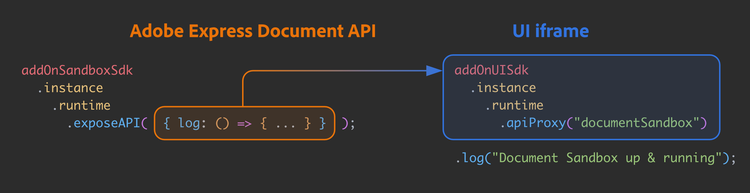
It would not be uncommon to define an object literal first and pass it to the exposeAPI later.
data-variant=warning
data-slots=heading, text1, text2, text3, text4
this is inherited from the enclosing scope, and there's none provided.// documentSandbox/code.js
runtime.exposeApi({
log: (...args) => {
console.log(...args);
},
createShape: (shape) => {
// ...
this.log("Shape created."); // ❌
},
});
this reference instead.// documentSandbox/code.js
runtime.exposeApi({
log(...args) {
console.log(...args);
},
createShape(shape) {
// ...
this.log("Shape created."); // ✅
},
});
It's also possible to expose iframe methods to the Document Sandbox, i.e., using apiProxy() passing "panel", but it's outside the scope of this tutorial—please refer to this sample to see it in action.
2. The Document API
2.1 Using the Reference Documentation
The Document API is rapidly expanding: to keep track of its progress, you must get accustomed to consulting the Reference Documentation.
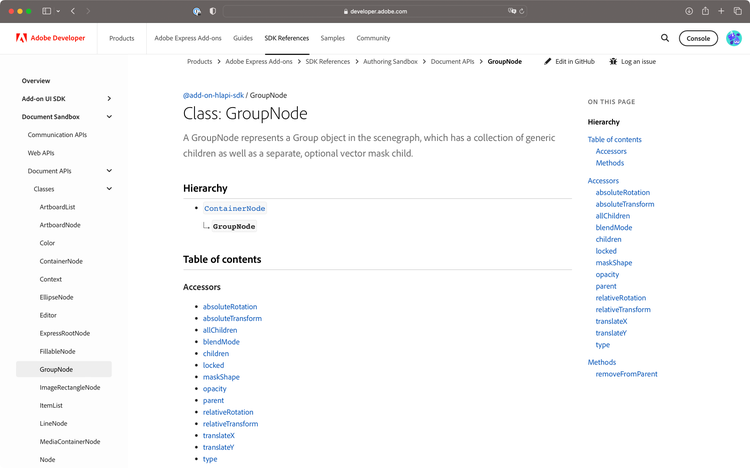
In the left-navbar, you can browse through all the Classes (which Adobe Express elements are instantiated from), Interfaces and constants. It's a hierarchical representation of the Document API data structures: for instance, you can see that a RectangleNode is a subclass of the FillableNode, which in turn subclasses the StrokableNode, which eventually is just a particular kind of Node—the base class.
Some properties are shared among the RectangleNode and, say, other StrokableNode subclasses such as the EllipseNode: for instance, the opacity, or blendMode. Other ones are unique, like the topLeftRadius, which, in the context of an EllipseNode, wouldn't make sense.
2.2 Creating the first Shape
It's finally time to start laying down some elements. Let's hook the only iframe button currently available to a function exposed by the Document API. Type the following into the source files (index.html, index.js, and code.js have been edited), then run the add-on.
data-slots=heading, code
data-repeat=4
data-languages=index.html, index.js, code.js, shapeUtils.js
iframe
<!-- index.html -->
<body>
  <sp-theme
    scale="medium"
    color="light"
    system="express"
  >
    <sp-button
      id="createShape"
      disabled
      >Create shape</sp-button
    >
  </sp-theme>
</body>
iframe
// ui/index.js

// ... usual imports

// Adding the sp-button import
import "@spectrum-web-components/button/sp-button.js";

addOnUISdk.ready.then(async () => {
  console.log("addOnUISdk is ready for use.");
  const createShapeButton = document.getElementById("createShape");

  const { runtime } = addOnUISdk.instance;
  const sandboxProxy = await runtime.apiProxy("documentSandbox");

  createShapeButton.addEventListener("click", async () => {
    sandboxProxy.createShape({ width: 200, height: 100 }); // 👈
  });

  createShapeButton.disabled = false;
});
Document API
// documentSandbox/code.js

import addOnSandboxSdk from "add-on-sdk-document-sandbox";
const { runtime } = addOnSandboxSdk.instance;
import { editor, colorUtils, constants } from "express-document-sdk";

function start() {
  runtime.exposeApi({
    createShape({ width, height }) {
      // 👈
      const rect = editor.createRectangle();
      rect.width = width;
      rect.height = height;
      rect.translation = { x: 50, y: 50 };

      const col = colorUtils.fromRGB(0.9, 0.5, 0.9);
      const fillColor = editor.makeColorFill(col);
      rect.fill = fillColor;

      editor.context.insertionParent.children.append(rect);
    },
  });
}

start();
Document API
// documentSandbox/shapeUtils.js

// empty
Please note that it's considered good practice to initially disable all interactive elements that need to communicate with the Document API. In this case, there's only one CTA (Call To Action) <sp-button>, but generally any other elements that can make changes to the document should be treated similarly. You should enable them only when the addOnUISdk and addOnSandboxSdk are initialized, and event listeners are properly set (see index.js line 13).
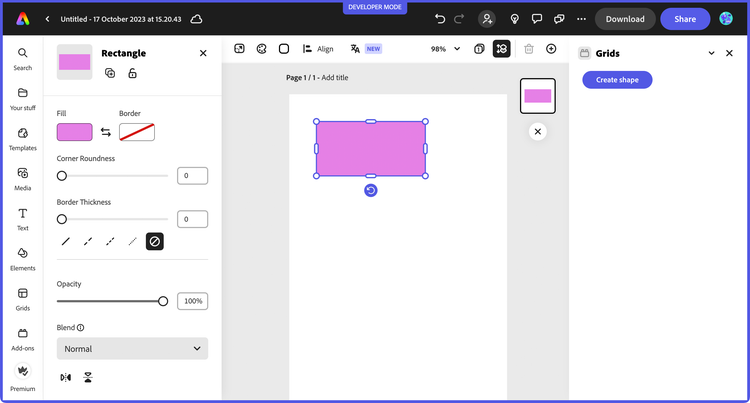
The createShapeButton invokes the createShape() method defined and exposed in code.js (lines 7-19), passing an option object with arbitrary width and height properties. The function reveals key insights about the Document API—let's have a deeper look at the code.
According to the Reference, createRectangle() is a method of the Editor class, which must be imported from "express-document-sdk" with the following statement.
// documentSandbox/code.js

import { editor, colorUtils, constants } from "express-document-sdk";
We'll also make use of colorUtils and constants—they are named imports from "express-document-sdk", too. The createRectangle() function doesn't need any parameter, either required or optional; hence, the properties of this new element must be set after its creation.
// documentSandbox/code.js

const rect = editor.createRectangle();
rect.width = width;
rect.height = height;
rect.translation = { x: 50, y: 50 };
Dimensions and positions are straightforward while assigning a fill color is a two-step process.
// documentSandbox/code.js

const col = colorUtils.fromRGB(0.9, 0.5, 0.9);
const fillColor = editor.makeColorFill(col);
rect.fill = fillColor;
First, you make use of the fromRGB() method from the colorUtils class, which expects four parameters in the (0..1) range: R, G, B and an optional Alpha, and returns a Color instance. Then, you use such color to create either a fill or stroke—here, we're using makeColorFill(). Finally, you set it to the shape by assigning it to the fill property.
data-variant=info
data-slots=text1
editor.makeStroke() method, which accepts more parameters (all optional). It's documented here.The rect object now exists as a RectangleNode instance with a width of 200 pixels, a height of 100, the top-left corner at the coordinate (50, 50) and a pastel pink fill color. But it still needs to be rendered on the page!
// documentSandbox/code.js

// appending the rect object to the scene
editor.context.insertionParent.children.append(rect);
Let's unpack this line. As it usually happens with any DOM (Document Object Model), it's easier if read backwards—from the end to the beginning. We are appending the rect object to the children list of the insertionParent (which is "the preferred parent to insert newly added content into") of the context (the "User's current selection context"), a property of the editor class.2
In other words, we're adding rect as a sibling of whatever happens to be active at the moment: this is what the context.insertionParent.children dance does. If you try to add rect while a shape nested inside a group is selected, then rect will also belong to that group. Please note that Adobe Express documents are based on data structures where instances are appended to collections: you append() a rectangle to a container's children collection.3
Alternatively, you can target the insertion point specifically rather than relying on what happens to be selected at the time of execution. For instance, the following code uses the first Artboard of the active Page.
// ...
const currentPage = editor.context.currentPage; // page
const currentArtboard = currentPage.artboards.first; // artboard
currentArtboard.children.append(rect); // children
// or
editor.context.currentPage.artboards.first.children.append(rect);
Quoting a revealing bit of the Page reference:
A PageNode represents a page in the document. A page contains one or more artboards, representing "scenes" in a linear timeline sequence. Those artboards, in turn, contain all the visual content of the document.
You now understand the fundamentals of the Adobe Express DOM and the hierarchical relations between nodes. You have all the necessary tools to begin coding the Grids add-on; you can always refer to the documentation when needed.
3. Coding the Grids add-on
3.1 Designing the UI with Spectrum Web Components
Although the main subject of this tutorial is the Document API, let's spend a moment discussing the Grid add-on's User Interface. It's built mainly with Spectrum Web Components (see this guide for a refresher on Adobe's UX Guidelines and the use of the Spectrum Design System), in particular:
<sp-number-field>for the Rows and Columns inputs;<sp-slider>for the Gutter;4<sp-swatch>for the color picker;<sp-button-group>and<sp-button>for the CTA buttons.
The layout is based on nested FlexBox CSS classes, such as row and column. Because of the fixed width, margins are tight; the design has also been compacted along the Y-axis for consistency.
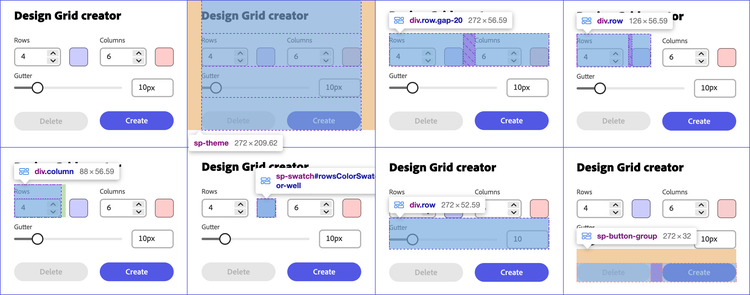
Please remember that any Spectrum Web Component you use must be installed and imported into the project first—refer to the instructions on their official site and this guide. In a nutshell, find the package name in each component's documentation, and then npm install the ones you need.
npm install @spectrum-web-components/button
npm install @spectrum-web-components/action-button
npm install @spectrum-web-components/button-group
npm install @spectrum-web-components/field-label
npm install @spectrum-web-components/number-field
npm install @spectrum-web-components/slider
npm install @spectrum-web-components/swatch
npm install @spectrum-web-components/theme
Finally, import them in the ui/index.js file.
// ui/index.js

import "@spectrum-web-components/styles/typography.css";

import "@spectrum-web-components/theme/src/themes.js";
import "@spectrum-web-components/theme/theme-light.js";
import "@spectrum-web-components/theme/express/theme-light.js";
import "@spectrum-web-components/theme/express/scale-medium.js";
import "@spectrum-web-components/theme/sp-theme.js";

import "@spectrum-web-components/button/sp-button.js";
import "@spectrum-web-components/button-group/sp-button-group.js";
import "@spectrum-web-components/field-label/sp-field-label.js";
import "@spectrum-web-components/number-field/sp-number-field.js";
import "@spectrum-web-components/slider/sp-slider.js";
import "@spectrum-web-components/swatch/sp-swatch.js";
data-variant=warning
data-slots=text1
@spectrum-web-components/button, but you import it as @spectrum-web-components/button/sp-button.js (with the sp- prefix).The only tricky UI bit worth mentioning here is relative to the color pickers. SWC features a variety of color-related components (Color Area, Color Handle, Color Loupe, Color Slider) but not an actual picker. This add-on implements it via a <sp-swatch> for the UI and Adobe Express's built-in Color Picker API, which provides advanced features like recommended swatches, themes, library access, eyedropper tool, and brand colors.
data-slots=heading, code
data-repeat=2
index.html
<!-- index.html -->

<div class="row">
  <!-- ... -->
  <sp-swatch
    id="rowsColorSwatch"
    class="color-well"
  ></sp-swatch>
</div>
ui/index.js
// ui/index.js

// Import the ColorPicker components
import addOnUISdk, {
  ColorPickerEvent,
  ColorPickerPlacement,
} from "https://express.adobe.com/static/add-on-sdk/sdk.js";

// ...

// Ref to the <sp-swatch>
const rowsColorSwatch = document.getElementById("rowsColorSwatch");

// Initialize color and store current value
let rowsColor = "#ccccff";
rowsColorSwatch.color = rowsColor;

// The <sp-swatch> click shows Adobe Express Color Picker
rowsColorSwatch.addEventListener("click", function () {
  addOnUISdk.app.showColorPicker(rowsColorSwatch, {
    title: "Row Grid Color",
    initialColor: rowsColor,
    placement: ColorPickerPlacement.right,
  });
});

// Listen for color change events from the Color Picker
rowsColorSwatch.addEventListener(ColorPickerEvent.colorChange, function (event) {
  rowsColor = event.detail.color;
  rowsColorSwatch.setAttribute("color", rowsColor);
});

// Listen for color picker close events
rowsColorSwatch.addEventListener(ColorPickerEvent.close, function (event) {
  console.log("Color picker closed");
});
The <sp-swatch> click handler invokes Adobe Express's built-in Color Picker using addOnUISdk.app.showColorPicker(). When colors are selected, the ColorPickerEvent.colorChange event is fired, allowing us to update both the stored color value and the <sp-swatch> display. The Color Picker is positioned relative to the anchor element (the swatch) and can be customized with various options. Please note that color values are stored in variables for convenience—this allows easy access when creating the grid. Refer to the source code for other details on the HTML structure, which are not discussed here for brevity's sake.
3.2 Collecting values from the UI
Let's finish the UI, completing the code for ui/index.js. As you can see, it is all standard JavaScript: besides the color pickers we've just discussed, Rows, Columns and Gutter values are initialized (lines 17-19); the Document Sandbox is retrieved, and everything the Document API exposes is stored in the sandboxProxy constant (lines 9-10).
data-slots=heading, code
data-repeat=2
index.html
<!-- index.html -->

<body>
  <sp-theme
    scale="medium"
    color="light"
    system="express"
  >
    <h2>Design Grid creator</h2>
    <div class="row gap-20">
      <div class="row">
        <div class="column">
          <sp-field-label
            for="rows"
            size="m"
            >Rows</sp-field-label
          >
          <sp-number-field
            id="rows"
            min="1"
            max="20"
          >
          </sp-number-field>
        </div>
        <sp-swatch
          id="rowsColorSwatch"
          class="color-well"
        ></sp-swatch>
        <input
          type="color"
          id="rowsColorPicker"
          style="display: none;"
        />
      </div>
      <div class="row">
        <div class="column">
          <sp-field-label
            for="cols"
            size="m"
            >Columns</sp-field-label
          >
          <sp-number-field
            id="cols"
            min="1"
            max="20"
          >
          </sp-number-field>
        </div>
        <sp-swatch
          id="colsColorSwatch"
          class="color-well"
        ></sp-swatch>
        <input
          type="color"
          id="colsColorPicker"
          style="display: none;"
        />
      </div>
    </div>
    <div class="row">
      <sp-slider
        label="Gutter"
        id="gutter"
        variant="filled"
        editable
        hide-stepper
        min="1"
        max="50"
        format-options='{"style": "unit", "unit": "px"}'
        step="1"
      ></sp-slider>
    </div>
    <sp-button-group horizontal>
      <sp-button
        id="deleteGrid"
        variant="secondary"
        disabled
        >Delete</sp-button
      >
      <sp-button
        id="createGrid"
        disabled
        >Create</sp-button
      >
    </sp-button-group>
  </sp-theme>
</body>
ui/index.js
// ui/index.js

// All the SWC imports...

import addOnUISdk, {
  ColorPickerEvent,
  ColorPickerPlacement,
} from "https://express.adobe.com/static/add-on-sdk/sdk.js";

addOnUISdk.ready.then(async () => {
  console.log("addOnUISdk is ready for use.");

  // Get the Document Sandbox.
  const { runtime } = addOnUISdk.instance;
  const sandboxProxy = await runtime.apiProxy("documentSandbox");

  // Input fields -------------------------------------------

  const rowsInput = document.getElementById("rows");
  const colsInput = document.getElementById("cols");
  const gutterInput = document.getElementById("gutter");

  rowsInput.value = 4;
  colsInput.value = 6;
  gutterInput.value = 10;

  // Color pickers ------------------------------------------

  const colsColorPicker = document.getElementById("colsColorPicker");
  const colsColorSwatch = document.getElementById("colsColorSwatch");
  const rowsColorPicker = document.getElementById("rowsColorPicker");
  const rowsColorSwatch = document.getElementById("rowsColorSwatch");

  colsColorPicker.value = "#ffcccc";
  colsColorSwatch.color = "#ffcccc";
  rowsColorPicker.value = "#ccccff";
  rowsColorSwatch.color = "#ccccff";

  colsColorSwatch.addEventListener("click", function () {
    colsColorPicker.click();
  });
  colsColorPicker.addEventListener("input", function (event) {
    const selectedColor = event.target.value;
    colsColorSwatch.setAttribute("color", selectedColor);
  });

  rowsColorSwatch.addEventListener("click", function () {
    rowsColorPicker.click();
  });
  rowsColorPicker.addEventListener("input", function (event) {
    const selectedColor = event.target.value;
    rowsColorSwatch.setAttribute("color", selectedColor);
  });

  // CTA Buttons --------------------------------------------

  const createGridBtn = document.getElementById("createGrid");
  const deleteGridBtn = document.getElementById("deleteGrid");

  deleteGridBtn.onclick = async (event) => {
    const res = await sandboxProxy.deleteGrid();
    if (res) {
      // When there's been an error deleting the grid, you may want to handle it here
    }
    deleteGridBtn.disabled = true;
  };

  createGridBtn.onclick = async (event) => {
    await sandboxProxy.addGrid({
      columns: colsInput.value,
      rows: rowsInput.value,
      gutter: gutterInput.value,
      columnColor: colsColorPicker.value,
      rowColor: rowsColorPicker.value,
    });
    deleteGridBtn.disabled = false;
  };

  // Only now it is safe to enable the button
  createGridBtn.disabled = false;
});
Eventually, the two buttons (Delete and Create) invoke methods exposed by the Document API, respectively deleteGrid() and createGrid(). The latter expects an options object with rows, columns, gutter, columnColor, and rowColor properties.
3.3 Validation and Error Handling
It's worth taking a moment to discuss good validation and error-handling practices at this stage. Just as the QA engineer walking into a bar in the famous joke, you must ensure that user input aligns with what the grid algorithm expects; for example, that it receives unsigned integers.
For this tutorial, we'll limit ourselves to setting min and max values for the Rows, Columns, and Gutter ranges. This will prevent scenarios like creating a negative number of columns. In a typical implementation, you'd want to insert a validation routine before invoking the primary function. Depending on the algorithm's and the UI's complexity, this routine might belong to the iframe, the Document Sandbox, or both. Additionally, apart from validating value type and range, you may want to ensure that the Gutter size is compatible with the chosen number of Rows and Columns to prevent them from overflowing the page dimensions.5
Another crucial notion is to avoid silent failures: every action should either succeed or provide the user with a notification if it doesn't. That's why, for instance, the Delete button is left disabled until a set of grids is created; instead of handling the removal of a non-existent grid, it's preferable to prevent it in the first place.
3.4 Creating Rows and Columns
It makes sense to approach this grid business with some caution, as we're just starting with the Document API. Let's set up documentSandbox/code.js to expose this addGrid() method and manage the argument provided.
data-slots=heading, code
data-repeat=1
documentSandbox/code.js
// documentSandbox/code.js

import addOnSandboxSdk from "add-on-sdk-document-sandbox";
const { runtime } = addOnSandboxSdk.instance;
import { editor, colorUtils, constants } from "express-document-sdk";

function start() {
  runtime.exposeApi({
    addGrid({ columns, rows, gutter, columnColor, rowColor }) {
      console.log("addGrid", columns, rows, gutter, columnColor, rowColor);
    },
  });
}

start();
When the user clicks the Create button, the parameters from the UI are properly collected, passed to addGrid() in the Document Sandbox, and logged. So far, so good, the Communication API does its job.
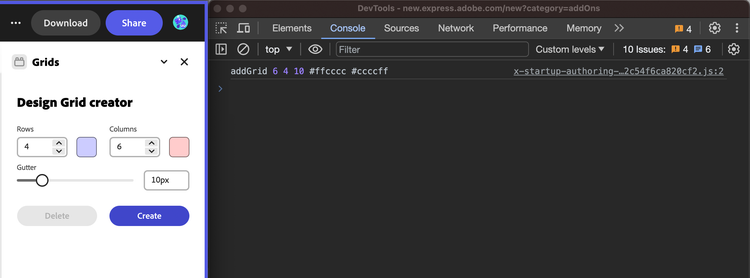
To begin with, we'll create rows: rectangles that must be as wide as the page. To calculate their height, first, subtract the total number of gutters (which is equal to the number of rows plus one) from the page height. Then, divide the resulting value by the number of rows.
rowHeight = (pageHeight - (rowsNumber + 1) * gutter) / rowsNumber;
This is because we're using gutters as page margins, too, as the following illustration shows.
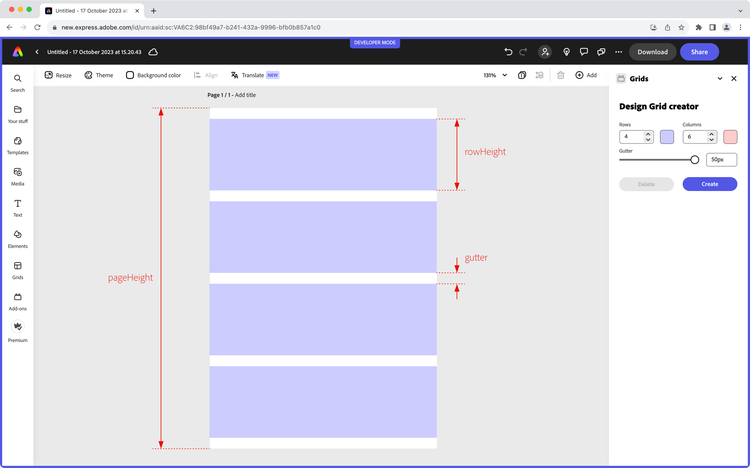
We must get hold of the active Page, via editor.context.currentPage. Page properties like width and height will be used to compute the attributes of each "row" Rectangle.
// documentSandbox/code.js

// ...
runtime.exposeApi({
  addGrid({ columns, rows, gutter, columnColor, rowColor }) {
    const page = editor.context.currentPage;
    const rowWidth = page.width;
    const rowHeight = (page.height - (rowsNumber + 1) * gutter) / rowsNumber;
  },
});
To draw all four (or any number coming from the UI) rectangles at once, a loop is in order.
// documentSandbox/code.js

// ...
var rowsRect = [];
for (let i = 0; i < rows; i++) {
  let r = editor.createRectangle();
  r.width = page.width;
  r.height = rowHeight;
  // moving the row in place
  r.translation = { x: 0, y: gutter + (gutter + rowHeight) * i };
  rowsRect.push(r);
}
// adding the rows to the page
rowsRect.forEach((rect) => page.artboards.first.children.append(rect));
We've created all the needed rectangles, shifting them on the Y-axis according to their number and gutter, collecting them in a rowsRect array; which, in turn, we've looped through to append them all to the first artboard in the page.
data-variant=info
data-slots=text1
append() elements to their container's children property.Using the same principles, we can create columns: rectangles as tall as the page and whose width we can compute.
// documentSandbox/code.js

const page = editor.context.currentPage;
var colsRect = [];
const colWidth = (page.width - (cols + 1) * gutter) / cols;
for (let i = 0; i < cols; i++) {
  let r = editor.createRectangle();
  r.width = colWidth;
  r.height = page.height;
  r.translation = { x: gutter + (gutter + colWidth) * i, y: 0 };
  cols.push(r);
}
cols.forEach((rect) => page.artboards.first.children.append(rect));
We now have most of what is needed to complete the Grids add-on; we're in dire need of a better structure, though.
3.5 Organizing the code
The Grid creation process can be split into smaller, separate steps—we can take this chance to think about how to structure the entire project.
- Creating a rectangle is best handled using a dedicated
createRect()function. - Rows and Columns can be separate processes, too.
code.jsdoesn't need to expose anything else but theaddGrid()anddeleteGrid()methods.addRows()andaddColumns()can belong to theshapeUtils.jsmodule and imported indocumentSandbox/code.js, whilecreateRect()will be kept as private.
data-slots=heading, code
data-repeat=2
documentSandbox/code.js
// documentSandbox/code.js

import addOnSandboxSdk from "add-on-sdk-document-sandbox";
import { editor } from "express-document-sdk";
import { addColumns, addRows } from "./shapeUtils";

// Get the Document Sandbox.
const { runtime } = addOnSandboxSdk.instance;

function start() {
  const sandboxProxy = {
    addGrid({ columns, rows, gutter, columnColor, rowColor }) {
      addRows(rows, gutter, rowColor);
      addColumns(columns, gutter, columnColor);
      // ...
    },
    deleteGrid() {
      // ...
    },
  };
  runtime.exposeApi(sandboxProxy);
}
start();
documentSandbox/shapeUtils.js
// documentSandbox/shapeUtils.js
import { editor, colorUtils, constants } from "express-document-sdk";

// Utility to create a rectangle and fill it with a color.
const createRect = (width, height, color) => {
  const rect = editor.createRectangle();
  rect.width = width;
  rect.height = height;
  // Fill the rectangle with the color.
  const rectangleFill = editor.makeColorFill(colorUtils.fromHex(color));
  rect.fill = rectangleFill;
  return rect;
};

const addRows = (rowsNumber, gutter, color) => {
  const page = editor.context.currentPage;
  var rows = [];
  const rowHeight = (page.height - (rowsNumber + 1) * gutter) / rowsNumber;
  for (let i = 0; i < rowsNumber; i++) {
    let r = createRect(page.width, rowHeight, color);
    r.translation = { x: 0, y: gutter + (gutter + rowHeight) * i };
    rows.push(r);
  }
  rows.forEach((row) => page.artboards.first.children.append(row));
};

const addColumns = (columNumber, gutter, color) => {
  const page = editor.context.currentPage;
  var cols = [];
  const colWidth = (page.width - (columNumber + 1) * gutter) / columNumber;
  for (let i = 0; i < columNumber; i++) {
    let r = createRect(colWidth, page.height, color);
    r.translation = { x: gutter + (gutter + colWidth) * i, y: 0 };
    cols.push(r);
  }
  cols.forEach((col) => page.artboards.first.children.append(col));
};

export { addColumns, addRows };
As planned, createRect() conveniently acts as a rectangles factory function, consumed by addRows() and addColumns(). Since the color is received as a Hex string (like "#ffcccc"), we make use of the colorUtil.fromHex() method to convert into a Color instance—see shapeUtils.js, line 9.
It'd be nice to group rows and columns. The Editor class provides a createGroup() method returning a GroupNode. Like all ContainerNode classes, it has a children property, which we can append rectangles to.
// documentSandbox/shapeUtils.js

const addRows = (rowsNumber, gutter, color) => {
  // ...
  var rows = [];
  // ...

  const rowsGroup = editor.createGroup(); // creating a group
  page.artboards.first.children.append(rowsGroup); // appending to the page
  rowsGroup.children.append(...rows); // appending rectangles
};
// 👆 same in addColumns()
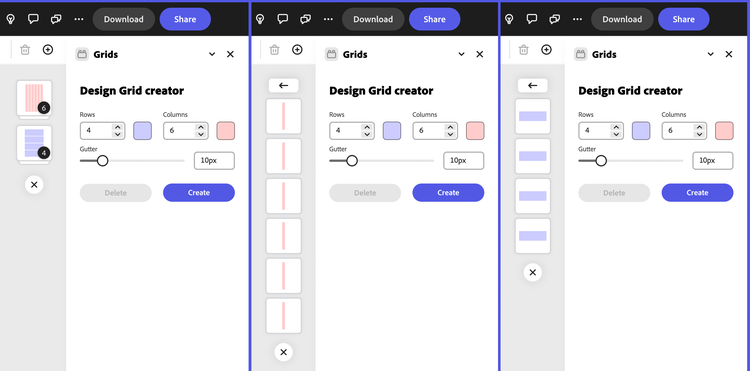
To complete the project, we can add some finishing touches. Groups can be locked: preventing accidental shifts and transformations would be nice indeed. The Reference documentation comes in handy again with the boolean locked property, which we can easily set after populating the group.
// documentSandbox/shapeUtils.js

// ...
rowsGroup.children.append(...rows);
rowsGroup.locked = true;
The Reference also shows an interesting blendMode: setting it to multiply will produce a visually nicer overlay effect (opacity can be an alternative).
// documentSandbox/shapeUtils.js

// ...
rowsGroup.blendMode = constants.BlendMode.multiply;
rowsGroup.locked = true;
At present, the Reference includes only a few enumerations, such as BlendMode. As the Document API expands, more enumerations will be added. They provide sets of named constants, making the code more readable by replacing direct numeric values with descriptive names.
data-variant=warning
data-slots=text1
It would be preferable if a single group contained Rows and Columns; we must edit both addRows() and addColumns() first to return their group in order to reference them in the parent one.
// documentSandbox/shapeUtils.js

const addRows = (rowsNumber, gutter, color) => {
  // ...
  rowsGroup.locked = true;
  return rowsGroup; // 👈 returning the group
};

const addColumns = (columNumber, gutter, color) => {
  // ...
  columnsGroup.locked = true;
  return columnsGroup; // 👈
};
They can be referenced in addGrid(), appending them as children of this new group.
// documentSandbox/code.js

addGrid({ columns, rows, gutter, columnColor, rowColor }) {
	// ...

	const rowGroup = addRows(rows, gutter, rowColor);
	const columnGroup = addColumns(columns, gutter, columnColor);

	// create a parent group
	const gridGroup = editor.createGroup();
	page.artboards.first.children.append(gridGroup);
	gridGroup.children.append(rowGroup, columnGroup); // filling with Rows and Columns
	gridGroup.locked = true;
}
3.6 Deleting Grids
From the users' perspective, it would speed up the testing process of new grid designs if they could clear the current one and experiment with different combinations—that is, a Delete button. You can both add and remove elements to a container object's children list: most Node elements have a removeFromParent() method, which detaches them from their parent container.
gridGroup.removeFromParent(); // voilà
Curb your enthusiasm: if you think about it, there might be an issue lurking here. The process of removing a group is performed at a later time, with respect to its creation: how can we be sure to target the correct container? Groups don't have names or IDs, at least for the time being. Luckily, the code.js file provides an environment that persists in between iframe calls: in other words, you can store the group in a variable and retrieve it later.
// documentSandbox/code.js

let gridRef = null; // 👈 Grids group reference

function start() {
  runtime.exposeApi({
    addGrid({ columns, rows, gutter, columnColor, rowColor }) {
      // ...
      const gridGroup = editor.createGroup();
      // ...
      gridRef = gridGroup; // 👈 storing the group for later
    },
    deleteGrid() {
      if (gridRef) {
        try {
          gridRef.removeFromParent(); // 👈 removing from the document
          gridRef = null; //    clearing the reference
        } catch (error) {
          console.error(error);
          return "Error: the Grid could not be deleted.";
        }
      }
    },
  });
}
start();
Although not exposed through the Communication API, the gridRef variable is private to code.js, and exists within the closure of the functions defined inside and exposed by runtime.exposeApi().6
4. Wrapping Up
4.1 Next Steps
Congratulations! You've coded from scratch the Grids Design System add-on. This proof-of-concept may be extended to make it even more useful as a product; you may implement the following features as an exercise.
- Page margins: we're using the gutter for this purpose, but a proper
<sp-number-field>can be added to allow users to set margins. - Visibility toggle: Use a
<sp-slider>to control the grid's opacity, or add a<sp-switch>to toggle them on and off. - Presets: a dropdown menu might store commonly used grid sets—use a
<sp-picker>and the Client Storage API.
4.2 Lessons Learned
Let's review the concepts covered in this tutorial and how they've been implemented in the Grids add-on.
- The iframe and the Document Sandbox are two distinct entities able to share contexts via the Communication API. We've used the
exposeApi()method of theruntimeobject to allow the iframe to invoke functions in the Document API domain. - The Document API provides access to Adobe Express' Document Object Model, which defines containment structures and inheritance hierarchies. We've retrieved the document, its pages, and artboards; created, moved and assigned blending modes to shapes; created, populated and locked groups.
- Nodes (elements) in Adobe Express documents can be added to the document in a position relative to the currently active selection or targeting a container as the insertion point; we've seen how
ContainerNodeelements have achildrencollection toappend()elements to. - The Document API context is permanent in between iframe calls. We've seen that it's possible to store a reference to a Node within the exposed methods' closure and act upon it after its creation.
- Spectrum Web Components are crucial to UI building, but sometimes they require integration with platform APIs; in this project, we've linked a
<sp-swatch>to Adobe Express's built-in Color Picker API to provide users with advanced color selection features like recommended swatches, themes, library access, and brand colors.
4.3 FAQs
Q: What does this tutorial teach me to build?
A: A fully functional Grid System add-on that creates rows, columns, spacing (gutters), and color overlays.
Q: What's the difference between iframe and Document Model Sandbox?
A: iframe hosts the UI and logic; Document Model Sandbox allows direct document manipulation via the Document API.
Q: What are the prerequisites for this tutorial?
A: HTML/CSS/JavaScript knowledge, Adobe Express add-ons familiarity, Adobe Express account, and Node.js 20+.
Q: How do I get the project files?
A: Clone the GitHub repository or download ZIP from express-add-on-samples/document-sandbox-samples/express-grids-addon.
Q: What UI framework does this tutorial use?
A: Spectrum Web Components for consistent Adobe design system integration.
Q: How does communication work between iframe and sandbox?
A: Through the Communication API that connects the iframe UI with the Document Model Sandbox.
Q: What Document API concepts are covered?
A: Node insertion, creating/manipulating shapes, grouping elements, context permanence, and color management.
Q: Can I start from a blank template instead?
A: Yes, use the express-addon-document-api-template but manually add shapeUtils.js and Spectrum imports.
4.4 Troubleshooting
This section covers common issues and solutions that may arise when building this add-on or similar Document API projects.
Communication API Issues
Problem: Methods can't call each other using this with arrow functions.
// ❌ This won't work
runtime.exposeApi({
  log: (...args) => console.log(...args),
  createShape: (shape) => {
    this.log("Shape created."); // Error: 'this' is undefined
  },
});
Solution: Use method shorthand syntax to provide proper this reference.
// ✅ This works
runtime.exposeApi({
  log(...args) {
    console.log(...args);
  },
  createShape(shape) {
    this.log("Shape created."); // Works correctly
  },
});
UI State Management Issues
Problem: Interactive elements are enabled before SDK is ready, causing errors.
Solution: Always disable interactive elements initially and enable them only after SDK initialization.
// ❌ Don't do this
<sp-button id="createGrid">Create</sp-button>

// ✅ Do this instead
<sp-button id="createGrid" disabled>Create</sp-button>

// Then in JavaScript:
addOnUISdk.ready.then(async () => {
  // ... setup code ...
  createGridBtn.disabled = false; // Enable only when ready
});
Spectrum Web Components Import Errors
Problem: Import names don't match package names.
Solution: Note the difference between package installation and import paths.
# Install this
npm install @spectrum-web-components/button

# But import this (note the sp- prefix)
import "@spectrum-web-components/button/sp-button.js";
Validation and Error Handling
Problem: Users can input invalid values causing runtime errors.
Solution: Implement proper validation and avoid silent failures.
// Set min/max values in HTML
<sp-number-field id="rows" min="1" max="20"></sp-number-field>

// Validate in Document API
addGrid({ columns, rows, gutter, columnColor, rowColor }) {
  if (rows < 1 || columns < 1 || gutter < 1) {
    console.error("Invalid input values");
    return "Error: Invalid parameters";
  }
  // ... rest of implementation
}

// Disable buttons when operations aren't available
deleteGridBtn.disabled = true; // Disable when no grid exists
Element Rendering Issues
Problem: Created elements don't appear in the document.
Solution: Always append elements to their container's children property.
// ❌ This creates but doesn't render
const rect = editor.createRectangle();
rect.width = 200;
rect.height = 100;

// ✅ This creates AND renders
const rect = editor.createRectangle();
rect.width = 200;
rect.height = 100;
editor.context.insertionParent.children.append(rect); // Must append!
Color Handling Problems
Problem: Colors from UI don't work directly with Document API.
Solution: Convert hex strings using colorUtils.fromHex().
// ❌ This won't work
rect.fill = "#ff0000";

// ✅ This works
const color = colorUtils.fromHex("#ff0000");
const fillColor = editor.makeColorFill(color);
rect.fill = fillColor;
Enum Value Errors
Problem: Hard-coding enum values breaks when API changes.
Solution: Use named constants from the constants object.
// ❌ Don't hard-code enum values
group.blendMode = 3; // Fragile - could change

// ✅ Use named constants
group.blendMode = constants.BlendMode.multiply; // Safe
Reference Management Issues
Problem: Can't delete or modify elements created earlier.
Solution: Store references to nodes for later manipulation.
let gridRef = null; // Store reference

function addGrid() {
  const gridGroup = editor.createGroup();
  // ... populate group ...
  gridRef = gridGroup; // Save for later
}

function deleteGrid() {
  if (gridRef) {
    try {
      gridRef.removeFromParent();
      gridRef = null; // Clear reference
    } catch (error) {
      console.error("Failed to delete grid:", error);
      return "Error: Grid could not be deleted";
    }
  }
}
5. Final Project
The code for this project can be downloaded here. It's available in two states: the starting point (one Create Shape button in the UI and the respective Document API function) if you want to follow along with the tutorial and type in the code—the best way to learn—and the final state, which code is also found below for convenience.
5.1 Complete Code
data-slots=heading, code
data-repeat=5
data-languages=index.html, index.js, styles.css, code.js, shapeUtils.js
iframe
<!DOCTYPE html>
<html lang="en">
  <head>
    <meta charset="UTF-8" />
    <meta
      name="description"
      content="Adobe Express Add-on tutorial using JavaScript and the Document Sandbox"
    />
    <meta
      name="keywords"
      content="Adobe, Express, Add-On, JavaScript, Document Sandbox, Adobe Express Document API"
    />
    <meta
      name="viewport"
      content="width=device-width, initial-scale=1.0"
    />
    <title>Grids add-on</title>
    <link
      rel="stylesheet"
      href="styles.css"
    />
  </head>

  <body>
    <sp-theme
      scale="medium"
      color="light"
      system="express"
    >
      <h2>Design Grid creator</h2>
      <div class="row gap-20">
        <div class="row">
          <div class="column">
            <sp-field-label
              for="rows"
              size="m"
              >Rows</sp-field-label
            >
            <sp-number-field
              id="rows"
              min="1"
              max="20"
            >
            </sp-number-field>
          </div>
          <sp-swatch
            id="rowsColorSwatch"
            class="color-well"
          ></sp-swatch>
        </div>
        <div class="row">
          <div class="column">
            <sp-field-label
              for="cols"
              size="m"
              >Columns</sp-field-label
            >
            <sp-number-field
              id="cols"
              min="1"
              max="20"
            >
            </sp-number-field>
          </div>
          <sp-swatch
            id="colsColorSwatch"
            class="color-well"
          ></sp-swatch>
        </div>
      </div>
      <div class="row">
        <sp-slider
          label="Gutter"
          id="gutter"
          variant="filled"
          editable
          hide-stepper
          min="1"
          max="50"
          format-options='{"style": "unit", "unit": "px"}'
          step="1"
        ></sp-slider>
      </div>
      <sp-button-group horizontal>
        <sp-button
          id="deleteGrid"
          variant="secondary"
          disabled
          >Delete</sp-button
        >
        <sp-button
          id="createGrid"
          disabled
          >Create</sp-button
        >
      </sp-button-group>
    </sp-theme>
  </body>
</html>
iframe
import "@spectrum-web-components/styles/typography.css";

import "@spectrum-web-components/theme/src/themes.js";
import "@spectrum-web-components/theme/theme-light.js";
import "@spectrum-web-components/theme/express/theme-light.js";
import "@spectrum-web-components/theme/express/scale-medium.js";
import "@spectrum-web-components/theme/sp-theme.js";

import "@spectrum-web-components/button/sp-button.js";
import "@spectrum-web-components/button-group/sp-button-group.js";
import "@spectrum-web-components/field-label/sp-field-label.js";
import "@spectrum-web-components/number-field/sp-number-field.js";
import "@spectrum-web-components/slider/sp-slider.js";
import "@spectrum-web-components/swatch/sp-swatch.js";

import addOnUISdk, {
  ColorPickerEvent,
  ColorPickerPlacement,
} from "https://express.adobe.com/static/add-on-sdk/sdk.js";

addOnUISdk.ready.then(async () => {
  console.log("addOnUISdk is ready for use.");

  // Get the Document Sandbox.
  const { runtime } = addOnUISdk.instance;
  const sandboxProxy = await runtime.apiProxy("documentSandbox");

  // Input fields -------------------------------------------

  const rowsInput = document.getElementById("rows");
  const colsInput = document.getElementById("cols");
  const gutterInput = document.getElementById("gutter");

  rowsInput.value = 4;
  colsInput.value = 6;
  gutterInput.value = 10;

  // Color pickers ------------------------------------------

  const colsColorSwatch = document.getElementById("colsColorSwatch");
  const rowsColorSwatch = document.getElementById("rowsColorSwatch");

  // Initialize colors and store current values
  let colsColor = "#ffcccc";
  let rowsColor = "#ccccff";

  colsColorSwatch.color = colsColor;
  rowsColorSwatch.color = rowsColor;

  // Setup color picker for columns
  colsColorSwatch.addEventListener("click", function () {
    addOnUISdk.app.showColorPicker(colsColorSwatch, {
      title: "Column Grid Color",
      initialColor: colsColor,
      placement: ColorPickerPlacement.right,
    });
  });

  colsColorSwatch.addEventListener(ColorPickerEvent.colorChange, function (event) {
    colsColor = event.detail.color;
    colsColorSwatch.setAttribute("color", colsColor);
  });

  colsColorSwatch.addEventListener(ColorPickerEvent.close, function (event) {
    console.log("Columns color picker closed");
  });

  // Setup color picker for rows
  rowsColorSwatch.addEventListener("click", function () {
    addOnUISdk.app.showColorPicker(rowsColorSwatch, {
      title: "Row Grid Color",
      initialColor: rowsColor,
      placement: ColorPickerPlacement.right,
    });
  });

  rowsColorSwatch.addEventListener(ColorPickerEvent.colorChange, function (event) {
    rowsColor = event.detail.color;
    rowsColorSwatch.setAttribute("color", rowsColor);
  });

  rowsColorSwatch.addEventListener(ColorPickerEvent.close, function (event) {
    console.log("Rows color picker closed");
  });

  // CTA Buttons --------------------------------------------

  const createGridBtn = document.getElementById("createGrid");
  const deleteGridBtn = document.getElementById("deleteGrid");

  deleteGridBtn.onclick = async (event) => {
    const res = await sandboxProxy.deleteGrid();
    if (res) {
      // When there's been an error deleting the grid, you may want to handle it here
    }
    deleteGridBtn.disabled = true;
  };

  createGridBtn.onclick = async (event) => {
    await sandboxProxy.addGrid({
      columns: colsInput.value,
      rows: rowsInput.value,
      gutter: gutterInput.value,
      columnColor: colsColor,
      rowColor: rowsColor,
    });
    deleteGridBtn.disabled = false;
  };

  // Only now it is safe to enable the button
  createGridBtn.disabled = false;
});
iframe
body {
  margin: 0;
  padding: 0;
  overflow-x: hidden;
}

sp-theme {
  margin: 0 var(--spectrum-global-dimension-static-size-300);
  display: grid;
}

.row {
  display: flex;
  flex-direction: row;
  justify-content: space-between;
  width: 100%;
  align-items: flex-end;
}

.gap-20 {
  gap: var(--spectrum-global-dimension-static-size-250);
}

.gutter-row {
  display: flex;
  flex-direction: row;
  justify-content: flex-end;
  width: 100%;
  align-items: flex-start;
  border: 1px solid black;
  margin-bottom: var(--spectrum-global-dimension-static-size-150);
}

.column {
  display: flex;
  flex-direction: column;
  padding-right: var(--spectrum-global-dimension-static-size-100);
  width: var(--spectrum-global-dimension-static-size-1000);
}

h2 {
  font-weight: var(--spectrum-global-font-weight-black);
}

sp-swatch {
  width: var(--spectrum-swatch-size-medium);
}

.color-well {
  cursor: pointer;
  --mod-swatch-border-thickness: var(--spectrum-divider-thickness-small);
  --mod-swatch-border-color: var(--spectrum-transparent-black-500);
}

sp-button {
  flex: 1;
  max-width: calc(
    (100% - var(--spectrum-global-dimension-static-size-250)) / 2
  );
}

sp-number-field,
sp-slider {
  width: 100%;
}

sp-button-group {
  margin-top: var(--spectrum-global-dimension-static-size-300);
  width: 100%;
  display: flex;
  justify-content: space-between;
}
Document API
import addOnSandboxSdk from "add-on-sdk-document-sandbox";
import { editor } from "express-document-sdk";
import { addColumns, addRows } from "./shapeUtils";

// Get the Document Sandbox.
const { runtime } = addOnSandboxSdk.instance;

let gridRef = null;

function start() {
  // APIs to be exposed to the UI runtime
  runtime.exposeApi({
    /**
     * Add a grid to the document.
     *
     * @param {Object} options - The options for the grid.
     * @param {number} options.columns - The number of columns in the grid.
     * @param {number} options.rows - The number of rows in the grid.
     * @param {number} options.gutter - The size of the gutter between columns and rows.
     * @param {string} options.columnColor - The color of the columns.
     * @param {string} options.rowColor - The color of the rows.
     * @returns {Group} The group containing the grid.
     */
    addGrid({ columns, rows, gutter, columnColor, rowColor }) {
      // Get the active page.
      const page = editor.context.currentPage;
      // Create the grid.
      const rowGroup = addRows(rows, gutter, rowColor);
      const columnGroup = addColumns(columns, gutter, columnColor);

      // Create the grid's group.
      const gridGroup = editor.createGroup();
      page.artboards.first.children.append(gridGroup);
      gridGroup.children.append(rowGroup, columnGroup);
      gridGroup.locked = true;

      // Save the grid reference.
      gridRef = gridGroup;
    },

    /**
     * Delete the grid from the document.
     * @returns {void}
     */
    deleteGrid() {
      if (gridRef) {
        try {
          gridRef.removeFromParent();
          gridRef = null;
        } catch (error) {
          console.error(error);
          return "Error: the Grid could not be deleted.";
        }
      }
    },
  });
}

start();
Document API
import { editor, colorUtils, constants } from "express-document-sdk";

/**
 * Create a rectangle with the specified width, height, and color.
 * Private utility of the shapeUtils module.
 *
 * @param {number} width - The width of the rectangle.
 * @param {number} height - The height of the rectangle.
 * @param {string} color - The color of the rectangle in hex format.
 * @returns {RectangleNode} The created rectangle.
 */
const createRect = (width, height, color) => {
  const rect = editor.createRectangle();
  rect.width = width;
  rect.height = height;
  const rectangleFill = editor.makeColorFill(colorUtils.fromHex(color));
  rect.fill = rectangleFill;
  return rect;
};

/**
 * Add rows of rectangles to the document.
 *
 * @param {number} rowsNumber - The number of rows to add.
 * @param {number} gutter - The size of the gutter between rows.
 * @param {string} color - The color of the rows in hex format.
 * @returns {GroupNode} A group containing the created rows.
 */
const addRows = (rowsNumber, gutter, color) => {
  const page = editor.context.currentPage;

  var rows = [];
  const rowHeight = (page.height - (rowsNumber + 1) * gutter) / rowsNumber;
  // Create the rectangles
  for (let i = 0; i < rowsNumber; i++) {
    let r = createRect(page.width, rowHeight, color);
    r.translation = { x: 0, y: gutter + (gutter + rowHeight) * i };
    rows.push(r);
  }
  // Append the rectangles to the document
  rows.forEach((row) => page.artboards.first.children.append(row));
  // Create the group
  const rowsGroup = editor.createGroup();
  // Append the group to the document
  page.artboards.first.children.append(rowsGroup);
  // Populate the group with the rectangles
  rowsGroup.children.append(...rows);
  // Edit the group's properties
  rowsGroup.blendMode = constants.BlendMode.multiply;
  rowsGroup.locked = true;
  return rowsGroup;
};

/**
 * Add columns of rectangles to the document.
 *
 * @param {number} columsNumber - The number of columns to add.
 * @param {number} gutter - The size of the gutter between columns.
 * @param {string} color - The color of the columns in hex format.
 * @returns {GroupNode} A group containing the created columns.
 */
const addColumns = (columsNumber, gutter, color) => {
  const page = editor.context.currentPage;
  var cols = [];
  const colWidth = (page.width - (columsNumber + 1) * gutter) / columsNumber;
  // Create the rectangles
  for (let i = 0; i < columsNumber; i++) {
    let r = createRect(colWidth, page.height, color);
    r.translation = { x: gutter + (gutter + colWidth) * i, y: 0 };
    cols.push(r);
  }
  // Append the rectangles to the document
  cols.forEach((col) => page.artboards.first.children.append(col));
  // Create the group
  const columnsGroup = editor.createGroup();
  // Append the group to the document
  page.artboards.first.children.append(columnsGroup);
  // Populate the group with the rectangles
  columnsGroup.children.append(...cols);
  // Edit the group's properties
  columnsGroup.blendMode = constants.BlendMode.multiply;
  columnsGroup.locked = true;
  return columnsGroup;
};

export { addColumns, addRows };
data-slots=list
data-repeat=13
data-summary=Click here to see the Changelog
5.2 Changelog
- Updated dependencies in
package.json. - The project now uses the Adobe Express native Color Picker instead of the hidden
<input>element workaround.
- Added additional information on the project's setup.
- Renamed
createStroke()tomakeStroke(): according to the new naming convention,make*is used for plain objects and helper utilities, whereascreate*is reserved to live document objects, e.g.,createEllipse(). - Improved explanations for importing Spectrum Web Components.
- Removed the experimental warning from the document model sandbox APIs.
- Importing
colorUtilsinstead ofutilsfrom"express-document-sdk"; the built-incolorUtils.fromHex()method replaces the customhexToColor(). - In the new API, nodes don't have the
fillsproperty (and it'sappend()method) anymore; instead, they usefill, to which aColorFillis assigned.
apiProxy()now accepts"documentSandbox"as a parameter, instead of"script".manifest.jsonnow accepts"documentSandbox"in lieu of the"script"property for the document sandbox entry point. This requires the"@adobe/ccweb-add-on-scripts"dependency to be updated to version"^1.1.0"or newer in thepackage.jsonfile.addOnSandboxSdkis now imported from"add-on-sdk-document-sandbox"(it used to be"AddOnScriptSdk").editorand other modules are now imported from"express-document-sdk"(it used to be"express").- The
webpack.config.jsfile has been updated to reflect the new imports (see theexternalsobject) in both theexpress-grids-addonandexpress-addon-document-api-templateprojects. Constantsare nowconstants(lowercase), and their enumerations have changed (e.g.,BlendModeValueis nowBlendMode).translateXandtranslateYhave conflated in the newtranslationproperty.- The group's warning about the operations order (create, append, fill) has been removed; groups can now be created, filled and appended.
- Editor API are now called the Document API, which are part of the Document Model Sandbox.
- Update the add-on folders to reflect the new naming convention (
scriptis nowdocumentSandbox). - Update Reference Documentation links and screenshots.
- First publication.
Footnotes
-
Alternatively, you can use this blank template and start from scratch, but you'd need to manually add the
documentSandbox/shapeUtils.jsfile and the various Spectrum imports. ↩ -
The quotes are from the Documentation Reference of each element. ↩
-
The terms "list" is used in the Adobe Express reference documentation, while "collection" may be more familiar to CEP/UXP developers; they are used interchangeably here. ↩
-
It could have been another
<sp-number-field>, but a slider played well with the overall design. ↩ -
For example, you may want to retrieve the page's
widthandheightproperties at the beginning, and use them in the rest of the code. ↩ -
Future versions of the Document API may provide more deliberate ways to refer to elements. ↩