Comments and Markup
The Embed API provides the capability to add comments to PDF documents using the commenting and markup tools. You can add comments with add text comment tool, sticky notes, highlights, drawing tool, strikethrough and underline text. In addition to these tools, there is also an eraser tool which can be used to erase parts of drawing annotations. In addition to these, there are undo and redo tools available in the top bar.
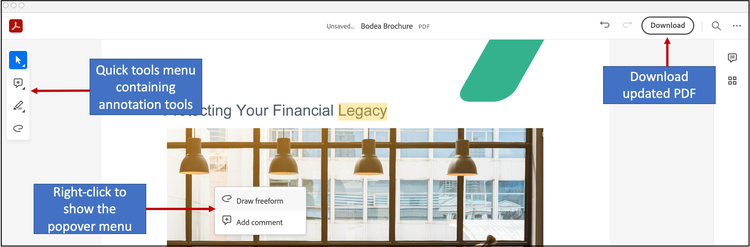
Single line implementation
You can enable/disable commenting tools with a single line. Commenting is enabled by default with the Embed API and the commenting tools are displayed in the top bar. You can disable commenting by adding showAnnotationTools: false (line 9) to the previewConfig object in the embedded JavaScript.
<div id="adobe-dc-view"></div>
<script src="https://acrobatservices.adobe.com/view-sdk/viewer.js"></script>
<script type="text/javascript">
document.addEventListener("adobe_dc_view_sdk.ready", function () {
   var adobeDCView = new AdobeDC.View({clientId: "<YOUR_CLIENT_ID>", divId: "adobe-dc-view"});
   adobeDCView.previewFile({
     content:{location: {url: "https://acrobatservices.adobe.com/view-sdk-demo/PDFs/Bodea Brochure.pdf"}},
     metaData:{fileName: "Bodea Brochure.pdf"}
   }, {showAnnotationTools: false});
});
</script>
<!--Get the samples from https://www.adobe.com/go/pdfembedapi_samples-->
Commenting feature overview
The basic commenting features supported by Embed API include:
- Adding text comments, sticky notes, highlights, underlines, strikethroughs, drawing markups, etc.
- Updating annotations
- Removing annotations
- Replying to annotations
All the annotation types provided by PDF Embed API deliver the following functionality:
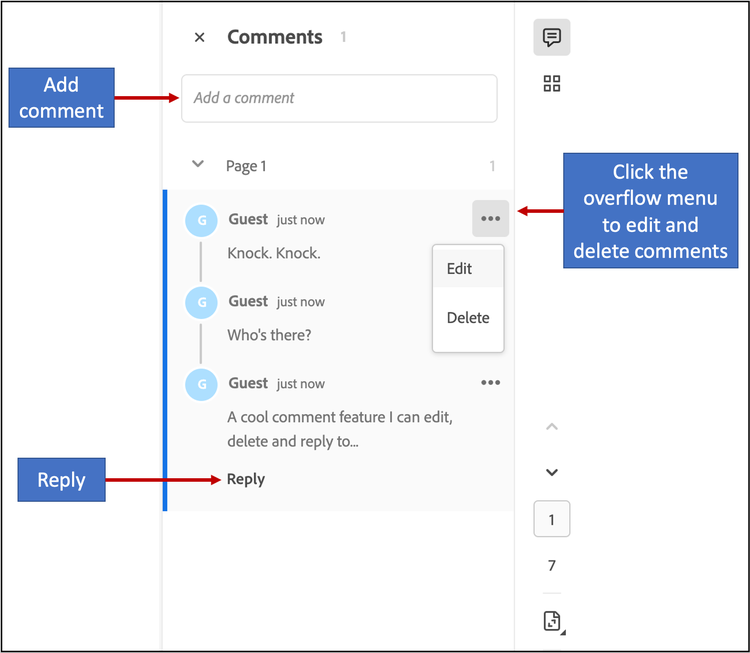
- Support for adding replies to annotations so that document recipients can respond to the author’s original markup. All comments appear in the right-hand comments panel.
- Adding or updating any annotation enables the Save or Download button.
- Once saved, the annotation is added to the PDF and becomes part of the PDF buffer.
Add text comments
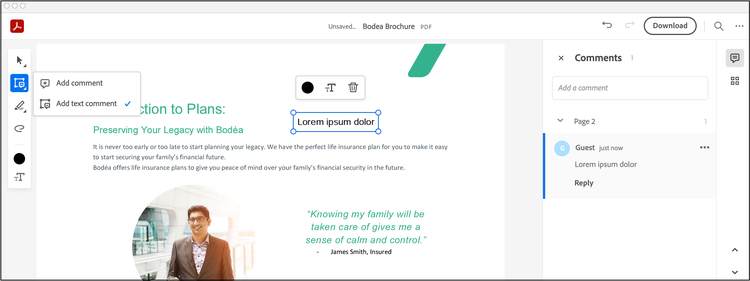
Users can add freehand text anywhere on a PDF page as follows: Select the Add text comment tool from the quick tools menu on the left-hand side, click on the page to place the cursor and type in your desired text. Click outside the text box to add the annotation. A comment with the same text also appears on the right-hand comments panel. Features include:
-
Updating a text comment: Click on an existing text comment to edit the text or change any of the text attributes from the toolbar. You can change attributes such as color and font size of the text comment. Note: The display of the text size is relative to the PDF zoom level. Text can also be edited by clicking on the Edit option in the overflow menu for the associated comment in the comments panel.
-
Removing a text comment:
- Click any existing text comment in the PDF to open the toolbar, and choose Delete.
- Alternatively, click the overflow menu for the associated comment in the comments panel, and choose Delete.
-
Moving or resizing a text comment: Place the cursor on an existing text comment and move the text to a different location on the same PDF page. You can also drag one of the corner circles of the text box to resize.
Sticky notes
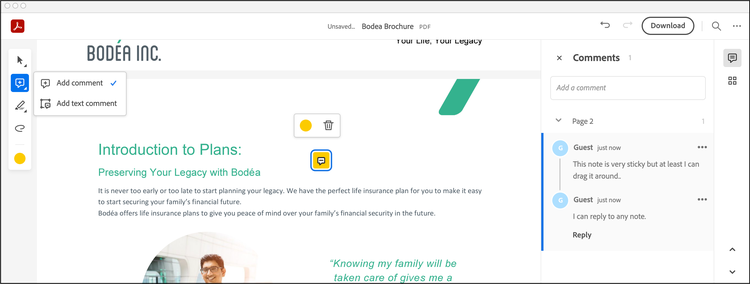
Use the sticky note to add a text message and place it anywhere on the PDF. There is no support for resizing. Features include:
-
Adding a sticky note
- Select the Add comment tool from the quick tools menu on the left-hand side and click where you want to place the note. This opens a comment box where you can type in some text. Click Post to add the comment.
- You can also add a sticky note by performing right-click and selecting Add comment option from the popover menu.
-
Updating a sticky note
- Click on an existing sticky note to open a toolbar to change the color of the note.
- Edit the comment by clicking on the Edit option in the overflow menu in the comments panel.
-
Removing a sticky note
- Click on an existing sticky note to open the toolbar and click on delete option to remove the note.
- Alternatively, click on the overflow menu for the comment in the comments panel and click on the Delete option.
-
Moving a sticky note: Place the cursor over an existing sticky note and drag to move it to some other location.
Text markup annotations
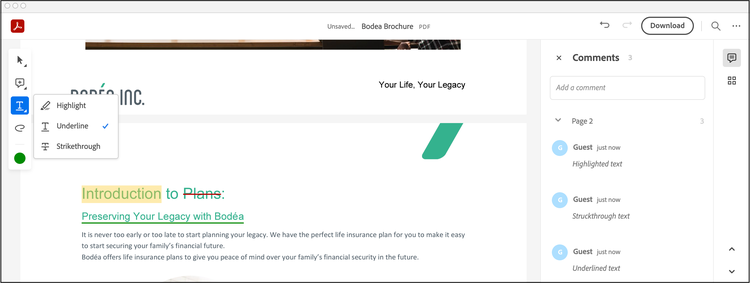
Embed API supports the following text markup annotation types - highlight, strikethrough, and underline. Features include:
-
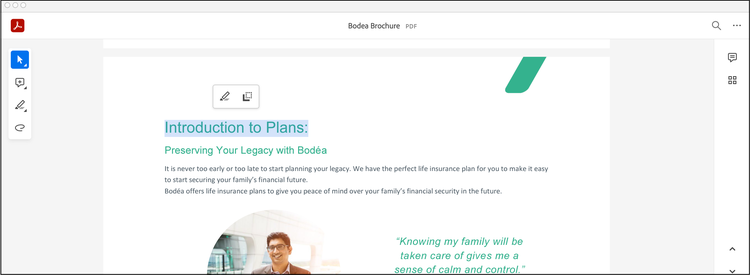
Adding a text markup: There are two ways to add a text markup:
- Click the highlight/underline/strikethrough tool in the quick tools menu on the left-hand side and select some text. The text gets highlighted and a comment box opens up where you can type in some text.
- Select some text. Select the highlight text option from the context menu. The markup is added and a comment box opens up where you can type in some text.
-
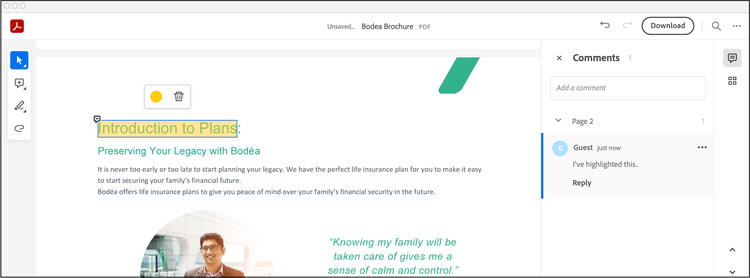
Updating a text markup: While moving or resizing text markup is unsupported, you can:
- Click on an existing text markup to open a toolbar to change the color.
- You can edit the comment by clicking on the Edit option in the overflow menu in the comments panel.
-
Removing a text markup
- Click on an existing text markup to open the toolbar, and choose Delete.
- Click on the overflow menu for the comment in the comments panel, and choose Delete.
Drawing tool
Use this tool to create any freehand drawing or shape. Features include:
-
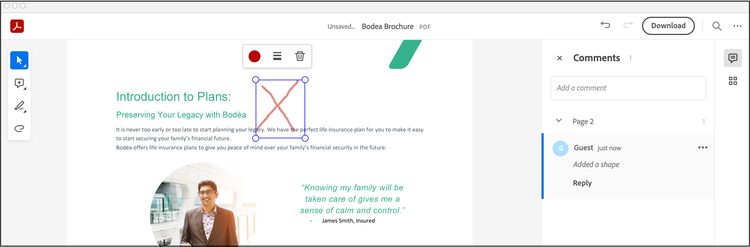
Adding a drawing
- Select the drawing tool from the quick tools menu on the left-hand side, click where you want to begin drawing and drag to create a shape. You can release the mouse button, move the pointer to a new location, and continue drawing. The drawing gets added along with a default comment in the comments panel.
- You can also add a drawing by performing right-click and selecting Draw freeform option from the popover menu.
-
Updating a drawing
- Click on an existing drawing to display the toolbar. You can change attributes such as color and stroke width.
- You can edit the comment by clicking on the Edit option in the overflow menu in the comments panel.
-
Removing a drawing
- Click on an existing drawing to display the toolbar and click on the delete option.
- Alternatively, click on the overflow menu for the comment in the comments panel and click on the Delete option.
-
Moving or resizing a drawing
- Place the cursor over a drawing and drag to move it to a different location.
- Place the cursor over a drawing and drag one of the corner circles to resize the annotation.
Eraser tool
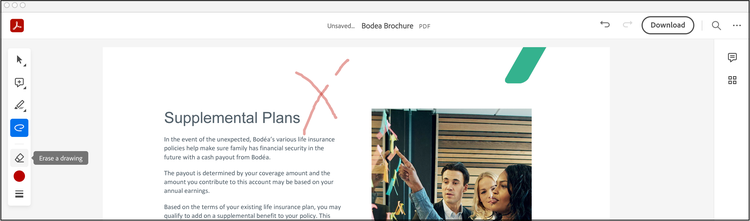
This tool can be used to erase parts of freehand drawing annotations you added via the drawing tool.
Select the eraser tool from the quick tools menu on the left-hand side and drag it across the areas of the drawings that you wish to remove. The updated drawing annotation is saved to the PDF.
- Parts of a single drawing or multiple drawings can be erased at the same time. The corresponding drawings are updated in the PDF.
- If the entire drawing is erased, then that particular drawing gets removed from the PDF.
Undo or Redo changes
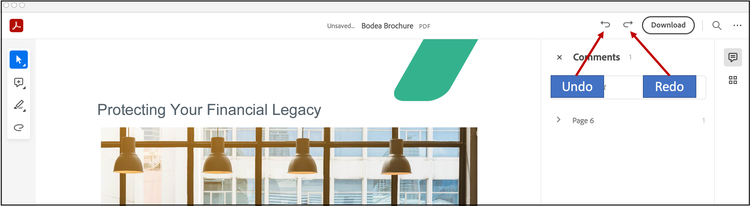
You can reverse the previous action by using the Undo tool in the top bar. Each undo command reverses one action. Continue clicking Undo to remove as many of the previous actions as necessary.
Use the Redo tool to reverse the action of the undo command.
Select text
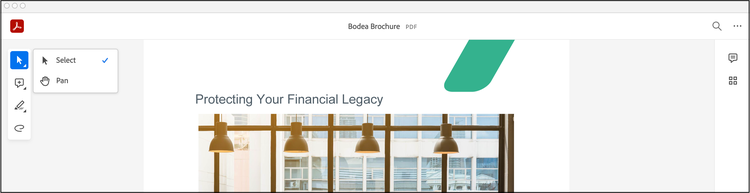
There are a couple of select text options available in the quick tools menu. Choose Select option to select some text in the document and Pan option to drag and pan the entire document.
Annotations API overview
The annotations API supports programmatic importing, creating, deleting, updating, and exporting both comments (sticky notes) and other types of markup such as highlight, underline and strikethrough. The PDF Embed API provides two configuration variables to enable and control annotations:
enableAnnotationAPIs: Default is false. true enables the APIs. The client's application passes the annotations and PDF buffer to the PDF Embed API which renders it in the browser.includePDFAnnotations: Default is false. When true, the API displays existing annotations. Supported annotations can be modified and unsupported annotations are read only. Annotation modifications enable the Save or Download button so that add, update, and delete actions may be saved to the PDF.
data-slots=text
enableAnnotationAPIs is true, adding or updating annotations does not alter the original PDF content. When both these variables are true, the APIs alter the original PDF.Both variables may be passed as a preview configuration to the previewFile API.
Preview configuration
{
  enableAnnotationAPIs: <Boolean, default=false>,
  includePDFAnnotations: <Boolean, default=false>
}
Since these variables interact with each other, there are several scenarios:
- If the annotation APIs are not enabled (
enableAnnotationAPIs: false), thenincludePDFAnnotationsis ignored. - If annotations APIs are enabled (
enableAnnotationAPIs: true) andincludePDFAnnotations: false, then:
- The PDF Embed API does not display existing annotations, but will display new ones.
- Any annotation added or updated either from the UI or API is not saved to the PDF buffer; therefore, no Save or Download button appears in the top bar.
- If both
enableAnnotationAPIsandincludePDFAnnotationsare true, then:
- Any existing annotation the PDF Embed API supports is displayed and accessible through these APIs. Note that unsupported annotations appear in read-only mode and are not accessible to the APIs.
- Any annotation added or updated from UI or API is saved to the PDF buffer, and the Save or Download button is enabled when the PDF has unsaved changes.
Annotation schema
Annotation data passed to or sent from any API should exist in a well known and widely accepted standard format. In support of standards and global adoption then, the PDF Embed API supports a strict subset of the Web Annotations Data Model (a W3C recommendation). The Web Annotations Data Model specification provides comprehensive information about a resource or associations between resources.
The PDF Embed API's annotation model therefore requires the following key fields:
{
  "@context": [
     "https://www.w3.org/ns/anno.jsonld",
     "https://comments.acrobat.com/ns/anno.jsonld"
   ],
  "type": "Annotation",
  "id": <ANNOTATION_ID>,
  "bodyValue": String,
  "motivation": String,
  "stylesheet": {
     "type": "CssStylesheet",
     "value": <CSS_DEFINITION>,
  },
  "target": <target-node> OR <target-reply>,
  "creator": {
     "type": "Person",
     "name": String,
   },
  "created": DateTime,
  "modified": DateTime,
}
Annotations data parameters
target-node for a comment or target-reply for reply to an annotation.id in the metadata field in the previewFile API.If the annotation is a comment on the PDF, then the value of the target parameter is target-node as follows:
{
 "source": <FILE_ID>,
 "selector": {
   "type": "AdobeAnnoSelector",
   "subtype" : "note" | "strikeout" | "highlight" | "underline" | "shape",
   "node": {
      "index": <PAGE_INDEX>
   },
   "boundingBox" : [Xmin, Ymin, Xmax, Ymax],
   "quadPoints" : [ .... ],
   "inkList" : [ [...], [...], ... ],
   "strokeColor": <COLOR_HEX_CODE>,
   "strokeWidth": Float,
   "opacity": Float (from 0.0 to 1.0),
   "styleClass": String
 }
}
If the annotation is a reply to an existing annotation, then the value of the target parameter is target-reply which contains a single parameter denoting the annotation ID of the parent annotation (the annotation associated with the current reply):
{
 "source": <ANNOTATION_ID>,
}
target-node parameters
node object contains a single property named index.target-reply parameters
Annotation data examples
You can find addtional samples and examples code in the samples repo.
Note annotation data
{
      "@context": [
          "https://www.w3.org/ns/anno.jsonld",
          "https://comments.acrobat.com/ns/anno.jsonld"
      ],
      "type": "Annotation",
      "id": "079d66a4-5ec2-4703-ae9d-30ccbb1aa84c",
      "bodyValue": "I added a note!",
      "motivation": "commenting",
      "target": {
          "source": "77c6fa5d-6d74-4104-8349-657c8411a834",
          "selector": {
              "node": {
                  "index": 1
              },
              "opacity": 0.4,
              "subtype": "note",
              "boundingBox": [
                  69.3311157226562,
                  76.4769897460938,
                  86.9484252929688,
                  94.63037109375
              ],
              "strokeColor": "#ff0808",
              "type": "AdobeAnnoSelector"
          }
      },
      "creator": {
          "type": "Person",
          "name": "John Smith"
      },
      "created": "2018-08-02T14:45:37Z",
      "modified": "2020-01-20T07:54:10Z"
}
Reply annotation data
{
   "@context": [
       "https://www.w3.org/ns/anno.jsonld",
       "https://comments.acrobat.com/ns/anno.jsonld"
   ],
   "type": "Annotation",
   "id": "eb46d1a9-e9c3-4e81-a6f4-ce5ba7a905e9",
   "bodyValue": "Reply to this",
   "motivation": "replying",
   "target": {
       "source": "079d66a4-5ec2-4703-ae9d-30ccbb1aa84c"
   },
   "creator": {
       "type": "Person",
       "name": "Samuel Lee"
   },
   "created": "2020-02-02T14:45:37Z",
   "modified": "2020-02-02T07:57:03Z"
}
Add text annotation data
{
      "@context": [
          "https://www.w3.org/ns/anno.jsonld",
          "https://comments.acrobat.com/ns/anno.jsonld"
      ],
      "type": "Annotation",
      "id": "02dcf931-d1cb-49c1-a8bc-d047892a06bc",
      "bodyValue": "I added a text annotation",
      "motivation": "commenting",
      "stylesheet": {
          "type": "CssStylesheet",
          "value": "body-value-css { font: 13px Helvetica; color: #0000FF; }"
      },
      "target": {
          "source": "77c6fa5d-6d74-4104-8349-657c8411a834",
          "selector": {
              "node": {
                  "index": 1
              },
              "subtype": "freetext",
              "boundingBox": [
                  306.41829735235586,
                  339.01199687491595,
                  475.729044456285,
                  357.0653042030006
              ],
              "styleClass": "body-value-css",
              "type": "AdobeAnnoSelector"
          }
      },
      "creator": {
          "type": "Person",
          "name": "John Smith"
      },
      "created": "2021-01-15T14:45:37Z",
      "modified": "2021-01-15T14:45:37Z"
}
Annotations interface
In order to invoke any annotations API, the PDF Embed API provides the AnnotationManager interface. You can invoke all the APIs from this interface. Before using this interface, you must set enableAnnotationAPIs to true and pass it as a preview configuration to the previewFile API.
Invoke the APIs with the annotationManager as follows:
<html>
<head>
 <title>Adobe Document Cloud PDF Embed API Sample</title>
 <meta charset="utf-8"/>
 <meta http-equiv="X-UA-Compatible" content="IE=edge,chrome=1"/>
 <meta id="viewport" name="viewport" content="width=device-width, initial-scale=1"/>
</head>

<body style="margin: 0px">
 <div id="adobe-dc-view"></div>
 <script src="https://acrobatservices.adobe.com/view-sdk/viewer.js"></script>
 <script type="text/javascript">
 document.addEventListener("adobe_dc_view_sdk.ready", function()
 {
  var adobeDCView = new AdobeDC.View({clientId: "<YOUR_CLIENT_ID>", divId: "adobe-dc-view"});
  var previewFilePromise = adobeDCView.previewFile({
   content:   {location: {url: "https://acrobatservices.adobe.com/view-sdk-demo/PDFs/Bodea Brochure.pdf"}},
   metaData:  {fileName: "Bodea Brochure.pdf", id: "77c6fa5d-6d74-4104-8349-657c8411a834"}
  },
  {
   enableAnnotationAPIs: true,
  });

  previewFilePromise.then(adobeViewer => {
   adobeViewer.getAnnotationManager().then(annotationManager => {
    // All annotation APIs can be invoked here
   });
  });
 });
 </script>
</body>
</html>
data-slots=text
previewFile API. This ID uniquely identifies the PDF so that annotations can be added.adobeDCView.previewFile({
content: {location: {url: "https://acrobatservices.adobe.com/view-sdk-demo/PDFs/Bodea Brochure.pdf"}},
metaData: {fileName: "Bodea Brochure.pdf", id: "77c6fa5d-6d74-4104-8349-657c8411a834"}
}
Basic APIs for commenting
The PDF Embed API offers several APIs which allow you to programatically add, import, export, delete, and update annotations.
addAnnotations API
This API adds or imports (only) supported annotations. It takes a JSON array as input which contains the annotation data. The annotation data must be in the specified in the Annotation schema. Either a single annotation or multiple annotations can be added.
Input parameters
A JSON array containing the list of annotations: [Annotation_1, Annotation_2, ...]
API output
Returns a Promise which:
- Resolves on a successful API operation
- Rejects with error object including code and message on API failure.
API signature
const list_of_annotations = [Annotation_1, Annotation_2, ...];

previewFilePromise.then(adobeViewer => {
        adobeViewer.getAnnotationManager().then(annotationManager => {
                        annotationManager.addAnnotations(list_of_annotations)
                                        .then(() => console.log("Success"))
                                        .catch(error => console.log(error));
         });
});
getAnnotations API
This API exports and receives PDF annotation data based on the filter provided by the client. The annotations are returned in the form of a JSON array, and the annotation data will be in the format as described in the Annotation schema.
Input parameters
- If no filter is provided, then data for all of the annotations is returned.
- If a list of annotation IDs is passed in the filter, then only the annotations matching those IDs is returned.
- If page range is passed in the filter, then only the annotations in those pages is returned.
filter = {
        annotationIds:
                [Annotation_ID_1, Annotation_ID_2, ...],
        pageRange:{
                startPage: <Page_Number>,
                endPage: <Page_Number>
        },
}
API output
Returns a Promise which:
- Resolves with a list of annotations on success,
- Rejects with an error object which includes a code and message on operation failure.
API signature
const filter = {
        // annotationIds: [Annotation_ID_1, Annotation_ID_2, ...];
        // OR,
        // pageRange: {startPage: <Page_Number>, endPage: <Page_Number>};
}


previewFilePromise.then(adobeViewer => {
        adobeViewer.getAnnotationManager().then(annotationManager => {
                        annotationManager.getAnnotations(filter)
                                        .then (result => console.log(result))
                                        .catch(error => console.log(error));
 });
});
data-slots=text
includePDFAnnotations is set to true, then any existing annotation in PDF which the PDF Embed API supports is accessible through the annotation APIs. The data for these annotations can be received through the GET API. Note that the ID of such annotations received in the GET API output will be different for every browser session.deleteAnnotations API
This API deletes PDF annotations based on the filter provided by the client.
Input parameters
- If no filter is provided, then all the PDF annotations are deleted.
- If a list of annotation IDs is passed in the filter, then only the annotations matching those IDs are deleted. The other annotations will remain.
- If a page range is passed in the filter, then only the annotations in those pages are deleted. The other annotations remain.
filter = {
  annotationIds:
     [Annotation_ID_1, Annotation_ID_2, ...],
  pageRange:{
     startPage: <Page_Number>,
     endPage: <Page_Number>
  }
}
API output
Returns a Promise which:
- Resolves on successful delete operation
- Rejects with error object including code and message on delete operation failure.
API signature
const filter = {
        // annotationIds: [Annotation_ID_1, Annotation_ID_2, ...];
        // OR,
        // pageRange: {startPage: <Page_Number>, endPage: <Page_Number>};
}

previewFilePromise.then(adobeViewer => {
        adobeViewer.getAnnotationManager().then(annotationManager => {
                        annotationManager.deleteAnnotations(filter)
                                        .then (() => console.log("Success"))
                                        .catch(error => console.log(error));
 });
});
updateAnnotation API
This API updates a single existing annotation in the PDF, including the parameter bodyValue, parameters font and color under stylesheet, as well as other parameters under selector such as strokeColor, strokeWidth, boundingBox and inkList.
This API takes the annotation data containing the updated parameters, finds the annotation with the ID present in the input data, and applies the update to that annotation. The annotation data must be in the same format as described in the Annotation schema.
data-slots=text
boundingBox parameter only for note, add text and drawing annotations using this API.Input parameters
JSON object containing the annotation data.
API output
Returns a Promise which:
- Resolves on successful update operation,
- Rejects with error object including code and message on update operation failure.
API signature
const annotation_data = <Annotation_Data>;

previewFilePromise.then(adobeViewer => {
        adobeViewer.getAnnotationManager().then(annotationManager => {
                        annotationManager.updateAnnotation(annotation_data)
                                        .then (()=> console.log("Success"))
                                        .catch(error => console.log(error));
 });
});
Annotation events
Website developers can receive events when a user action interacts with an annotation. These events are generated for annotation actions performed through the UI as well as through the annotation APIs.
There are two ways to capture these events: use either the Events callback or the annotationManager interface.
Events callback usage
Register the events callback and enable the flag enableAnnotationEvents to receive these events.
For details, see Annotation events
annotationManager interface
The annotationManager interface listens for events via the registerEventListener API. To receive specific event types, pass the list of event types in the listenOn parameter. If nothing is passed to listenOn, then all the annotation events return.
Note that the events are generated through this interface only when annotation APIs are enabled.
const eventOptions = {
  // Pass the events to receive.
  // If no event is passed in listenOn, then all the annotation events will be received.
  listenOn: [
      "ANNOTATION_ADDED", "ANNOTATION_CLICKED"
  ]
}

previewFilePromise.then(adobeViewer => {
  adobeViewer.getAnnotationManager().then(annotationManager => {
      annotationManager.registerEventListener(
          function(event) { console.log(event.type, event.data) },
          eventOptions
      );
   });
});
Possible annotations events appear in the following table. The event data contains the data of the annotation in JSON format on which the event gets triggered.
Event types
ANNOTATION_DATAANNOTATION_DATAANNOTATION_DATAANNOTATION_DATAANNOTATION_DATAANNOTATION_DATAANNOTATION_DATAANNOTATION_DATAstartAnnotationMode is invoked to start any annotation mode.ANNOTATION_TYPEANNOTATION_TYPENUMBER_OF_ANNOTATIONSHandling existing annotations
The PDF Embed API provides two additional APIs that remove existing annotations or save new annotations. These APIs only function when includePDFAnnotations is true.
removeAnnotationsFromPDF API
This API deletes all annotations and returns both a list of the removed annotations as well as the PDF buffer as output. Note that the API can only remove supported annotations.
Input parameters
N/A
API output
Returns a Promise which:
- Resolves with both a list of removed annotations as well as an updated PDF buffer if the operation succeeds.
- Rejects with an error object that includes both an error code and message on operation failure.
API signature
previewFilePromise.then(adobeViewer => {
        adobeViewer.getAnnotationManager().then(annotationManager => {
                        annotationManager.removeAnnotationsFromPDF()
                                        .then(result => console.log(result))
                                        .catch(error => console.log(error));
         });
});
addAnnotationsInPDF API
This API takes a list of supported annotations as input and saves those annotations to the PDF buffer. The updated PDF buffer is returned as API output.
Input parameters
A JSON array of annotation data: [Annotation_1, Annotation_2, ...]
API output
Returns a Promise which:
- Resolves with the updated PDF buffer if the operation succeeds.
- Rejects with an error object that includes both an error code and message on operation failure.
API signature
const list_of_annotations = [Annotation_1, Annotation_2, ...];

previewFilePromise.then(adobeViewer => {
        adobeViewer.getAnnotationManager().then(annotationManager => {
                        annotationManager.addAnnotationsInPDF(list_of_annotations)
                                        .then(result => console.log(result))
                                        .catch(error => console.log(error));
         });
});
APIs to control UI configurations
UI control is available through the following APIs:
setConfig: enable and disable UI elementsselectAnnotation: Select and shift focus to an annotationunselectAnnotation: Unselect an annotationstartAnnotationMode: Enter annotation modeendAnnotationMode: Exit from annotation mode
setConfig API
setConfig allows you to set special UI configurations, including hiding the annotation tools from the left-hand side, hiding the right-hand comments panel, hiding the toolbar on text selection, and enabling the downloaded and printed PDF to contain annotations even when unsaved to the PDF buffer.
The API supports the following flags. You can pass 1-N flags to the API as needed:
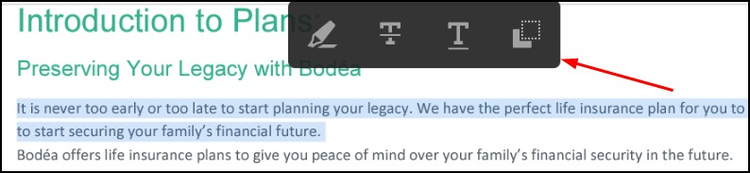
showToolbar: This flag shows or hides the add text, sticky note, highlight, strikethrough, underline, drawing and eraser tools on the left-hand side. The default value is true, and these annotation tools are visible. Set this flag to false if these tools need to be hidden.showCommentsPanel: This flag shows or hides the right-hand comments panel. The default value is true, and the comments panel is visible. Set to false to hide the right-hand comments panel.showToolsOnTextSelection: This flag shows or hides the toolbar available on text selection. The default value is true, and the toolbar is visible. Set to false to hide the toolbar.
downloadWithAnnotations: Annotations are not saved to the PDF buffer if annotation APIs are enabled. By default, the downloaded PDF will not contain any annotation. Set to true to download the PDF with all the annotations.printWithAnnotations: Annotations will no longer be saved to the PDF buffer if annotations APIs are enabled. By default, the print does not contain any annotation. Set to true to print the PDF with all the annotations.
data-slots=text
setConfig or previewFile as shown below.Method 1: Pass the flags to setConfig
Input parameters
The list of flags and the corresponding Boolean values.
{
       showToolbar: <Boolean, Default=true>,
       showCommentsPanel: <Boolean, Default=true>,
       downloadWithAnnotations: <Boolean, Default=false>,
       showToolsOnTextSelection: <Boolean, default=true>,
       printWithAnnotations: <Boolean, Default=false>
}
API output
Returns a Promise which:
- Resolves on success of operation
- Rejects with error object including code and message on failure.
API signature
const customFlags = {
   showToolbar: <Boolean, Default=true>,
   showCommentsPanel: <Boolean, Default=true>,
   downloadWithAnnotations: <Boolean, Default=false>,
   showToolsOnTextSelection: <Boolean, default=true>,
   printWithAnnotations: <Boolean, Default=false>,
}

previewFilePromise.then(adobeViewer => {
   adobeViewer.getAnnotationManager().then(annotationManager => {
       annotationManager.setConfig(customFlags)
           .then(() => console.log("Success"))
           .catch(error => console.log(error));
   });
});
Method 2: Pass the flags to previewFile
As an alternative to passing to setConfig, add the flags to the annotationUIConfig object that's passed as a preview configuration to the previewFile API.
annotationUIConfig: {
  showToolbar: <Boolean, default=true>,
  showCommentsPanel: <Boolean, default=true>,
  showToolsOnTextSelection: <Boolean, default=true>,
  downloadWithAnnotations: <Boolean, default=false>,
  printWithAnnotations: <Boolean, default=false>
}
selectAnnotation API
This API selects any existing annotation and shifts the focus to the selected annotation. It applies the select operation to the annotation specified by the annotation ID.
Input parameters
<Annotation_ID>
API output
Returns a Promise which:
- Resolves on successful select annotation operation
- Rejects with error object including an error code and message
API signature
const annotation_ID = <Annotation_ID>;

previewFilePromise.then(adobeViewer => {
   adobeViewer.getAnnotationManager().then(annotationManager => {
    annotationManager.selectAnnotation(annotation_ID)
        .then(() => console.log("Success"))
        .catch(error => console.log(error));
  });
});
unselectAnnotation API
This API unselects the last selected annotation.
Input parameters
N/A
API output
N/A
API signature
previewFilePromise.then(adobeViewer => {
  adobeViewer.getAnnotationManager().then(annotationManager => {
    annotationManager.unselectAnnotation();
 });
});
startAnnotationMode API
This API starts a particular annotation mode so that you can annotations of that type or use the eraser tool. The API takes a single annotation mode as input. The annotation mode can be any one of the supported annotation types in PDF Embed API, and it supports the following optional parameters:
defaultColor: A hex code specifying the annotation color. This parameter is applicable for all annotation types.cursor: A CSS standards-based string value to denote the cursor style on annotation start. This parameter is applicable for all annotation types.fontSize: Font size within the range of 6-24px. This parameter is applicable only in case of add text annotations.strokeWidth: Stroke width within the range of 1-12, to set the line thickness of the drawing annotation.
Input parameters
There are two parameters which accept the following values:
mode: Permissible values include: note, highlight, shape, underline, strikeout, freetext or eraseroptions: defaultColor:<COLOR_HEX_CODE>, cursor:<CURSOR_TYPE>, fontSize:<FONT_SIZE>, strokeWidth:<STROKE_WIDTH>
API output
Returns a Promise which:
- Resolves on successful start annotation mode operation
- Rejects with an error object including a code and message
API signature
// Add text annotation
const mode = "freetext";
const options = {
  defaultColor: "#b80000",
  cursor: "crosshair",
  fontSize: "15px"
};

// Drawing annotation
/* const mode = "shape";
const options = {
  defaultColor: "#b80000",
  cursor: "crosshair",
  strokeWidth: 5
}; */

previewFilePromise.then(adobeViewer => {
  adobeViewer.getAnnotationManager().then(annotationManager => {
    annotationManager.startAnnotationMode(mode, options)
        .then(result => console.log(result))
        .catch(error => console.log(error));
   });
});
endAnnotationMode API
This API ends the last started annotation mode.
Input parameters
N/A
API output
N/A
API signature
previewFilePromise.then(adobeViewer => {
  adobeViewer.getAnnotationManager().then(annotationManager => {
    annotationManager.endAnnotationMode();
  });
});
Code Samples
data-slots=text