Top Navigation
Configure the header navigation for your documentation site.
Quick start
Where to edit: src/pages/config.md — this single file controls both top navigation and sidebar.
Minimal setup — copy this into your config.md and adapt the paths:
- pathPrefix:
    - /your-product/

- pages:
    - [Home](index.md)
    - [Docs](docs/index.md)
This gives you a header with "Home" and "Docs." To add a sidebar to those sections, add subPages — see SideNav.
How TopNav and SideNav Work Together
The sidebar only appears when the current page belongs to a section in the top navigation.
- TopNav (
pages) = header links (e.g., Getting Started, Docs, Support). - SideNav (
subPages) = sidebar for each section. - For a sidebar to show, the page must be under a TopNav section and that section must exist in
subPages.
Sidebar not showing? The page must be in both pages and subPages, and in the same folder as that section.
Default Links
The top navigation always includes these links first:
- Adobe Developer →
developer.adobe.com - Products →
developer.adobe.com/apis
Your custom links from pages appear after these default links.
Example
- pathPrefix:
    - /dev-docs-reference/

- pages:
    - [Overview](index.md)
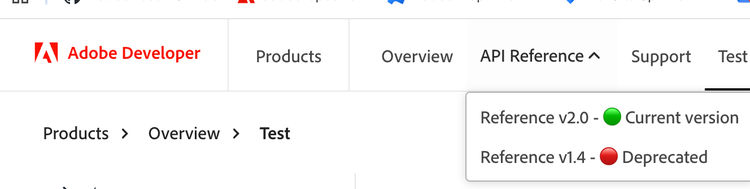
    - API Reference
      - [Reference v2.0](blocks/version1.md) - 🟢 Current version
      - [Reference v1.4](blocks/version2.md) - 🔴 Deprecated
    - [Support](support/index.md)
Indent items to create dropdowns:
Components
pathPrefix: Base URL path prepended to the domain
- pathPrefix:
    - /dev-docs-reference/
pages: Navigation items in the top bar
- pages:
    - [Home](index.md)
    - [Documentation](docs/index.md)
Buttons
You can add an optional buttons section to show action buttons in the top navigation (e.g., Code Playground, Console). Each button is a link followed by optional identifiers.
Syntax
- buttons:
  - [Code Playground](https://www.adobe.com/go/addon-playground?session=saved) playgroundId
  - [Console](https://developer.adobe.com/console/) consoleId
Button identifiers
- playgroundId: Identifies the button as a playground (for Code Playground).
- consoleId: Identifies the button as the Console link.
The Console button may always appear in the top nav regardless of the buttons section; confirm behavior in your environment. The first button in your list is typically styled as the primary button and the second automatically takes a secondary button style.
Paths
All paths in config.md are relative to /src/pages/. External links require full paths (e.g., https://example.com).
Related
SideNav - Add a sidebar to your TopNav sections