Side Navigation
Configure the sidebar that appears on your documentation pages.
Read TopNav first — you need pages (TopNav) before subPages (SideNav) will work.
Quick start
Where to edit: src/pages/config.md (same file as TopNav).
Minimal setup — add subPages alongside your pages. First-level items in subPages must match your TopNav sections:
- pathPrefix:
    - /your-product/

- pages:
    - [Home](index.md)
    - [Docs](docs/index.md)

- subPages:
    - [Home](index.md)
    - [Docs](docs/index.md)
      - [Getting Started](docs/getting-started.md)
      - [API Reference](docs/api.md)
When a user visits any page under docs/ (e.g., docs/getting-started.md), the sidebar shows "Getting Started" and "API Reference."
How It Works
The sidebar only appears when the current page is under a TopNav section. Your subPages structure mirrors pages:
- First-level items = TopNav sections. Each must match a section in
pages. - Child items = Sidebar links shown when the user is on a page in that section.
Sidebar not showing? Put your files in the same folder as the TopNav section, or that section may be missing from subPages.
Full Example
- pages:
    - [Overview](index.md)
    - [Blocks](/blocks/index.md)

- subPages:
    - [Overview](index.md)
    - [Blocks](/blocks/index.md)
      - [Configuration Blocks](#configuration-blocks)
        - [SideNav](/blocks/sidenav/index.md)
        - [TopNav](/blocks/topnav/index.md)
      - [Content Blocks](#content-blocks)
        - [Accordion](/blocks/accordion/index.md)
        - [Announcement](/blocks/announcement/index.md)
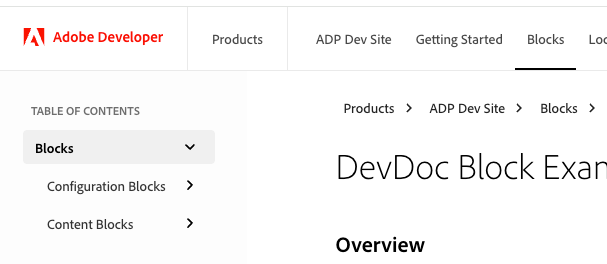
When a user visits a page under the Blocks section (e.g., /blocks/accordion/index.md), the sidebar shows the Blocks section and its children.
Format and Nesting
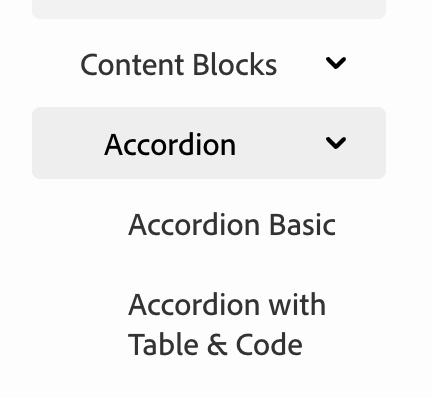
Each entry: [Display Text](path/to/file.md). Paths are relative to /src/pages/.
Indentation = Nesting (2 spaces per level):
- [Overview](blocks/index.md)           # Top level
  - [Accordion](/blocks/accordion/index.md)  # Nested (2 spaces)
    - [Basic](/blocks/accordion/basic.md)     # Nested deeper (4 spaces)
Result
Headers (optional)
Use headers to add non-clickable section labels in the sidebar.
Header Format
Headers are plain text (not links) that appear as non-clickable labels in the sidebar:
  - subPages:
    - Content Blocks header
    - [Accordion](/blocks/accordion/index.md)
    - [Cards](/blocks/cards/index.md)
    - [Code](/blocks/code/index.md)
Important: After a header, the next item must be at the same indentation level as the header. You cannot indent the items after a header.
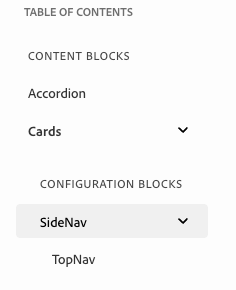
Nested Header Usage
- subPages:
    - Content Blocks header
    - [Accordion](/blocks/accordion/index.md)
    - [Cards](/blocks/cards/index.md)
       - Configuration Blocks header
       - [SideNav](/blocks/sidenav/index.md)
         - [TopNav](/blocks/topnav/index.md)
Result
Link Requirements
Every entry in the side navigation must have a link (except headers, which are plain text).
Link Format:
- Internal links must end with
.md(e.g.,/blocks/accordion/index.md) - External links must be absolute URLs (e.g.,
https://example.com)
Path Rules
-
First-level entries must use relative paths (relative to
/src/pages/) and match a TopNav item -
Files must be in the same folder as the TopNav section for the sidenav to show
-
Child entries can use either:
- Relative paths ending in
.md(to pages within your site) - Absolute URLs (external links like
https://example.com)
- Relative paths ending in
Examples
- subPages:
    # First level - must be relative and start with a TopNav item
    - [Content Blocks](/blocks/index.md)
      # Children - can be relative (ending in .md) or absolute URLs
      - [Accordion](/blocks/accordion/index.md)
      - [External Guide](https://example.com/guide)
All relative paths in config.md are relative to /src/pages/.
Related
TopNav - Configure top navigation (set up pages before subPages)