Adobe Target
Adobe Target helps test, personalize, and optimize mobile app experiences based on user behavior and mobile context. You can deliver interactions that engage and convert through iterative testing and rules-based and AI-powered personalization.
To get started with Target, follow these steps:
-
Configure the Target extension in the Data Collection UI.
-
Add the Target Extension to your app.
-
Implement Target APIs to:
- Request mbox offers.
- Prefetch mbox offers.
- Track mboxes.
- Enter visual preview mode.
Configure the Target extension in the Data Collection UI
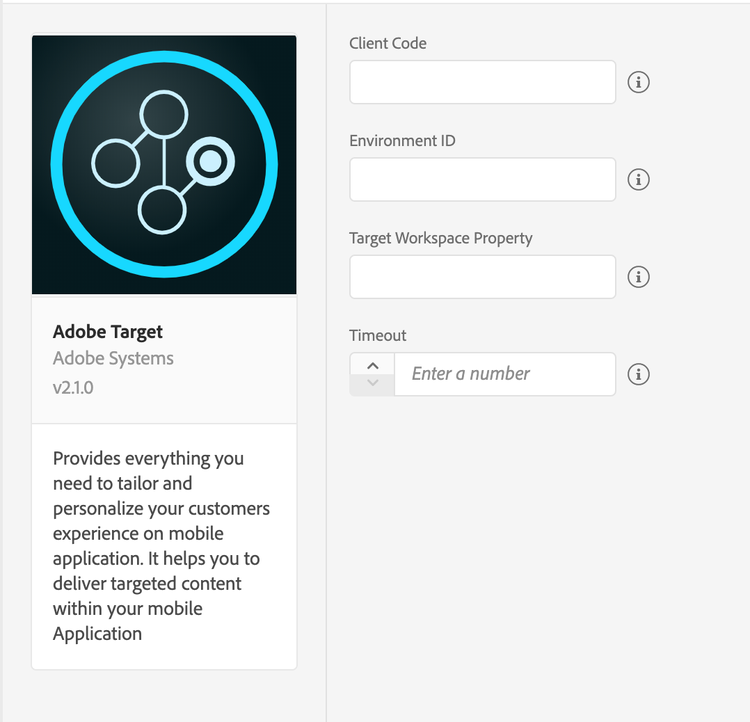
- In the Data Collection UI, select the Extensions tab.
- On the Catalog tab, locate the Adobe Target extension, and select Install.
- Your Target client code will be detected automatically.
- Optionally, provide your Environment ID.
- Set the timeout value to at least 5 seconds.
- Optionally, enter the Target workspace property token that was generated from Target UI.
- Select Save.
- Follow the publishing process to update SDK configuration.
Add the Target extension to your app
Include Target extension as an app dependency
Add the MobileCore, Identity and Target extensions to your project using the app's Gradle file.
Android Kotlin
Add the required dependencies to your project by including them in the app's Gradle file.
implementation(platform("com.adobe.marketing.mobile:sdk-bom:3.+"))
implementation("com.adobe.marketing.mobile:core")
implementation("com.adobe.marketing.mobile:identity")
implementation("com.adobe.marketing.mobile:target")
data-variant=warning
data-slots=text
Android Groovy
Add the required dependencies to your project by including them in the app's Gradle file.
implementation platform('com.adobe.marketing.mobile:sdk-bom:3.+')
implementation 'com.adobe.marketing.mobile:core'
implementation 'com.adobe.marketing.mobile:identity'
implementation 'com.adobe.marketing.mobile:target'
data-variant=warning
data-slots=text
iOS CocoaPods
Add the required dependencies to your project using CocoaPods. Add following pods in your Podfile:
use_frameworks!

target 'YourTargetApp' do
  pod 'AEPCore','~>5.0'
  pod 'AEPIdentity','~>5.0'
  pod 'AEPTarget','~>5.0'
end
Initialize Adobe Experience Platform SDK with Target Extension
Next, initialize the SDK by registering all the solution extensions that have been added as dependencies to your project with Mobile Core. For detailed instructions, refer to the initialization section of the getting started page.
Using the MobileCore.initialize API to initialize the Adobe Experience Platform Mobile SDK simplifies the process by automatically registering solution extensions and enabling lifecycle tracking.
Android Kotlin
data-variant=warning
data-slots=text
import com.adobe.marketing.mobile.LoggingMode
import com.adobe.marketing.mobile.MobileCore
...
import android.app.Application
...

class MainApp : Application() {
  override fun onCreate() {
    super.onCreate()
    MobileCore.setLogLevel(LoggingMode.DEBUG)
    MobileCore.initialize(this, "ENVIRONMENT_ID")
  }
}
Android Java
data-variant=warning
data-slots=text
import com.adobe.marketing.mobile.LoggingMode;
import com.adobe.marketing.mobile.MobileCore;
...
import android.app.Application;
...
public class MainApp extends Application {
  @Override
  public void onCreate(){
    super.onCreate();
    MobileCore.setLogLevel(LoggingMode.DEBUG);
    MobileCore.initialize(this, "ENVIRONMENT_ID");
  }
}
iOS Swift
data-variant=warning
data-slots=text
// AppDelegate.swift
import AEPCore
import AEPServices
...

final class AppDelegate: NSObject, UIApplicationDelegate {
  func application(_: UIApplication, didFinishLaunchingWithOptions _: [UIApplication.LaunchOptionsKey: Any]? = nil) -> Bool {
    MobileCore.setLogLevel(.debug)
    MobileCore.initialize(appId: "ENVIRONMENT_ID")
    ...
  }
}
iOS Objective-C
data-variant=warning
data-slots=text
// AppDelegate.m
#import "AppDelegate.h"
@import AEPCore;
@import AEPServices;
...
@implementation AppDelegate
- (BOOL)application:(UIApplication *)application didFinishLaunchingWithOptions:(NSDictionary *)launchOptions {
  [AEPMobileCore setLogLevel: AEPLogLevelDebug];
  [AEPMobileCore initializeWithAppId:@"ENVIRONMENT_ID" completion:^{
      NSLog(@"AEP Mobile SDK is initialized");
  }];
  ...
  return YES;
}
@end
Parameters in a Target request
Here is some information about the parameters in a Target request:
Target Order class
The TargetOrder class encapsulates the order ID, the order total, and the purchased product IDs. You can instantiate this class to create order parameters.
Android Java
data-slots=heading, code
data-repeat=2
Syntax
public TargetOrder(final String id, final double total, final List<String> purchasedProductIds)
Example
List<String> purchasedProductIds = new ArrayList<String>();
purchasedProductIds.add("34");
purchasedProductIds.add("125");
TargetOrder targetOrder = new TargetOrder("123", 567.89, purchasedProductIds);
iOS Swift
data-slots=heading, code
data-repeat=2
Syntax
public init(id: String, total: Double = 0, purchasedProductIds: [String]? = nil)
Example
let order = TargetOrder(id: "id1", total: 1.0, purchasedProductIds: ["ppId1"])
iOS Objective-C
data-slots=heading, code
data-repeat=2
Syntax
- (nonnull instancetype) initWithId: (nonnull NSString*) id total: (double) total purchasedProductIds: (nullable NSArray<NSString*>*) purchasedProductIds;
Example
AEPTargetOrder *order = [[AEPTargetOrder alloc] initWithId:@"id1" total:1.0 purchasedProductIds:@[@"ppId1"]];
<!--- React Native
<Tabs query="platform=react-native&task=target-order"/> --->
Target Product class
The TargetProduct class encapsulates the product ID and the product category ID, and you can instantiate this class to create order parameters.
Android Java
data-slots=heading, code
data-repeat=2
Syntax
public TargetProduct(final String id, final String categoryId)
Example
TargetProduct targetProduct = new TargetProduct("123", "Books");
iOS Swift
data-slots=heading, code
data-repeat=2
Syntax
public init(productId: String, categoryId: String? = nil)
Example
let product = TargetProduct(productId: "pId1", categoryId: "cId1")
iOS Objective-C
data-slots=heading, code
data-repeat=2
Syntax
- (nonnull instancetype) initWithProductId:(nonnull NSString*) productId categoryId:(nullable NSString*) categoryId;
Example
AEPTargetProduct *product =[[AEPTargetProduct alloc] initWithProductId:@"pId1" categoryId:@"cId1"];
<!--- React Native
<Tabs query="platform=react-native&task=target-product"/> --->
Target Parameters
TargetParameters encapsulates mboxParameters, profileParameters, orderParameters, and productParameters, and allows you easily pass these parameters in a Target request.
Android Java
data-slots=heading, code
data-repeat=2
Syntax
TargetParameters targetParameters = new TargetParameters.Builder()
.parameters(new HashMap<String, String>())
.profileParameters(new HashMap<String, String>())
.product(new TargetProduct("productId", "productCategoryId"))
.order(new TargetOrder("orderId", 0.0, new ArrayList<String>()))
.build();
Example
List<String> purchasedProductIds = new ArrayList<String>();
purchasedProductIds.add("34");
purchasedProductIds.add("125");
TargetOrder targetOrder = new TargetOrder("123", 567.89, purchasedProductIds);

TargetProduct targetProduct = new TargetProduct("123", "Books");

Map<String, String> mboxParameters = new HashMap<String, String>();
mboxParameters1.put("status", "platinum");

Map<String, String> profileParameters = new HashMap<String, String>();
profileParameters1.put("gender", "male");

TargetParameters targetParameters = new TargetParameters.Builder()
.parameters(mboxParameters)
.profileParameters(profileParameters)
.product(targetProduct)
.order(targetOrder)
.build();
iOS Swift
data-slots=heading, code
data-repeat=2
Syntax
public init(parameters: [String: String]? = nil, profileParameters: [String: String]? = nil, order: TargetOrder? = nil, product: TargetProduct? = nil)
Example
let mboxParameters = [
"status": "Platinum"
]
let profileParameters = [
"gender": "female"
]

let order = TargetOrder(id: "id1", total: 1.0, purchasedProductIds: ["ppId1"])

let product = TargetProduct(productId: "pId1", categoryId: "cId1")

let targetParameters = TargetParameters(parameters: mboxParameters, profileParameters: profileParameters, order: order, product: product))
iOS Objective-C
data-slots=heading, code
data-repeat=2
Syntax
- (nonnull instancetype) initWithParameters:(nullable NSDictionary<NSString*, NSString*>*) parameters profileParameters:(nullable NSDictionary<NSString*, NSString*>*) profileParameters order:(nullable AEPTargetOrder*) order product:(nullable AEPTargetProduct*) product;
Example
NSDictionary *mboxParameters = @{@"status":@"Platinum"};
NSDictionary *profileParameters = @{@"gender":@"female"};

AEPTargetProduct *product =[[AEPTargetProduct alloc] initWithProductId:@"pId1" categoryId:@"cId1"];

AEPTargetOrder *order = [[AEPTargetOrder alloc] initWithId:@"id1" total:1.0 purchasedProductIds:@[@"ppId1"]];

AEPTargetParameters * targetParams = [[AEPTargetParameters alloc] initWithParameters:mboxParameters profileParameters:profileParameters order:order product:product];
<!--- React Native
<Tabs query="platform=react-native&task=target-parameters"/> --->
Merge behavior of Target parameters
TargetParameters, such as mboxParameters, profileParameters, orderParameters, and productParameters, can be passed in the Target APIs and can also be passed in when you create TargetPrefetch or TargetRequest objects. The TargetParameters that are passed in the public APIs are global parameters and are merged with the corresponding parameters in the individual TargetRequest or TargetPrefetch objects.
When merging, the new keys in the mbox parameters or the profile parameters are appended to the final dictionary, and the keys with the same name are overwritten in each TargetRequest or TargetPrefetch object by the keys from the global parameters. For TargetOrder or TargetProduct objects, the object that is passed to the global parameters replaces the corresponding object in the TargetRequest or TargetPrefetch objects.
Target sessions
The Target extension supports persistent sessions. When a Target request is received, if a session ID does not exist, a new ID is generated and is sent in the request. This ID, with the Edge Host that is returned from Target, is kept in persistent storage for the configured target.sessionTimeout period. If the timeout value is not configured, the default value is 30 minutes.
If no Target request is received during the configured target.sessionTimeout or if the resetExperience API is called, these variables are reset and removed from persistent storage.
Visual preview
The visual preview mode allows you to easily perform end-to-end QA activities by enrolling and previewing these activities on your device. This mode does not require a specialized testing set up. To get started, set up a URL scheme and generate the preview links. For more information about setting up Target visual preview, see Target mobile preview. For more information about setting URL schemes for iOS, see Defining a Custom URL Scheme for Your App. For more information about setting URL schemes for Android, see Create Deep Links to App Content.
You can also set an application deep link that can be triggered when selections are made in the preview mode by using the setPreviewRestartDeeplink API.
To enter the preview visual mode, use the collectLaunchInfo API to enable the mode and select the red floating button that appears on the app screen. For more information, see collectLaunchInfo.
Android
On Android, when the application is launched as a result of a deep link, the Mobile Core's collectLaunchInfo API is internally invoked, and the Target activity and deep link information is extracted from the Intent extras.
The SDK can only collect information from the launching Activity if setApplication has been called. Setting the Application is only necessary on an Activity that is also an entry point for your application. However, setting the Application on each Activity has no negative impact and ensures that the SDK always has the necessary reference to your Application. We recommend that you call setApplication API in each of your Activities.
iOS Swift
On iOS, the Mobile Core's collectLaunchInfo API can be invoked with the Target preview deep link as shown below:
data-slots=heading, code
data-repeat=1
Example
MobileCore.collectLaunchInfo(["adb_deeplink" : "com.adobe.targetpreview://app.adobetarget.com?at_preview_token=tokenFromTarget"])
iOS Objective-C
data-slots=heading, code
data-repeat=1
Example
[AEPMobileCore collectLaunchInfo:@{@"adb_deeplink" : @"com.adobe.targetpreview://app.adobetarget.com?at_preview_token=tokenFromTarget"}];
Offer Prefetch
The SDK can minimize the number of times it reaches out to Target servers to fetch offers by caching server responses. With a successful prefetch call for mbox locations, offer content is retrieved and cached in the SDK. This content is retrieved from the cache for all future retrieveLocationContent API calls for the specified mbox names. This prefetch process reduces the offer load time and network calls that were made to the Target servers, and the process allows Target to be notified which mbox was visited by the mobile app user.
data-variant=warning
data-slots=text
data-variant=warning
data-slots=text
Target with Analytics (A4T)
To track the performance of your Target activities for certain segments, set up the Analytics for Target (A4T) cross-solution integration by enabling the A4T campaigns. This integration allows you to use Analytics reports to examine your results. If you use Analytics as the reporting source for an activity, all reporting and segmentation for that activity is based on Analytics data collection. For more information, see Adobe Analytics for Adobe Target (A4T).
Once Analytics is listed as the reporting source for an activity on Target UI, A4T works out of the box in the Target SDK. The Target SDK extension extracts the A4T payload from the Target server response, dispatches an event for Analytics SDK extension to send an internal track action request to the configured Analytics server.
The A4T payload returned from Target servers is sent to Adobe Analytics in the following cases:
- When one or more locations are retrieved using retrieveLocationContent API call.
- When one or more prefetched locations are loaded and a subsequent locationsDisplayed API call is made for the location(s).
data-variant=warning
data-slots=text
Configuration keys
To programmatically update SDK configuration, use the following information to change your Target configuration values:
For more information, see Programmatic updates to Configuration.
at_property token value, which is generated from the Target UI. If this value is left blank, no token is sent in the Target network calls.mytargetdomain.comdata-variant=warning
data-slots=text
target.sessiontimeout value can only be configured programmatically. For more information, see updateConfiguration.