Embed SDK Edit Image tutorial
Learn how to implement the Edit Image module using the Adobe Express Embed SDK.
Introduction
Welcome to this hands-on tutorial! We'll walk you through implementing the new Edit Image module of the Adobe Express Embed SDK. By the end, your integration will be able to use all its new V2 features, from the tabbed interface to the significant performance improvements.
What you'll learn
By completing this tutorial, you'll gain practical skills in:
- Implementing the Edit Image module with the Adobe Express Embed SDK.
- Applying the various settings and best practices.
What you'll build
You'll build a simple, JavaScript-based web application that allows users to edit images using the Edit Image v2 module of the Adobe Express Embed SDK.

Prerequisites
Before you start, make sure you have:
- An Adobe account (use your existing Adobe ID or create one for free)
- API credentials from the Adobe Developer Console (Get credentials)
- Basic knowledge of HTML, CSS, and JavaScript
- Node.js installed on your development machine (v20.19.0 or higher)
- A text editor or IDE of your choice
1. Set up the project
1.1 Clone the sample
You can start by cloning the Embed SDK Edit Image sample from GitHub and navigating to the project directory.
git clone https://github.com/AdobeDocs/embed-sdk-samples.git
cd embed-sdk-samples/code-samples/tutorials/embed-sdk-edit-image
The project will have a structure like this:
.
├── package.json             📦 Project configuration
├── vite.config.js           🔧 Build configuration
└── src
    ├── images               📷 Images
    │   └── ...
    ├── index.html           🌐 UI container
    ├── main.js              💻 Embed SDK logic
    └── style.css            🎨 CSS styles
1.2 Set up the API key
Locate the src/.env.example file, rename it to .env, and replace the placeholder string in the VITE_API_KEY with your Embed SDK API Key:
VITE_API_KEY="your-api-key-here!"
data-variant=info
data-slots=text1
localhost:5555 domain and port.1.3 Install dependencies
Install the dependencies by running the following commands:
npm install
npm run start
The web application will be served at localhost:5555 on a secure HTTPS connection; HTTPS is always required for any Embed SDK integration. Open your browser and navigate to this address to see it in action.
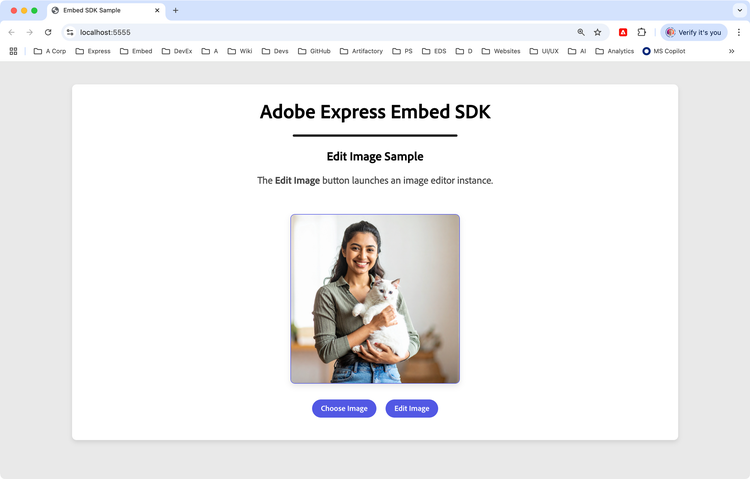
Click the Edit Image button to launch the Adobe Express Edit Image module with the new tabbed interface, and perform the available actions.
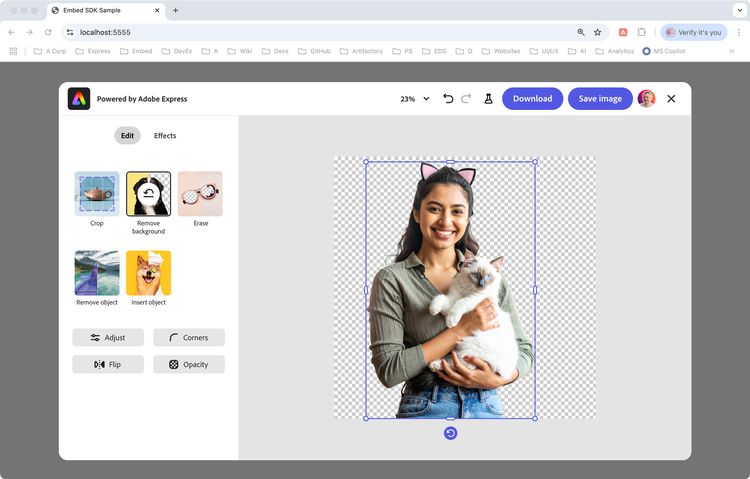
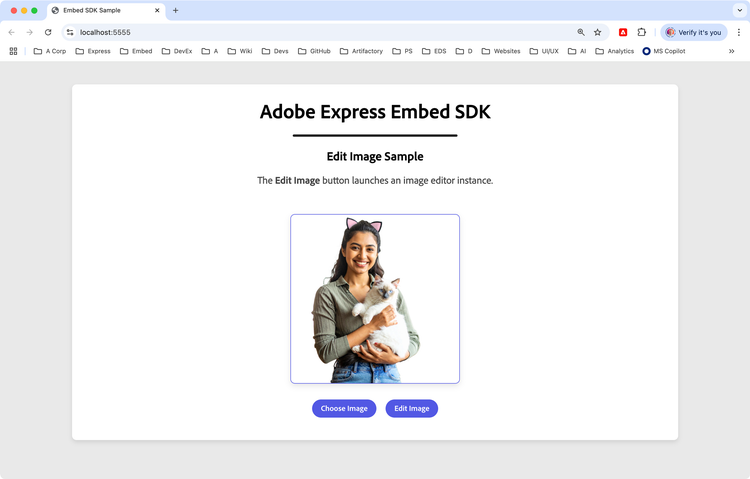
When the users click the Save image button in the top-right corner—this only becomes enabled after the image is edited—the sample project will handle the file transfer between Adobe Express and the web page hosting it, and the edited image will be displayed in lieu of the original.
data-variant=error
data-slots=header, text1
Error: "Adobe Express is not available"
src/.env file as described here.You can additionally load a different image by clicking the Choose Image button; there is a set of three demo images in the src/images folder, all generated by Adobe Firefly.
2. Load the Edit Image v2 module
You can just read the existing code in the sample, but it's always best to learn by doing! We suggest following along and typing the code in—even small mistakes can lead to important discoveries.
The sample project is a simple web application built with Vite, which takes care of the entire local HTTPS setup and hot reloading.
2.1 Import the Embed SDK
In this tutorial, you'll focus on the JavaScript side of things first—the HTML content is not overly important. Open the project the code editor of your choice. In main.js, remove everything below the Spectrum import statements—you'll rebuild it from scratch.
// main.js

// Import theme and typography styles from Spectrum Web Components
import "@spectrum-web-components/styles/typography.css";
import "@spectrum-web-components/theme/express/theme-light.js";
import "@spectrum-web-components/theme/express/scale-medium.js";
import "@spectrum-web-components/theme/sp-theme.js";

// Import Spectrum Web Components
import "@spectrum-web-components/button/sp-button.js";
import "@spectrum-web-components/button-group/sp-button-group.js";
import "@spectrum-web-components/divider/sp-divider.js";
import "./style.css";
The imports above allow us to style our web application with Spectrum Web Components and the Adobe Express theme. Let's begin working in main.js by importing the Embed SDK:
// main.js
//... previous imports ...

// Import the Adobe Express Embed SDK
await import("https://cc-embed.adobe.com/sdk/v4/CCEverywhere.js");
console.log("CCEverywhere loaded", window.CCEverywhere);
data-variant=info
data-slots=text1
CCEverywhere.js: for more information, please refer to the Quickstart Guide.2.2 Initialize the Embed SDK
When the Embed SDK is imported, a CCEverywhere object is globally available and must be initialized. There are two sets of parameters that you can pass as option objects:
- Host Information: containing the API key, Application name, etc.
- Configuration: optional settings, like locale, delayed sign-in, etc.
// main.js
//... previous imports ...

// 👀 Required parameters to initialize the Embed SDK
const hostInfo = {
  clientId: import.meta.env.VITE_API_KEY,
  // The appName must match the Public App Name in the Developer Console
  appName: "Embed SDK Sample",
};

// Optional parameters
const configParams = { /* ... */ };

// Initialize the Adobe Express Embed SDK
// Destructure the `module` property only
const { module } = await window.CCEverywhere.initialize(
  hostInfo,
  configParams
);
The hostInfo object is required: the clientId contains your API Key (here, retrieved by Vite from the .env file) and the appName.
data-variant=warning
data-slots=text1
appName must match the Public App Name in the Developer Console, and it will be displayed in the Adobe Express UI as a folder where users can store their documents. All configParams are optional.2.3 Load the module
The asynchronous CCEverywhere.initialize() method returns an object with three properties. Here, we destructure the module only, because it is the entry point to the editImage() method. In the next section, we'll learn how to use it to launch the Edit Image experience.
module.editImage({ /* ... */ });
3. Launch the Edit Image experience
3.1 Build the HTML user interface
Before tackling the code needed to run the Edit Image experience, let's have a look at the very simple HTML in our example project.
data-slots=heading, code
data-repeat=1
index.html
<body>
  <sp-theme scale="medium" color="light" system="express">
    <div class="container">

      <header>
        <h1>Adobe Express Embed SDK</h1>
        <sp-divider size="l"></sp-divider>
        <h2>Edit Image Sample</h2>
        <p>
          The <b>Edit Image</b> button launches
          an image editor instance.
        </p>
      </header>

      <main>
        <img id="image" src="./images/demo-image-1.jpg"
             alt="An Indian woman holding a cat" />
        <sp-divider size="l"></sp-divider>
        <sp-button-group>
          <sp-button id="uploadBtn">Choose Image</sp-button>
          <sp-button id="editBtn">Edit Image</sp-button>
        </sp-button-group>
        <input type="file" id="fileInput" accept="image/*"
               style="display: none;" />
      </main>
    </div>
  </sp-theme>

  <script type="module" src="./main.js"></script>

</body>
Besides the <sp-theme> wrapper, which styles the entire page with the Adobe Express Spectrum theme, the parts we're interested in are:
- The
<img>element, prepopulated with the (local) image to edit. - The
<sp-button-group>, which contains the Choose Image and Edit Image buttons. - The
<input>element, which is hidden and used to upload an alternative image. - The
<script>tag, which loads the Embed SDK logic.
3.2 Learn the Edit Image method signature
The editImage() method expects four parameters, three of which are optional:
// module.editImage() function signature

const docConfig       = { /* ... */ }; // Image to edit (required)
const appConfig       = { /* ... */ }; // Edit Image experience
const exportConfig    = { /* ... */ }; // Export options
const containerConfig = { /* ... */ }; // SDK container

module.editImage(docConfig, appConfig, exportConfig, containerConfig);
In this tutorial, we'll focus on the appConfig and docConfig objects, as they are the most relevant for the Edit Image module; you can look at the Full Editor tutorial for more details on the other two parameters.
3.3 Enable the v2 experience in appConfig
First, let's enable the v2 experience by setting the appVersion property to "2" in the appConfig object. Use "1" for the legacy experience, which is the default now but will be deprecated in the future.
// main.js
//... previous code ...

const appConfig = {
  appVersion: "2",
  // ...
};
3.4 Familiarize with the docConfig object
The docConfig object, that implements the EditImageDocConfig interface, is used to pass:
- The image to edit.
- The intent to perform on the image; that is, the preselected action to perform on the image, among the available options.
interface EditImageDocConfig {
  asset?: Asset;
  intent?: EditImageIntent;
}
3.5 Build the Asset object
The docConfig.asset property needs to be an object of type Asset—this, as you'd expect, is the image to edit.
There are three kinds of assets:
- UrlAsset: Asset containing data from a presigned URL (see below).
- Base64Asset: Asset containing Base64 encoded data.
- BlobAsset: Asset containing Blob data.
Regardless of the kind of asset, they share the following interface:
interface Asset {
  name?: string;
  type: "image";
  dataType: "url" | "base64" | "blob";
  data: string | Blob;
}
3.5.1 Build a URL type Asset
To pass an image from a URL, you need to build a UrlAsset object, like this:
const docConfig = {
    asset: {
      name: "Demo Image",
      type: "image",
      dataType: "url",
      data: "https://ucf44fba496cfec9066caed2...", // Your presigned URL
    },
};
data-variant=info
data-slots=header, text1, text2
Presigned URLs
In this tutorial, you can make the local URL work—with a caveat.
// main.js
//... previous code ...

const expressImage = document.getElementById("image");

const docConfig = {
    asset: {
      name: "Demo Image",
      type: "image",
      dataType: "url",
      data: expressImage.src // 👈 the <img> element's src attribute
    },
};

const appConfig    = { appVersion: "2" };
const exportConfig = [ /* ... */ ];

module.editImage(docConfig, appConfig, exportConfig);
As is, this code would log the following error.
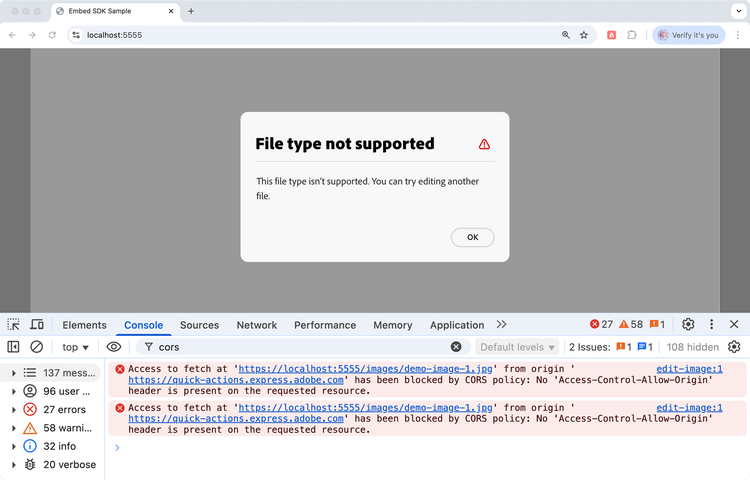
This is because when passing an image by URL, the Edit Image module (served from https://quick-actions.express.adobe.com) needs to fetch that file from your development server (https://localhost:5555). Because the two origins differ, the browser blocks the request unless your server explicitly says, "other sites may read this." This safeguard prevents a malicious site from poking around your network.
During local development you can loosen the restriction by adding CORS headers in vite.config.js, either by setting the cors.origin property to that specific Adobe Express URL, or to * to allow all origins.
data-slots=heading, code
data-repeat=1
vite.config.js
import { defineConfig } from "vite";
import mkcert from "vite-plugin-mkcert";

export default defineConfig({
  root: "src",
  server: {
    https: true,
    port: 5555,
    cors: {
      // 👇 origin is needed if you want to use asset of type "url"
      origin: "https://quick-actions.express.adobe.com", // 👈 add this
      credentials: true,
    },
  },
  build: {
    outDir: "../dist",
  },
  plugins: [mkcert()],
});
data-variant=warning
data-slots=text1
3.5.2 Build a Blob type Asset
The other common way to edit an image is by passing a BlobAsset object. In our tutorial, we'll cache the default image as a blob fetching the local resource with the cacheDefaultImageBlob() helper function, and using it as the asset's data property.
// main.js
//... previous code ...

let currentImageBlob = null; // 👈 will hold the blob content

// Cache the default image as a blob
async function cacheDefaultImageBlob() {
  const response = await fetch(expressImage.src);
  currentImageBlob = await response.blob();
}
await cacheDefaultImageBlob();

const docConfig = {
    asset: {
      name: "Demo Image",
      type: "image",
      dataType: "blob",
      data: currentImageBlob // 👈 the blob content
    },
};

const appConfig    = { appVersion: "2" };
const exportConfig = [ /* ... */ ];

module.editImage(docConfig, appConfig, exportConfig);
3.5.3 Build a Base64 type Asset
Although less common, you can also pass an image as a Base64 encoded string. Here's a sample helper function to convert a Blob to Base64 using a FileReader.
async function imageBlobToBase64(blob) {
  return new Promise((resolve, reject) => {
    const reader = new FileReader();

    reader.onloadend = () => {
      resolve(reader.result); // returns full data URL
    };
    reader.onerror = reject;

    reader.readAsDataURL(blob); // encodes blob to base64 as a data URL
  });
}
3.6 Pass the intent to perform on the image
The docConfig.intent property is used to pass the intent to perform on the image—that is to say, the preselected action to perform on the image, among the available options. When it makes sense, the action can be automatically triggered when the experience is launched, for instance in case of Remove Background.
const docConfig = {
  asset: { /* ... */ },
  intent: "crop-image", // 👈 the intent to perform on the image
};
The intent property is an object of type EditImageIntent, which is a subset of the EditFurtherIntent enumeration, and includes only the following options—some of which are Premium features and will consume Generative Credits:
type EditImageIntent = "add-effects"       |
                       "remove-background" |
                       "resize-image"      |
                       "crop-image"        |
                       "apply-adjustment"  |
                       "gen-fill"          |
                       "remove-object"     |
                       "insert-object"     |
                       "no-intent";
In this screenshot, the intent was set to "remove-background", which triggered the Remove Background feature as soon as the Edit Image experience was launched.
data-variant=warning
data-slots=text1
intent property may have different support in the Edit Image v1 and v2 experiences.4. Integrate the Edit Image module
Now that we have all the pieces in place, let's integrate the Edit Image module in the UI. Our simple project needs to implement these features:
- Pass the default (prepopulated) image to the Edit Image module.
- Allow the user to select an alternative image, and display it in lieu of the default one.
- Render the edited image in the UI, and make it available for further editing.
4.1 Edit the default image
This has already been taken care of in the main.js file, where we set the expressImage variable to the <img> element, and cached it as a blob. Now, on the Edit Button click, we can call the editImage() method with a docConfig object where the Asset is a Blob, as we've seen in Build a Blob type Asset.
// main.js
//... previous code ...

const expressImage = document.getElementById("image");

let currentImageBlob = null;

// Cache the default image as a blob
async function cacheDefaultImageBlob() {
  const response = await fetch(expressImage.src);
  currentImageBlob = await response.blob();
}
// Get the blob
await cacheDefaultImageBlob();

const appConfig    = { appVersion: "2" };
const exportConfig = [ /* ... */ ];

// Edit Button click handler
document.getElementById("editBtn").onclick = async () => {
  const docConfig = {
    asset: {
      type: "image",
      name: "Demo Image",
      dataType: "blob",
      data: currentImageBlob, // Use cached blob
    },
    // intent: "crop-image",  // specify the intent if you want
  };
  // Launch Adobe Express editor with the current image
  module.editImage(docConfig, appConfig, exportConfig);
};
4.2 Select and Edit an alternative image
In the HTML file, we have a hidden <input> element that allows the user to select an alternative image. We can link it to the Choose Image button, so that when the user clicks the button, the File Picker is triggered.
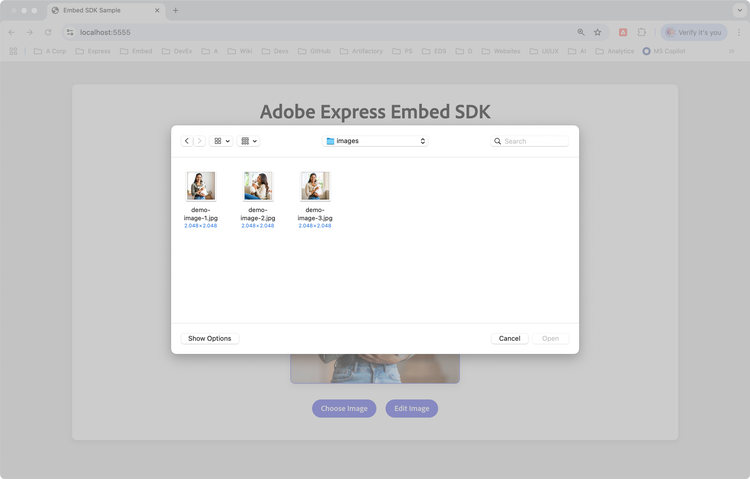
When a new image has been selected, we must do two things:
- Update the
<img>element'ssrcattribute to display the new image. This is taken care by theonchangeevent handler of the<input>element, viaFileReader.readAsDataURL(). When the file is read, theonloadevent is triggered, and theresultproperty contains the Base64 encoded string. - Update the
currentImageBlobBlob cache, so that it can be passed to theeditImage()method.
// main.js
//... previous code ...

// Click handler for the Choose Image button
document.getElementById("uploadBtn").onclick = () => {
  // Trigger the File Picker!
  document.getElementById("fileInput").click();
};

// Handle file selection
document.getElementById("fileInput").onchange = (event) => {
  const file = event.target.files[0];
  if (file && file.type.startsWith("image/")) {
    // Dual data flow: cache the File (which is a Blob) for SDK,
    // and convert to data URL for display
    currentImageBlob = file; // File objects are Blobs, perfect for SDK usage

    // Convert to data URL for display in the <img> element
    const reader = new FileReader();
    reader.onload = (e) => {
      expressImage.src = e.target.result; // 👈 Base64 encoded image data
    };
    reader.readAsDataURL(file);
  }
};

// Reuse the Edit Button click handler defined earlier.
// It'll use the refreshed Blob cache if the user has selected a new image
document.getElementById("editBtn").onclick = async () => { /* ... */ };
4.3 Display the edited image
When the user clicks the Save image button in the Edit Image experience, the edited image must be displayed in the <img> element. First of all, the buttons are defined in the exportConfig object, as follows.
// main.js
//... previous code ...

const exportConfig = [
  {
    id: "download", label: "Download",
    action: { target: "download" }, style: { uiType: "button" },
  },
  {
    id: "save-modified-asset", label: "Save image",
    action: { target: "publish" }, style: { uiType: "button" },
  },
];
The save-modified-asset button is the one that will be displayed in the Edit Image experience, and it will trigger the onPublish callback, which is defined in the appConfig.callbacks object. It receives the intent and publishParams objects, which contain the intent and the edited image, respectively. In the callback, we:
- Update the displayed image with the edited result, passing the
publishParams.asset[0].datato theexpressImage.srcproperty. - Update the cached blob with the edited image (for future edits).
// main.js
//... previous code ...

const appConfig = {
  appVersion: "2",
  // Callbacks to be used when creating or editing a document
  callbacks: {
    onCancel: () => {},
    onPublish: async (intent, publishParams) => {
      console.log("intent", intent);
      console.log("publishParams", publishParams);

      // Update the displayed image with the edited result
      expressImage.src = publishParams.asset[0].data;

      // Update our cached blob with the edited image (for future edits)
      const response = await fetch(publishParams.asset[0].data);
      currentImageBlob = await response.blob();
    },
    onError: (err) => {
      console.error("Error!", err.toString());
    },
  },
};
data-variant=info
data-slots=text1
publishParams.asset is an array of Base64Asset objects. Hence, the data property contains the Base64 encoded string of the edited image, suitable for the expressImage.src property. We've used fetch() to get the Blob from the Base64 string, and update the currentImageBlob cache.This completes the integration of the Edit Image module in the UI, check the complete working example below.
Troubleshooting
Common issues
src/.env file as described here.cors.origin property in vite.config.js to the Adobe Express URL.Complete working example
data-slots=heading, code
data-repeat=2
index.html
<!doctype html>
<html lang="en">

<head>
  <meta charset="UTF-8" />
  <meta name="viewport" content="width=device-width, initial-scale=1.0" />
  <title>Embed SDK Sample</title>
</head>

<body>
  <sp-theme scale="medium" color="light" system="express">
    <div class="container">
      <header>
        <h1>Adobe Express Embed SDK</h1>
        <sp-divider size="l"></sp-divider>
        <h2>Edit Image Sample</h2>
        <p>
          The <b>Edit Image</b> button launches an image editor instance.
        </p>
      </header>

      <main>
        <img id="image" src="./images/demo-image-1.jpg" alt="An Indian woman holding a cat" />
        <sp-button-group>
          <sp-button id="uploadBtn">Choose Image</sp-button>
          <sp-button id="editBtn">Edit Image</sp-button>
        </sp-button-group>
        <input type="file" id="fileInput" accept="image/*" style="display: none;" />
      </main>
    </div>
  </sp-theme>

  <script type="module" src="./main.js"></script>

</body>

</html>
main.js
// Import theme and typography styles from Spectrum Web Components
import "@spectrum-web-components/styles/typography.css";
import "@spectrum-web-components/theme/express/theme-light.js";
import "@spectrum-web-components/theme/express/scale-medium.js";
import "@spectrum-web-components/theme/sp-theme.js";

// Import Spectrum Web Components
import "@spectrum-web-components/button/sp-button.js";
import "@spectrum-web-components/button-group/sp-button-group.js";
import "@spectrum-web-components/divider/sp-divider.js";
import "./style.css";

// Import the Adobe Express Embed SDK
await import("https://cc-embed.adobe.com/sdk/v4/CCEverywhere.js");
console.log("CCEverywhere loaded", window.CCEverywhere);

// Parameters for initializing the Adobe Express Embed SDK
const hostInfo = {
  clientId: import.meta.env.VITE_API_KEY,
  appName: "Embed SDK Sample",
};

// Optional parameters
const configParams = {
  /* ... */
};

// Initialize the Adobe Express Embed SDK
const { module } = await window.CCEverywhere.initialize(
  hostInfo, configParams
);

const expressImage = document.getElementById("image");

// Blob caching strategy: Keep the image data in memory
// as a blob for efficient SDK usage
// This avoids re-fetching/converting the image data every time we edit
let currentImageBlob = null;

// Cache the default image as a blob
async function cacheDefaultImageBlob() {
  const response = await fetch(expressImage.src);
  currentImageBlob = await response.blob();
}
await cacheDefaultImageBlob();

// Configuration for the app
const appConfig = {
  appVersion: "2",
  // Callbacks to be used when creating or editing a document
  callbacks: {
    onCancel: () => {},
    onPublish: async (intent, publishParams) => {
      console.log("intent", intent);
      console.log("publishParams", publishParams);

      // Update the displayed image with the edited result
      expressImage.src = publishParams.asset[0].data;

      // Update our cached blob with the edited image for future edits
      const response = await fetch(publishParams.asset[0].data);
      currentImageBlob = await response.blob();
    },
    onError: (err) => {
      console.error("Error!", err.toString());
    },
  },
};

// Configuration for the export options made available
// to the user when creating or editing a document
const exportConfig = [
  {
    id: "download", label: "Download",
    action: { target: "download" }, style: { uiType: "button" },
  },
  {
    id: "save-modified-asset", label: "Save image",
    action: { target: "publish" }, style: { uiType: "button" },
  },
];

// Click handler for the Choose Image button
document.getElementById("uploadBtn").onclick = () => {
  document.getElementById("fileInput").click();
};

// Handle file selection
document.getElementById("fileInput").onchange = (event) => {
  const file = event.target.files[0];
  if (file && file.type.startsWith("image/")) {
    // Dual data flow: cache the File (which is a Blob) for SDK,
    // convert to data URL for display
    currentImageBlob = file; // File objects are Blobs, perfect for SDK usage

    // Convert to data URL for display in the <img> element
    const reader = new FileReader();
    reader.onload = (e) => {
      expressImage.src = e.target.result; // 👈 Base64 encoded image data
    };
    reader.readAsDataURL(file);
  }
};

// Launch Adobe Express editor with the current image
document.getElementById("editBtn").onclick = async () => {
  const docConfig = {
    asset: {
      type: "image",
      name: "Demo Image",
      dataType: "blob",
      data: currentImageBlob, // Use cached blob (default or user-selected)
    },
    // intent: "crop-image",  // specify the intent if you want
  };

  module.editImage(docConfig, appConfig, exportConfig); // 👈 Launch it!
};
Next steps
Congratulations, you've completed the Edit Image tutorial! Edit Image can be tethered from other modules, such as the Generate Image v2, to create a more complex experience, feel free to explore that as well
Need help?
Have questions or running into issues? Join our Community Forum to get help and connect with other developers working with the Adobe Express Embed SDK.
Related resources
- API Reference - Complete SDK documentation
- Adobe Express Embed SDK Overview - High-level introduction
- Demo Application - Interactive demo showcasing SDK capabilities
- Sample Applications - Working code examples and tutorials
- Changelog - Latest updates and improvements