Use PDF and PowerPoint
Import PDF into the page
You can add PDFs to the page using the importPdf() method of the addOnUISdk.app.document object, which expects a Blob object as an argument and a MediaAttribute object with a title (mandatory) and author (optional) as the second.
PDF and PowerPoint imports will trigger a consent dialog that asks the user to confirm the process; it's not possible to bypass it. As soon as the process starts, another dialog will preview the PDF and track the operation progress.
data-slots=text
data-variant=info
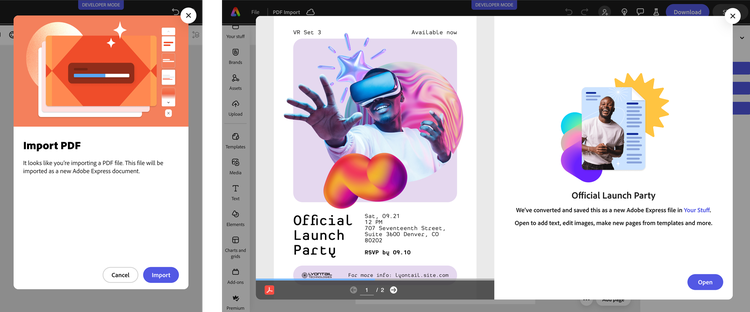
Supported vector elements will be kept editable (e.g., shapes with rounded corners, text, etc.), and all pages will be imported.
Example
import addOnUISdk from "https://express.adobe.com/static/add-on-sdk/sdk.js";

addOnUISdk.ready.then(async () => {
  try {
    const pdfUrl = "https://url/to/your/file.pdf";

    const pdf = await fetch(pdfUrl);
    const pdfBlob = await pdf.blob();

    await addOnUISdk.app.document.importPdf(
      pdfBlob, // 👈 Blob object
      {
        title: "Official Launch Party",
        author: "Adobe",
      }
    );
  } catch (e) {
    console.error("Failed to add the PDF", e);
  }
});
Please note that you can use fetch() also to get PDFs that are local to the add-on; in this case, you can use paths relative to the add-on's root.
import addOnUISdk from "https://express.adobe.com/static/add-on-sdk/sdk.js";

addOnUISdk.ready.then(async () => {
  try {
    // 👇 Local PDF
     const pdfUrl = "./OfficialLaunchParty.pdf";
    const pdf = await fetch(pdfUrl);
    // ... same as before
Importing converted documents
If your add-on converts Word documents (.docx) or Google Docs (.gdoc) to PDF before importing, you can use the sourceMimeType parameter to improve the user experience. When specified, the import consent dialog displays the message "Import a document" rather than the default "Import a PDF".
// Import a PDF that was converted from a Word document
await addOnUISdk.app.document.importPdf(convertedPdfBlob, {
  title: "Converted Document",
  sourceMimeType: "docx" // Shows "Import a document" in the dialog
});
Import presentation into the page
For PowerPoint files, the process is similar to the one for PDFs, but use the importPresentation() method instead. Express supports only the .pptx format; the legacy .ppt format is not supported. The method shows the same consent and progress dialog as for PDF import.
import addOnUISdk from "https://express.adobe.com/static/add-on-sdk/sdk.js";

addOnUISdk.ready.then(async () => {
  try {
    const powerPointUrl = "https://url/to/your/file.pptx";
    // Or for local files: const powerPointUrl = "./OfficialLaunchParty.pptx";
    // Note: Only .pptx is supported; .ppt is not supported.

    const powerPoint = await fetch(powerPointUrl);
    const powerPointBlob = await powerPoint.blob();

    await addOnUISdk.app.document.importPresentation(
      powerPointBlob, // 👈 Blob object
      {
        title: "Official Launch Party",
        author: "Adobe",
      }
    );
  } catch (e) {
    console.error("Failed to add the presentation", e);
  }
});
Presentation import limitations and tips
When importing presentations (such as PowerPoint .pptx files) into Adobe Express, the file is converted into an editable Express format. During conversion, complex elements may be removed, flattened, or converted to static content.
Limitations on imported content
- Animations: Advanced PowerPoint animations, triggers, and custom entrance/exit effects are generally not supported. Basic transitions may be lost or simplified.
- Audio and Video: Embedded audio and video in the original presentation may fail to import or play.
- Formatting and Fonts: Custom fonts, specialized shapes, and complex layouts may render differently after import.
Tips for successful import
- Convert to PDF first: For stronger visual fidelity, save the presentation as a PDF before importing. Keep in mind this approach can make content less editable.
- Simplify before import: Remove complex animations and embedded media in the source presentation to reduce conversion issues.
- Re-add media in Express: After import, upload audio/video directly in Adobe Express for better compatibility.
- Prefer H.264 video: If video imports, H.264-encoded media is typically more stable.
If import fails entirely, check file size and unsupported elements. For current size limits and supported import details, see Import files from other apps.
FAQs
Q: How do I import PDF files?
A: Call addOnUISdk.app.document.importPdf(blob, attributes) with PDF blob and MediaAttribute object.
Q: How do I import PowerPoint files?
A: Call addOnUISdk.app.document.importPresentation(blob, attributes) with PowerPoint blob and MediaAttribute.
Q: What PowerPoint formats are supported?
A: Only the .pptx format is supported. The legacy .ppt format is not supported.
Q: Are MediaAttributes required for PDF/PowerPoint?
A: Yes, title is mandatory and author is optional in the MediaAttribute object.
Q: What is the sourceMimeType parameter for?
A: Use sourceMimeType in MediaAttributes to improve UX when importing converted documents. It shows "Import a document" instead of "Import a PDF" in the consent dialog.
Q: When should I use sourceMimeType?
A: Use it when importing PDFs that were converted from other document types like Word (.docx) or Google Docs (.gdoc) to provide clearer messaging to users.
Q: What values does sourceMimeType accept?
A: Common values include "docx" for Word documents and "gdoc" for Google Docs. Use the original document format before PDF conversion.
Q: Will users see a consent dialog?
A: Yes, PDF and PowerPoint imports trigger consent dialogs that users must confirm.
Q: Can I bypass the consent dialog?
A: No, the consent dialog cannot be bypassed for PDF and PowerPoint imports.
Q: Are vector elements preserved?
A: Yes, supported vector elements like shapes and text remain editable after import.
Q: How many pages are imported?
A: All pages from PDF and PowerPoint files are imported into the document.
Q: What are the file size limits for importing PDFs and PowerPoint files?
A: For current file size limits and detailed import requirements, see Import files from other apps in the Express help documentation.
Q: Why did animations, audio, or video get lost after importing a presentation?
A: During conversion to Express format, advanced animations and embedded media may not be supported. Simplify the source file before import and re-add media directly in Adobe Express for better compatibility. See Presentation import limitations and tips.