Spectrum Workshop - Tips & Troubleshooting
Useful information to use while developing your add-on UI's with Spectrum.
Tips
Using icons
You can import and use an icon from the Spectrum icon libraries provided in the icons-workflow and icons-ui libraries.
- icons-workflow - icons representing graphical metaphors such as a document, share symbol, trash can, etc.
- icons-ui - icons that are parts of a component definition like an X, magnifying glass or checkmark.
To use these icons, first add the associated library to your project by installing them from the command line, or via the package.json, then import them into your JS. For example:
"@spectrum-web-components/icons-ui": "1.7.0",
"@spectrum-web-components/icons-workflow": "1.7.0",
Then import and use them; for instance:
import "@spectrum-web-components/icons-workflow/icons/sp-icon-play-circle.js;";
import "@spectrum-web-components/icons-ui/icons/sp-icon-arrow75.js";
<sp-icon-play-circle size="s"></sp-icon-play-circle>
<sp-icon-arrow75 size="m"></sp-icon-arrow75>
NOTE: Icons adhere to the Spectrum Design t-shirt sizing, with a default of size="m" (for medium).
You can also use the [sp-icon] package and specify an image directly via the src attribute, either with the image reference, or a data URL. Both are shown below for an example:
<sp-icon src="icon-144x144.png" />

<sp-icon
  size="l"
  label="Previous"
  src="data:image/svg+xml;base64,PHN2ZyB4bWxucz0iaHR0cDovL3d3dy53My5vcmcvMjAwMC9zdmciIHZpZXdCb3g9Ii0yOTU3Ljk5NSAtNTUzMC4wMzIgNiAxMCI+PGRlZnM+PHN0eWxlPi5he2ZpbGw6bm9uZTtzdHJva2U6IzE0NzNlNjtzdHJva2UtbGluZWNhcDpyb3VuZDtzdHJva2UtbGluZWpvaW46cm91bmQ7c3Ryb2tlLW1pdGVybGltaXQ6MTA7c3Ryb2tlLXdpZHRoOjJweDt9PC9zdHlsZT48L2RlZnM+PHBhdGggY2xhc3M9ImEiIGQ9Ik0yNTEuMywzMzNsNC00LTQtNCIgdHJhbnNmb3JtPSJ0cmFuc2xhdGUoLTI3MDEuNjk1IC01MTk2LjAzMikgcm90YXRlKDE4MCkiLz48L3N2Zz4="
/>
You can also supply an svg to the <sp-icon> component, as shown below:
<sp-icon>
  <svg
    xmlns="http://www.w3.org/2000/svg"
    viewBox="0 0 22 22"
    role="img"
    fill="currentColor"
    height="18"
    width="18"
    aria-hidden="true"
  >
    <path
      d="M19.75,10.04h-15l5.97-5.97a.483.483,0,0,0,0-.7l-.35-.36a.513.513,0,0,0-.71,0L2.24,10.44a.513.513,0,0,0,0,.71l7.39,7.84a.513.513,0,0,0,.71,0l.35-.35a.513.513,0,0,0,0-.71L4.76,11.5H19.75a.25.25,0,0,0,.25-.25v-.96A.25.25,0,0,0,19.75,10.04Z"
    ></path>
  </svg>
</sp-icon>
data-slots=text
data-variant=warning
icons-workflow or icons-ui packages in the name on an sp-icon should no longer be used (ie: <sp-icon name="ui:Arrow100"></sp-icon>), since it's deprecated. Use the specific named import mentioned in the first bullet above, instead.Spectrum sizing
In Spectrum, there are two main sizing concepts to understand:
- scale - the overall size of all of the components on the page, ie: medium for desktop, or large for touch, for instance.
- t-shirt sizes - the size of a specific component, set as a variant or modifier to that component (ie:
size="m"). Note: a component with a t-shirt sizing is still affected byscale.
Fonts
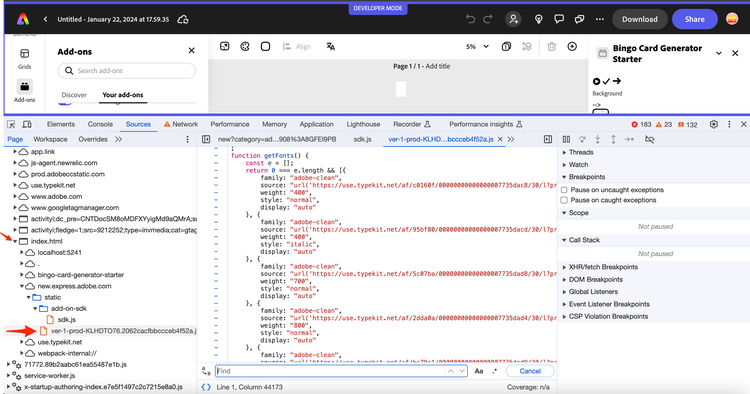
There are a set of Adobe Clean fonts automatically injected by the Add-on UI SDK for use in your add-ons. You can see which are available by checking the documentation. You can also see them while running an add-on via the browser developer tools, as shown in the following:
Debugging
- Use the browser developer tools to inspect the HTML, and search for the
add-on-iframe-slotelement to find the add-on specific code container. - From the developer tools, click into the variables in the stylesheets to see their values.
- Dig into the
node_modules/@spectrum-web-componentsfolder and view the component details to help better understand why an issue might be happening. - Use the API tab in the component reference or the Storybook to locate the details around the supported events.
Styling with Spectrum CSS
Use Spectrum CSS variables for padding, gaps between controls, and general layout. In addition, since Spectrum Web Components do not include any specific components for typography, you can also use variables to style the typography.
Some benefits to using Spectrum CSS variables to style your components over absolute values:
- By using Spectrum CSS global variables, you can ensure your UI aligns with the Spectrum design system, and if the design system changes, your UI will automatically update to the new design system.
- Using Spectrum CSS variables to style your UI allows you to easily update the styles across your entire application by simply updating the value of the variable. If you decide to change a color used throught your app, for example, you can update the value of a single Spectrum CSS variable, and all the elements that use that variable will be updated automatically.
Layout and typography styling
-
Layout - the layout of your add-on can be adjusted by using global variables defined in the
@spectrum-web-components/styles/express/spectrum-core-global.cssfolder in thenode_modulesof your add-on.Some general guidelines <br/>
-
--spectrum-global-dimension-static-size-*variables should be used when the dimension needs to be consistent across different elements or components, such as a uniform padding or margin throughout the application. It should also be used when a dimension needs to be adjusted based on a specific context, such as a container element or viewport size. -
--spectrum-global-static-size-*variables should be used for values that are not necessarily consistent across the application, but need to be adjusted based on the content or use case. In general, these variables are typically used for text-related styles that may vary based on content or context.
To summarize:
- Use
--spectrum-global-dimension-static-sizevariables for for dimensions such aswidth,height,padding,margin, or general spacing variables. - Use
--spectrum-global-static-sizevariables for things likefont-size,line-height,border-radius, etc.
-
-
Color variables are provided as part of the
themeimports. The color value’s contrast with the background increases as the value increases, so colors progressively get darker in a light theme, and lighter in a dark theme (ie:--spectrum-global-color-purple-600is lighter than--spectrum-global-color-purple-900in alighttheme but darker in adarktheme). Preview the color palette in the reference for more details.TIP: Use theme-specific color variables, such as those defined in the light theme for Express, located in the CSS files in your
@spectrum-web-components/styles/express/*folder, for general uses of color in your add-on. For example, when the color will be applied to text, icons, or the borders of a component. Use static color variables defined in the overalltheme.jswhen the color should be fixed and not dependent on the theme. The typical naming scheme is:--spectrum-global-color-purple-600and--spectrum-global-color-static-purple-600, respectively. -
Typography classes can be used to control your typography elements by importing the
typography.css. For instance:import "@spectrum-web-components/styles/typography.css"; <div className="spectrum-Typography"> <p className="spectrum-Heading spectrum-Heading--sizeL">This is a custom large header text</p> </div> </h3>Note: by default, typography components do not include any outer margins, but adding the
spectrum-Typographyclass to your container will provide margins to the typography components within it. You can try out this codepen to see an example of this, by removing thespectrum-Typographyfrom thedivand adding it back to see the difference in the margins. It also illustrates some of the typography classes for example usage. -
Overriding variables: you can override the Spectrum CSS variables as needed in your add-on as well, by setting the name of the spectrum variable to a new value, for instance:
--spectrum-global-dimension-font-size-150: 16px;
Component modifier variables
Components have a set of variables defined to use for modifying properties specific to that particular component. They are prefixed with --mod-*, and should be used when you want to customize the styling of a specific component.
These variables are particularly useful in cases where you want to use a component in multiple places with different styles. By using custom variables, you can easily adjust the styling of a component in one place, and have those changes apply to all instances of the component throughout your application.
In the sample app, you used custom modifiers for a few of the components, including to modify the Slider font size, some Swatch border properties and to adjust the Switch component, for reference.
A list of the prefixed custom properties for each UI component can be found in the Spectrum CSS repo's mods.md file for each component. For instance the swatch component modifiers are listed here, and the slider component modifiers here.
An example of their usage to modify the Slider is provided below for a reminder of what they look like:
.color-well {
  cursor: pointer;
  --mod-swatch-border-thickness: var(--spectrum-divider-thickness-small);
  --mod-swatch-border-color: var(--spectrum-global-color-gray-200);
}
Troubleshooting
Known issues
-
Spectrum Web Component version conflicts
You must use matching component versions for all Spectrum Web Components (or swc-react components) in your
package.jsonor you will receive errors that are often not clear to determine the cause, so save yourself time and double check this if you're having issues running your add-on.This is mentioned in this tutorial a couple of times, but there is a known issue seen when using
@spectrum-web-components(or@swc-react) packages with version0.40.3. At the moment1.7.0is a stable version that should work if you suspect a component version issue. -
Picker flicker
Currently there's a known issue with the
swc-reactPicker component in versions0.36.*-0.40.*where you will see the UI flicker when clicking it.
FAQ & Troubleshooting
This section provides answers to common questions and helps troubleshoot errors you may encounter while following this tutorial.
Q: What's the difference between --spectrum-global-dimension-static-size and --spectrum-global-static-size variables?
A: Use --spectrum-global-dimension-static-size for layout dimensions like width, height, padding, margin, and spacing. Use --spectrum-global-static-size for content-related styles like font-size, line-height, and border-radius. The dimension variables are for consistent layout, while static-size variables are for content that may vary based on context.
Q: How do I find available Spectrum CSS variables?
A: Check the /node_modules/@spectrum-web-components/styles/express/spectrum-core-global.css file in your project for available global variables. For component-specific modifiers, look at the Spectrum CSS repo's mods.md files for each component.
Q: Can I override Spectrum CSS variables?
A: Yes! You can override any Spectrum CSS variable by setting it to a new value in your CSS:
--spectrum-global-dimension-font-size-150: 16px;
This ensures your customizations remain consistent with the design system.
Q: What's the best way to debug Spectrum Web Component issues?
A: Use browser developer tools to:
- Inspect the
add-on-iframe-slotelement to find your add-on code - Click into CSS variables in stylesheets to see their values
- Check the
node_modules/@spectrum-web-componentsfolder for component details - Use the API tab in component documentation or Storybook for event details
Q: Should I use theme-specific or static color variables?
A: Use theme-specific variables (like --spectrum-global-color-purple-600) for text, icons, and component borders that should adapt to light/dark themes. Use static variables (like --spectrum-global-color-static-purple-600) when the color should remain fixed regardless of theme.
-
Why do I see registry errors in the console when running my add-on, for instance:
Uncaught DOMException: Failed to execute 'define' on 'CustomElementRegistry': the name "sp-icon-chevron100" has already been used with this registryandBase.dev.js:164 Attempted to redefine <sp-icon-chevron100>. This usually indicates that multiple versions of the same web component were loaded onto a single page. https://opensource.adobe.com/spectrum-web-components/registry-conflictsThis is probably due to mismatched versions of the
@spectrum-web-components(or@swc-react) packages being used in yourpackage.json. Don't forget to runnpm installafter updating yourpackage.jsonto match the versions.Solution: open your
package.jsonfile and set all of the versions to the same one (ie:1.7.0). You can always reference the sample projects as needed. -
Why do I see the following error when trying to build or start my add-on with the CLI?
ERROR in ./node_modules/@spectrum-web-components/button/src/Button.dev.js 145:6-78 Module not found: Error: Can't resolve '@spectrum-web-components/progress-circle/sp-progress-circle.js' in '/Users/hollyschinsky/spectrum-workshop-2023/workshop-projects/bingo-card-addon-react-start/node_modules/@spectrum-web-components/button/src' ... Field 'browser' doesn't contain a valid alias configuration resolve as moduleSolution: there's a known issue seen when using
@spectrum-web-components(or@swc-react) packages with version0.40.3, which is the latest version that are installed at the time of writing this tutorial, unfortunately. The solution is to update the versions of all components used in yourpackage.jsonfile to a known stable one like1.7.0. Don't forget to runnpm installafter updating to ensure the stable versions are installed before trying to build and run your add-on again. -
Is there a general solution to try when something doesn't work right with the CLI?
Solution: try running
npx clear-npx-cacheto ensure the latest CLI version is installed, then run the CLI commands again. -
Why isn't the CLI building the output to the
distfolder as I would expect? Did I forget to include awebpack.config.jsfile in the root of my project?Solution: make sure your
webpack.config.jsis in the root of your project and not thesrcfolder. You could also double check to ensure your project has the dependencies needed to use webpack. You could also try to replace yourpackage.jsonfile with the one from the provided project. -
I'm building a react-based add-on and it's not building correctly. Does the
scriptsobject in thepackage.jsonof my add-on ensure the--use webpackparameter is used?Solution: ensure your
package.jsonhas the followingscriptsblock. If it doesn't, it will not use webpack to build and start, package etc."scripts": { "clean": "ccweb-add-on-scripts clean", "build": "ccweb-add-on-scripts build --use webpack", "start": "ccweb-add-on-scripts start --use webpack", "package": "ccweb-add-on-scripts package --use webpack" } -
Are all of my components wrapped within an opening and closing
<sp-theme>or<Theme>tag?Solution: make sure all your UI components are surrounded by the corresponding opening and closing theme tags for either Spectrum Web Components or
swc-react, or you will not see the components rendered properly.
Still having issues? Message our team on discord for help.
Resources
The following list of resources can be used to learn more about using Adobe's Spectrum Design System:
-
Example codepens
-
- Reminder: you should only use this option for quick testing, but note that it will default to the Spectrum base theme unless you include the Express theme bundles specifically. See the example codepens for details.