Resize Elements
Adobe Express provides a powerful unified API for resizing elements. The resize() method gives you fine-grained control over how elements change size, whether they maintain aspect ratios, and how visual details like strokes and corners are affected.
data-slots=text
data-variant=warning
experimentalApis flag to true in the requirements section of the manifest.json.Understanding Resize Behavior
The resize() method accepts a ResizeOptions object with three mandatory components:
- Dimensions: Specify
width,height, or both (depending on the behavior). - Behavior: Controls aspect ratio handling via
ResizeBehaviorenumeration. - Visual Details: Choose whether to scale strokes, corners detailing, etc.
Resize Behaviors
Defined in the ResizeBehavior enumeration.
ResizeBehavior.contain: Fits the element entirely within the specified dimensions.ResizeBehavior.cover: Ensures the element completely covers the specified area.ResizeBehavior.proportional: Maintains the element's aspect ratio.
data-slots=text
data-variant=info
ResizeBehavior.proportional requires only one dimension (never both); ResizeBehavior.contain can use one or both dimensions; ResizeBehavior.cover typically uses both dimensions.Visual Details Flag
The avoidScalingVisualDetailsIfPossible flag determines how visual styling is handled:
true: Preserves stroke widths, corner radii, etc.false: Scales all visual properties proportionally with the element.
Proportional Resizing
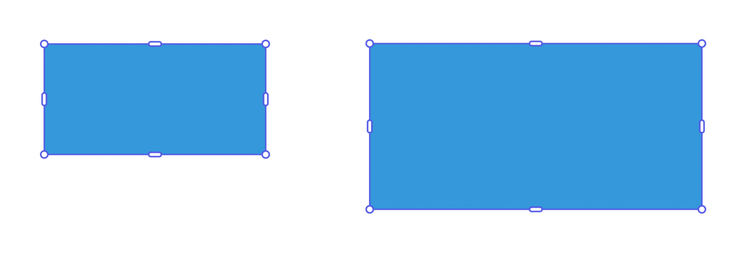
Proportional resizing maintains the element's aspect ratio while changing its size. Specify either width or height (never both) and the other dimension will adjust automatically.
Example: Resize by Width
// sandbox/code.js
import { editor, colorUtils, constants } from "express-document-sdk";

// Create a rectangle
const rect = editor.createRectangle();
rect.width = 200;
rect.height = 100;
rect.translation = { x: 100, y: 100 };
rect.fill = editor.makeColorFill(colorUtils.fromHex("#3498db"));

editor.context.insertionParent.children.append(rect);

// Resize proportionally by width, scaling all visual details
rect.resize({
  width: 300,
  behavior: constants.ResizeBehavior.proportional,
  avoidScalingVisualDetailsIfPossible: false
});

console.log(`New dimensions: ${rect.width} x ${rect.height}`);
// New dimensions: 300 x 150
Example: Resize by Height
// sandbox/code.js
import { editor, colorUtils, constants } from "express-document-sdk";

const ellipse = editor.createEllipse();
ellipse.rx = 100; // radius x = 100 (width = 200)
ellipse.ry = 50;  // radius y = 50 (height = 100)
ellipse.translation = { x: 150, y: 100 };
ellipse.fill = editor.makeColorFill(colorUtils.fromHex("#F0B76C"));

editor.context.insertionParent.children.append(ellipse);

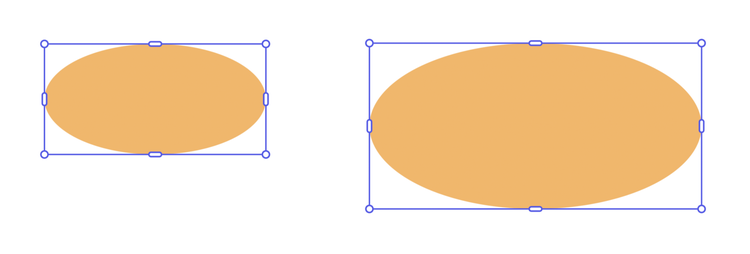
// Resize proportionally by height, scaling all visual details
ellipse.resize({
  height: 150,
  behavior: constants.ResizeBehavior.proportional,
  avoidScalingVisualDetailsIfPossible: false
});

console.log(`New bounds: ${ellipse.boundsLocal.width} x ${ellipse.boundsLocal.height}`);
// New bounds: 300 x 150
Example: Preserve Visual Details
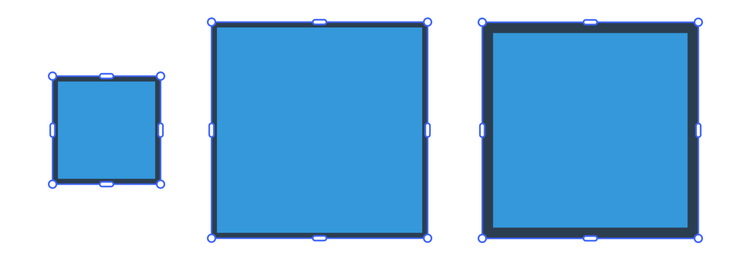
When avoidScalingVisualDetailsIfPossible is set to true, strokes and other visual details maintain their original size:
// sandbox/code.js
import { editor, colorUtils, constants } from "express-document-sdk";

const rect = editor.createRectangle();
rect.width = 100;
rect.height = 100;
rect.translation = { x: 100, y: 100 };
rect.fill = editor.makeColorFill(colorUtils.fromHex("#3498db"));

// Add a 5px stroke
const stroke = editor.makeStroke({
  color: colorUtils.fromHex("#2c3e50"),
  width: 5,
  position: constants.StrokePosition.inside
});
rect.stroke = stroke;

editor.context.insertionParent.children.append(rect);

// Resize proportionally while preserving stroke width
rect.resize({
  width: 200,
  behavior: constants.ResizeBehavior.proportional,
  avoidScalingVisualDetailsIfPossible: true     // preserves stroke width
  // avoidScalingVisualDetailsIfPossible: false // scales stroke width
});

console.log(`Stroke width after resize: ${rect.stroke.width}px`);
// Stroke width after resize: 5px (unchanged)
Contain Behavior
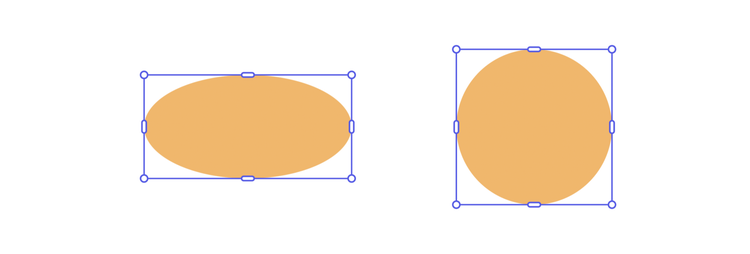
The contain behavior fits an element entirely within specified dimensions, similar to CSS object-fit: contain. Elements with fixed aspect ratios may leave unused space on one axis.
Example: Contain Within Bounds (Shapes)
// sandbox/code.js
import { editor, colorUtils, constants } from "express-document-sdk";

const ellipse = editor.createEllipse();
ellipse.rx = 100; // radius x = 100 (width = 200)
ellipse.ry = 50;  // radius y = 50 (height = 100)
ellipse.translation = { x: 150, y: 100 };
ellipse.fill = editor.makeColorFill(colorUtils.fromHex("#F0B76C"));

editor.context.insertionParent.children.append(ellipse);
// Fit within a 150x150 box
ellipse.resize({
  width: 150,
  height: 150,
  behavior: constants.ResizeBehavior.contain,
  avoidScalingVisualDetailsIfPossible: true
});

console.log(`Resized dimensions: ${ellipse.width} x ${ellipse.height}`);
// Resized dimensions: 150 x 150
data-slots=header, text
data-variant=warning
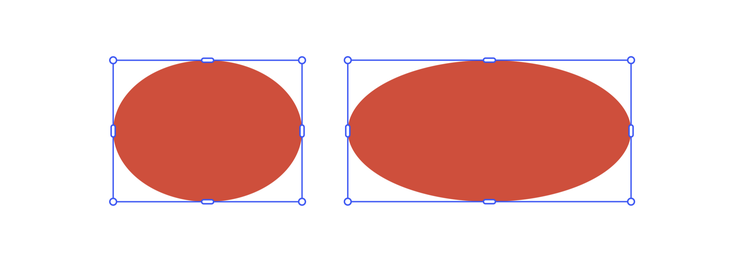
Example: Contain with One Dimension (Shapes)
You can specify only one dimension with contain behavior to adjust that dimension while ideally keeping the other fixed:
// sandbox/code.js
import { editor, colorUtils, constants } from "express-document-sdk";

const ellipse = editor.createEllipse();
ellipse.rx = 100;
ellipse.ry = 75;
ellipse.translation = { x: 150, y: 150 };
ellipse.fill = editor.makeColorFill(colorUtils.fromHex("#e74c3c"));

editor.context.insertionParent.children.append(ellipse);

// Adjust width while attempting to preserve height
ellipse.resize({
  width: 300,
  behavior: constants.ResizeBehavior.contain,
  avoidScalingVisualDetailsIfPossible: true
});

console.log(`New bounds: ${ellipse.boundsLocal.width} x ${ellipse.boundsLocal.height}`);
Example: Contain Within Bounds (Media)
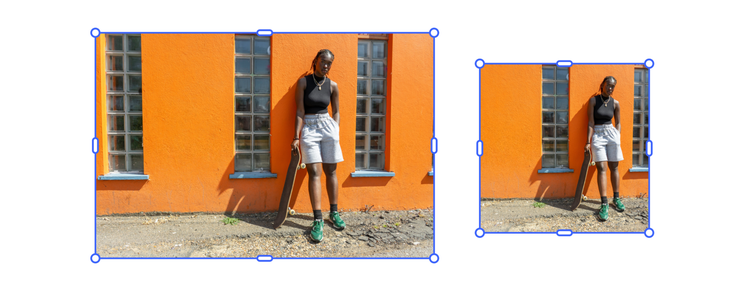
Media elements (images, videos) maintain their aspect ratio; cropping may happen when the aspect ratio of the media does not match the aspect ratio of the container.
// sandbox/code.js
import { editor, constants } from "express-document-sdk";

// Assuming the user has selected an Image node
const imageNode = editor.context.selection[0];

console.log(
  "Initial dimensions: " +
    imageNode.boundsLocal.width +
    " x " +
    imageNode.boundsLocal.height
);
// Initial dimensions: 300 x 200

imageNode.resize({
  width: 150,
  height: 150,
  behavior: constants.ResizeBehavior.contain,
  avoidScalingVisualDetailsIfPossible: true
});
console.log(
  "Resized dimensions: " +
    imageNode.boundsLocal.width +
    " x " +
    imageNode.boundsLocal.height
);
// Resized dimensions: 150 x 150
data-slots=text, text1
data-variant=warning
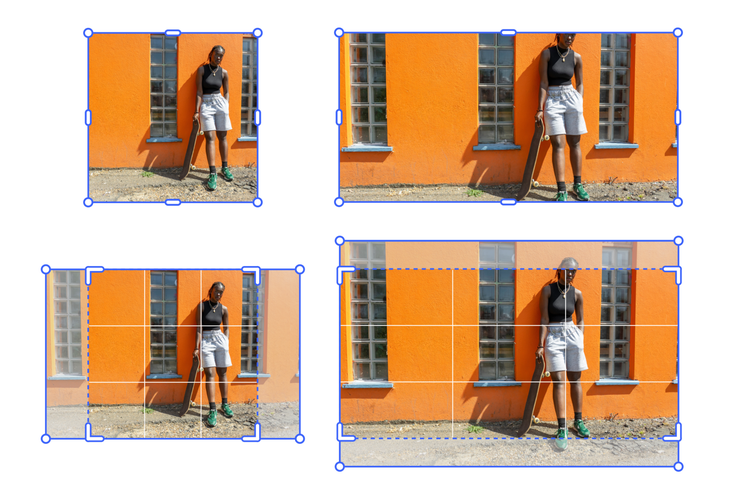
For instance, in the next example we’ll start with the 150x150 image we resized earlier, trying to fit it within a 300x150 box. The results can be counterintuitive, since resize, under the hood, uses a combination of steps to achieve the final dimensions — but it lacks the contextual understanding that Adobe Express has when users interact with the UI. This means that API-based resize calls should always be validated afterward to ensure they produce the expected outcome.
// sandbox/code.js
import { editor, constants } from "express-document-sdk";

// Assuming the user has selected an Image node
const imageNode = editor.context.selection[0];

console.log(
  "Initial dimensions: " +
    imageNode.boundsLocal.width +
    " x " +
    imageNode.boundsLocal.height
);
// Initial dimensions: 150 x 150

// Resize to fit within a 300x150 box
imageNode.resize({
  width: 300,
  height: 150,
  behavior: constants.ResizeBehavior.contain,
  avoidScalingVisualDetailsIfPossible: true
});

console.log(
  "Resized dimensions: " +
    imageNode.boundsLocal.width +
    " x " +
    imageNode.boundsLocal.height
);
// Resized dimensions: 300 x 150
Cover Behavior
The cover behavior ensures an element completely covers the specified area, similar to CSS object-fit: cover. Elements with fixed aspect ratios may extend beyond the target bounds on one axis.
Example: Cover an Area
// sandbox/code.js
import { editor, colorUtils, constants } from "express-document-sdk";

// Assuming the user has selected an Image node
const imageNode = editor.context.selection[0];

console.log(
  "Initial dimensions: " +
    imageNode.boundsLocal.width +
    " x " +
    imageNode.boundsLocal.height
);
// Initial dimensions: 150 x 100

// Resize to cover a 120x120 area
imageNode.resize({
  width: 120,
  height: 120,
  behavior: constants.ResizeBehavior.cover,
  avoidScalingVisualDetailsIfPossible: true
});

console.log(
  "Covered dimensions: " +
    imageNode.boundsLocal.width +
    " x " +
    imageNode.boundsLocal.height
);
// Covered dimensions: 120 x 120
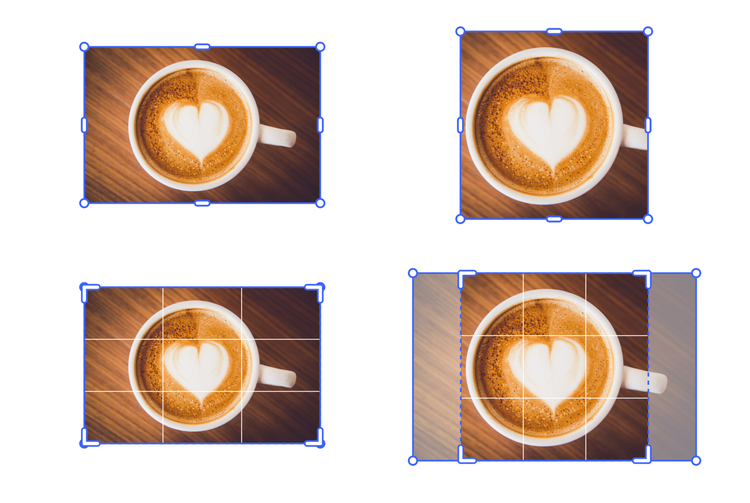
In this example, the image is resized to cover a 120x120 area; the image is enlarged maintaining its aspect ratio, while the crop is adjusted to fit within the bounding box.
data-slots=text
data-variant=info
ResizeBehavior.cover and ResizeBehavior.contain methods yield the same result.Working with Text Elements
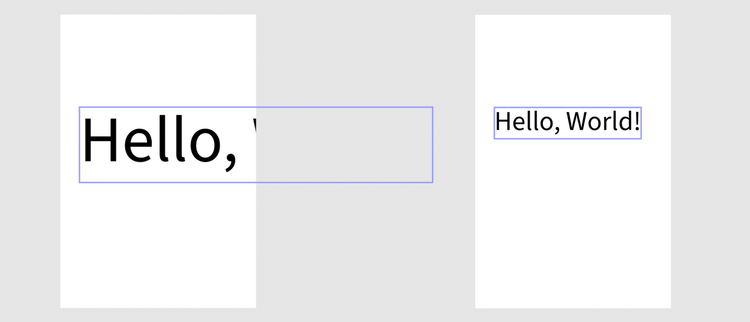
Text elements adjust their font size when resized. Both proportional and contain/cover behaviors produce similar results:
Example: Resize Text Proportionally
// sandbox/code.js
import { editor, constants } from "express-document-sdk";

const textNode = editor.createText("Hello, World!");

const insertionParent = editor.context.insertionParent;
textNode.setPositionInParent(
  { x: insertionParent.width / 2, y: insertionParent.height / 2 },
  { x: 0, y: 0 }
);

insertionParent.children.append(textNode);

// Resize text proportionally - font size scales accordingly
textNode.resize({
  width: 300,
  behavior: constants.ResizeBehavior.proportional,
  avoidScalingVisualDetailsIfPossible: false
});
Example: Equivalent Resize Behaviors for Text
As we've seen, when resizing text the font size is adjusted to fit within the specified bounds. Different combinations of ResizeBehavior parameters can produce equivalent results, as shown below.
// sandbox/code.js
// import { editor } from "express-document-sdk";

// Assuming the user has selected a text frame
const textNode = editor.context.selection[0];

// Both will result in a 200px wide text
textNode.resize({
   width: 200, height: 100,
   behavior: constants.ResizeBehavior.contain,
   avoidScalingVisualDetailsIfPossible: true
})
textNode.resize({
   width: 200,
   behavior: constants.ResizeBehavior.proportional,
   avoidScalingVisualDetailsIfPossible: true
})

// Both will result in a 100px tall text
textNode.resize({
   width: 200, height: 100,
   behavior: constants.ResizeBehavior.cover,
   avoidScalingVisualDetailsIfPossible: true
})
textNode.resize({
   height: 100,
   behavior: constants.ResizeBehavior.proportional,
   avoidScalingVisualDetailsIfPossible: true
})
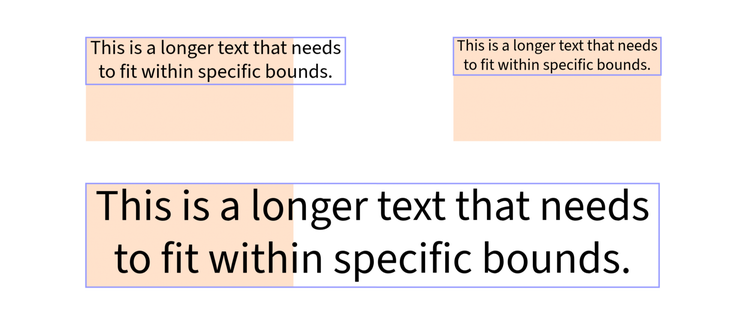
In the screenshot above, the original text is top-left; top-right, the result of both resize() with contain and proportional behavior (width-only); bottom, the result of both resize() with cover and proportional behavior (height-only).
Working with Pages
Page resizing uses a simpler approach; simply set the width and height properties:
// sandbox/code.js
import { editor } from "express-document-sdk";

const page = editor.documentRoot.pages.first;
console.log(`Page dimensions before: ${page.width} x ${page.height}`);

page.width  = 300;
page.height = 300;

console.log(`Page dimensions after: ${page.width} x ${page.height}`);
// Page dimensions before: 400 x 600
// Page dimensions after: 300 x 300
Common Patterns
Resize to Exact Dimensions (Shapes)
For shapes without aspect ratio constraints:
rect.resize({
  width: 300,
  height: 200,
  behavior: constants.ResizeBehavior.contain,
  avoidScalingVisualDetailsIfPossible: true
});
Scale Everything Proportionally
To scale an element like a zoom operation:
element.resize({
  width: newWidth,
  behavior: constants.ResizeBehavior.proportional,
  avoidScalingVisualDetailsIfPossible: false
});
Maintain Stroke Appearance
To resize while keeping strokes crisp:
element.resize({
  width: newWidth,
  height: newHeight,
  behavior: constants.ResizeBehavior.contain,
  avoidScalingVisualDetailsIfPossible: true
});
Thumbnail Generation
To create thumbnails that fit within bounds:
image.resize({
  width: 150,
  height: 150,
  behavior: constants.ResizeBehavior.contain,
  avoidScalingVisualDetailsIfPossible: true
});
Migration from Deprecated APIs
If you're updating code that uses the old (experimental) resize/rescale methods, here are the conversions:
// OLD:
element.rescaleProportionalToWidth(300);

// NEW:
element.resize({
  width: 300,
  behavior: constants.ResizeBehavior.proportional,
  avoidScalingVisualDetailsIfPossible: false
});

// OLD:
element.rescaleProportionalToHeight(200);

// NEW:
element.resize({
  height: 200,
  behavior: constants.ResizeBehavior.proportional,
  avoidScalingVisualDetailsIfPossible: false
});

// OLD:
element.resizeToFitWithin(300, 200);

// NEW:
element.resize({
  width: 300,
  height: 200,
  behavior: constants.ResizeBehavior.contain,
  avoidScalingVisualDetailsIfPossible: true
});

// OLD:
element.resizeToCover(300, 200);

// NEW:
element.resize({
  width: 300,
  height: 200,
  behavior: constants.ResizeBehavior.cover,
  avoidScalingVisualDetailsIfPossible: true
});
FAQs
Q: How do I resize an element?
A: Use node.resize() with options specifying width/height, behavior, and visual detail preferences.
Q: How do I resize proportionally by width?
A: Call node.resize({ width, behavior: ResizeBehavior.proportional, avoidScalingVisualDetailsIfPossible }) to maintain aspect ratio.
Q: What's the difference between contain and cover behavior?
A: Contain fits the element within bounds; cover ensures the element completely covers the specified area.
Q: What does avoidScalingVisualDetailsIfPossible do?
A: When true, tries to preserve stroke widths, corner radii, and font sizes at their original values.
Q: Can I resize with only one dimension?
A: Yes, use proportional behavior (which requires only one dimension) or contain behavior with just width or height specified.
Q: How do I resize pages?
A: Set page.width and page.height properties directly on the PageNode.