Adobe Express Developer MCP Server
Get Adobe Express Add-ons documentation and TypeScript definitions directly in your AI-assisted IDE through the Model Context Protocol (MCP). Build faster with grounded answers and accurate code suggestions.
TL;DR - Quick Setup
If you are already familiar with the concepts of Model Context Protocol (MCP) and are looking for quick steps to configure, add the following json to your MCP-compatible IDE and restart. For more details, tips & tricks, and examples, continue to read the next sections.
{
  "mcpServers": {
    "adobe-express-developer": {
      "command": "npx",
      "args": ["@adobe/express-developer-mcp@latest", "--yes"]
    }
  }
}
data-variant=info
data-slots=header, text1, text2
@adobe/express-developer-mcp) and supersedes the beta version (@adobe/express-add-on-dev-mcp) now deprecated, in all MCP configurations.Configuration file locations:
- Cursor:
~/.cursor/mcp.json - Claude Desktop:
claude_desktop_config.json - VS Code:
~/.vscode/mcp.json
Requirements: Node.js 18+ and an MCP-compatible IDE with LLM integration.
data-variant=info
data-slots=header, text1
What it does
"Think of MCP like a USB-C port for AI applications. Just as USB-C provides a standardized way to connect your devices to various peripherals and accessories, MCP provides a standardized way to connect AI models to different data sources and tools." — Model Context Protocol <br/>
The Adobe Express Developer MCP Server acts as a bridge between your LLM (AI assistant) and Adobe Express add-on developer resources. It requires an MCP-compatible IDE with an LLM of your choice to provide accurate, context-aware answers for coding, debugging, and building full-fledged add-ons, quickly.
The MCP Server communicates directly with your LLM to enhance its responses by connecting your IDE to the Adobe Express Add-on ecosystem, providing capabilities to ask questions and generate code with:
- Semantic Documentation Search: Find relevant guides, examples, and tutorials without leaving your editor
- TypeScript Definitions: Get accurate code completions and reduce AI hallucinations with official SDK types
- Structured Access: Your LLM gets grounded information from the latest Adobe Express Add-on documentation
Prerequisites
- Node.js 18+ (check with
node --version) - Required to run the Adobe Express Developer MCP Server package vianpx - MCP-compatible IDE - Such as Cursor, Claude Desktop, VS Code or other editors supporting the Model Context Protocol
Quick Setup (No Installation Required)
No need to clone, install or build. Just configure your IDE with a simple json file.
Step 1: Configure your IDE
For Cursor Users
Add this to ~/.cursor/mcp.json:
{
  "mcpServers": {
    "adobe-express-developer": {
      "command": "npx",
      "args": [
        "@adobe/express-developer-mcp@latest",
        "--yes"
      ]
    }
  }
}
For Claude Desktop Users
Add this to claude_desktop_config.json:
{
  "mcpServers": {
    "adobe-express-developer": {
      "command": "npx",
      "args": [
        "@adobe/express-developer-mcp@latest",
        "--yes"
      ]
    }
  }
}
For VS Code Users
Add this to your workspace in ~/.vscode/mcp.json:
{
  "servers": {
    "adobe-express-developer": {
      "command": "npx",
      "args": [
        "@adobe/express-developer-mcp@latest",
        "--yes"
      ]
    }
  }
}
Step 2: Verify the Connection
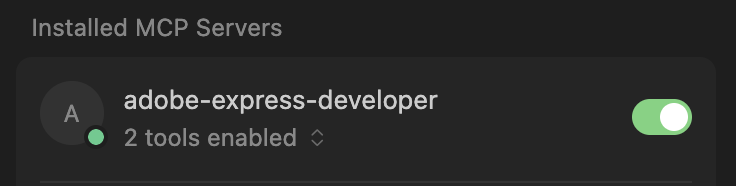
Check Connection Status
data-slots=image, text
data-isReversed=true
Verify with Tool calls
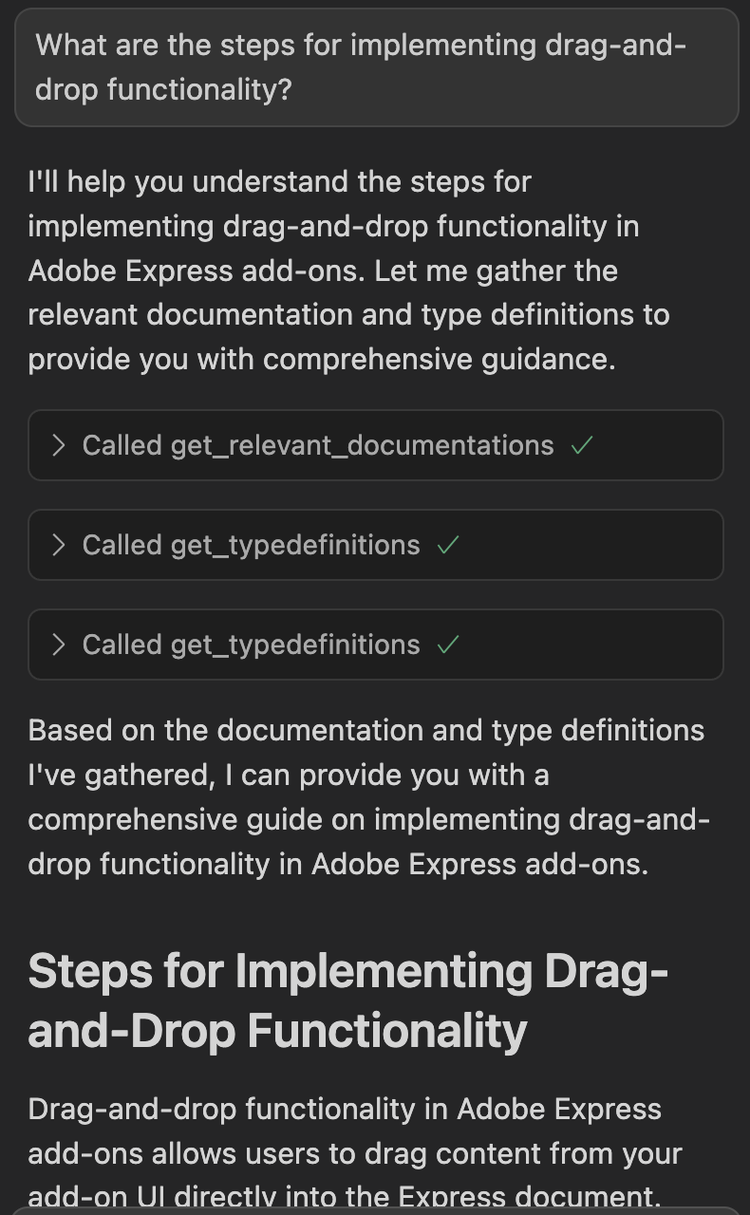
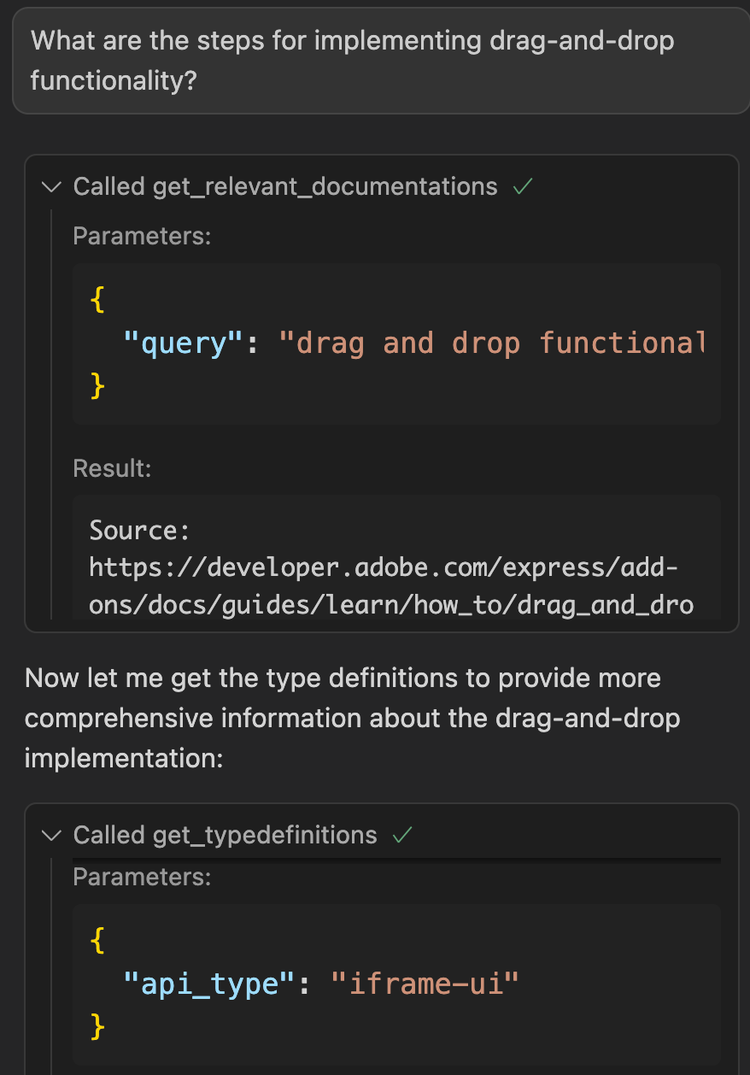
The LLM will automatically invoke tools based on your prompts. Here is an example of Cursor making calls to the Adobe Express Developer MCP Server tools to retrieve the developer documentation and type definitions based on the query. The expanded tool calls reveal the results of either the documentation source that matched the query, or the typescript definitions for the specific API in the parameters.
<div style="display:flex;gap:100px;" >
data-header=true
data-slots=header,list
data-variant=success
data-iconPosition=right
- Ask the LLM to "list MCP tools".
- If you have multiple MCP servers, say: "Use the MCP server named Adobe Express Developer".
How to use it
Usage Examples
The Adobe Express Developer MCP Server excels at both helping with answering questions and generating code for Adobe Express add-ons. Here are some examples of effective prompts:
Documentation & Learning
- "How do I create and style text in Adobe Express?"
- "What are the steps for implementing drag-and-drop functionality?"
- "How does the Document API work for manipulating elements?"
- "Show me examples of using the color picker component?"
Code Generation & Implementation
- "Implement a color picker in my add-on"
- "Generate code to create a text element with custom styling"
- "Build a drag-and-drop interface for uploading images"
- "Create a button that adds a rectangle to the canvas"
- "Write TypeScript code to handle user text input and apply it to the document"
- "Implement an image import feature with file validation"
- "Show me a sample code snippet for using a modal dialog"
Debugging & Troubleshooting
- "Why isn't my add-on loading in Adobe Express?"
- "Why isn't my text element appearing on the canvas?"
- "Debug this error when trying to add an image to the document (error message: ...)"
- "How do I debug an issue in my
code.jsfile?"
Best Practices for Effective Use
data-variant=success
data-slots=header, text1, text2, text3
1. Set Context for the Entire Conversation
-
Start your session by describing your technical setup and visual requirements. This gives the LLM context for the entire conversation and ensures all subsequent responses are tailored to your specific tech stack.
Example of a well-structured prompt:
"I'm building an Adobe Express add-on using JavaScript/TypeScript and React with a UI based on Spectrum Web Components using the Express theme. My user interface needs a text field, a button, a modal dialog and a color picker. Please generate the code and show me how to set it up using the Adobe Add-on CLI."
Key elements to include:
- Programming languages: JavaScript, TypeScript
- Framework: React
- UI components: Spectrum Web Components with Express theme using swc-react
- Specific components needed: Modal dialog, color picker, buttons, etc.
- Build tools: Adobe Add-on CLI for setup and development
2. Craft Effective Prompts
- Be Specific: "Add a stroke to a rectangle" vs "Style shapes"
- Include Context: "I'm building a text editor add-on" helps narrow results
- Use Technical Terms: "text styling" vs "make it look good"
- Ask for Examples: "Show me code examples for text manipulation"
- Request Code Generation: "Generate TypeScript code to..." or "Implement a feature that..."
3. Manage Your Sessions
-
Keep Sessions Focused: Start new conversations for different features or topics
-
Be Explicit: Tell the agent "For Adobe Express Add-ons questions, prefer the Adobe Express Developer MCP tools and cite sources."
-
Provide Context: Mention what you're building and your current progress
-
Iterate Gradually: Build features step-by-step rather than asking for complete applications
-
Avoid Getting Stuck in Debugging Loops:
- If the LLM keeps suggesting fixes that don't work, start fresh with a new conversation
- Save your working code frequently using version control branches
- When debugging fails repeatedly, try a different approach or even switch to a different LLM model
- It's often faster to restart with a clear problem description than to keep correcting a confused AI assistant
4. Using LLM Rules
Custom rules can help guide your LLM's responses, but they require careful design and testing to ensure they work as intended.
Best Practices:
-
Test your rules thoroughly before relying on them
-
Focus on positive guidance rather than restrictions
-
Be specific about what you want, not just what you want to avoid
-
Avoid overly restrictive rules:
- Rules that focus on "never do X" or "cannot do Y" can backfire
- LLMs may over-prioritize avoiding the restriction and neglect coding fundamentals
- Instead of "Never use inline styles," try "Prefer CSS classes and external stylesheets for maintainability"
4.1 Example Rules for Cursor
Here are some example rules that have proven helpful for Adobe Express add-on development in Cursor. Feel free to adapt them for your own use:
  - Use adobe-express-developer MCP server for questions about Express Add-ons, Express API, CLI, and SDK before web search.
  - Add-ons are bundled and served in the browser as an iFrame.
  - Both the Add-on UI and "Express document sandbox" are isolated and must communicate through a proxy layer.
  - The term "document" most often refers to terminology related to Express Add-ons since the regular browser DOM isn't available in the sandboxed environment.
5. Pro UI Tips
Consider using the following tips in your prompts/rules for LLM guidance when using Spectrum Web Components (SWC) or the swc-react wrappers library for React-based add-ons. These tips help your LLM generate UI code for add-ons.
Using Spectrum Web Components (add-ons NOT using React)
data-header=true
data-slots=text
data-variant=success
data-iconPosition=right
data-repeat=4
- CRITICAL: All
@spectrum-web-components/*packages MUST use identical versions - REQUIRED theme imports:
import '@spectrum-web-components/theme/express/theme-light.js'; import '@spectrum-web-components/theme/express/scale-medium.js'; import '@spectrum-web-components/theme/sp-theme.js';-
Wrap app with:
<sp-theme system="express" scale="medium" color="light"> -
ALWAYS check
package.jsonfor version consistency across ALL@spectrum-web-components/*packages -
Use Related References:
Using swc-react: React Wrappers for SWC (only for add-ons using React)
data-header=true
data-repeat=4
data-slots=text
data-variant=success
data-iconPosition=right
- MANDATORY: Use
@swc-react/*components (NOT React Spectrum) - CRITICAL: All
@swc-react/*packages MUST use identical versions - REQUIRED theme setup:
import '@spectrum-web-components/theme/express/theme-light.js'; import '@spectrum-web-components/theme/express/scale-medium.js'; import { Theme } from '@swc-react/theme';-
Wrap app with:
<Theme system="express" scale="medium" color="light"> -
ALWAYS check
package.jsonfor version consistency across ALL@swc-react/*packages -
Use Related References:
Troubleshooting
data-header=true
data-slots=header , text
data-variant=neutral
data-iconPosition=right
- ✅ Check Node.js version:
node --version(needs 18+) - ✅ Verify MCP config JSON syntax and file location
- ✅ Ensure firewall allows
npxdownloads - ✅ Restart your IDE after configuration changes
- ✅ Check for MCP server status indicators
data-header=true
data-variant=neutral
data-slots=header,text
data-iconPosition=right
- ✅ Use specific technical terms ("text styling" vs "make it pretty")
- ✅ Try adding "Adobe Express Add-ons" for an additional context cue
- ✅ Try broader queries first, then narrow down
- ✅ Ask the agent to "use available tools" explicitly
- ✅ Include context about what you're building
data-header=true
data-variant=neutral
data-slots=header,text
data-iconPosition=right
- ✅ Be specific about what you want to implement
- ✅ Mention the programming language and frameworks (TypeScript/JavaScript, React)
- ✅ Provide context about your add-on's purpose
- ✅ Ask for complete, working examples
data-header=true
data-variant=neutral
data-slots=header,text
data-iconPosition=right
- ✅ Specify the correct API surface (
iframe-ui,express-document-sdk,add-on-sdk-document-sandbox) - ✅ Ask for specific types rather than general requests
Resources & Support
- Documentation: Adobe Express Add-on Guides
- Add-on Samples: Samples Repository
- Updates: Changelog
- Community: Adobe Express Add-on Developers Discord
- Forum: Adobe Express Developers Community
FAQs
Q: What is an LLM and why do I need one?
A: LLM stands for "Large Language Model"—these are AI assistants like ChatGPT, Claude, or Copilot that can understand and generate human-like text and code. In the context of the MCP Server, the LLM is your AI coding assistant that reads your questions, searches Adobe Express documentation (via the MCP Server), and provides intelligent responses with accurate code examples. Think of it as having an expert Adobe Express developer as your pair programming partner who has instant access to all the documentation and can write code for you.
Q: Does the Adobe Express Developer MCP Server help with generating code?
A: Yes—it enhances your LLM's ability to generate accurate Adobe Express add-on code by providing relevant documentation and TypeScript definitions. Your IDE/LLM handles the actual code generation with improved context.
Q: Which IDEs work?
A: Any IDE supporting MCP: Cursor, Claude Desktop, VS Code and others.
Q: Who should use this?
A: Adobe Express add-on developers who want faster, more accurate development workflows.
Q: Is it free?
A: Yes.
Q: Do I need to install anything locally?
A: No! The MCP Server runs via npx which downloads and runs the latest version automatically. You only need Node.js 18+ and an MCP-compatible IDE.
Q: How do I know if the MCP Server is working?
A: Look for a green indicator in your IDE (like Cursor) showing the server is connected. When you ask questions, you'll see tool calls being made to retrieve documentation and TypeScript definitions.
Q: Can I use this with existing add-on projects?
A: Absolutely! The MCP Server works with any Adobe Express add-on project, whether you're starting from scratch or working on an existing codebase. It's especially helpful for understanding and extending existing code.
Q: What's the difference between this and regular web search?
A: The MCP Server provides curated, up-to-date Adobe Express add-on documentation and official TypeScript definitions directly to your LLM. This eliminates outdated information and reduces AI hallucinations compared to general web search results.
Q: Where else can I get additional help with MCP Server connection issues?
A: You can check out the Model Context Protocol Debugging for more general MCP Server connection debugging information, or message us on our Adobe Express Add-on Developers Discord.