Code Playground - Workflow & Productivity
Master the Code Playground workflow with keyboard shortcuts, session management, and productivity tips to maximize your development efficiency.
Transitioning Between Modes
From Script Mode to Add-on Mode
Once you've tested your code in Script mode, you can easily transition it into Add-on Mode to build a user interface around your functionality:
- Copy Your Code: Use the Copy button in the right corner to quickly copy your code to the clipboard
- Switch to Add-on Mode: Click the Add-on button to enter Add-on Mode
- Paste and Adapt: Paste the code into the Document JS tab. Note: Don't forget you'll need to add the
importstatements for the Document APIs and handle yourasyncfunctions manually in this mode - Build Your UI: Modify your script code to be used in the add-on context along with your front-end logic in the HTML, Iframe JS, and CSS tabs. Use the initial sample code provided as a reference
- Configure Manifest: If you set any manifest properties (e.g., experimentalApis) while in Script mode, make sure to set the same in Add-on Mode as well. These settings only apply to the context of the development mode you're in
- Test Your Add-on: Click the Run Code button to execute your code within the context of your add-on
Keyboard Shortcuts
Use these keyboard shortcuts to work more efficiently:
data-slots=header,text1
data-variant=success
TIP
Debugging
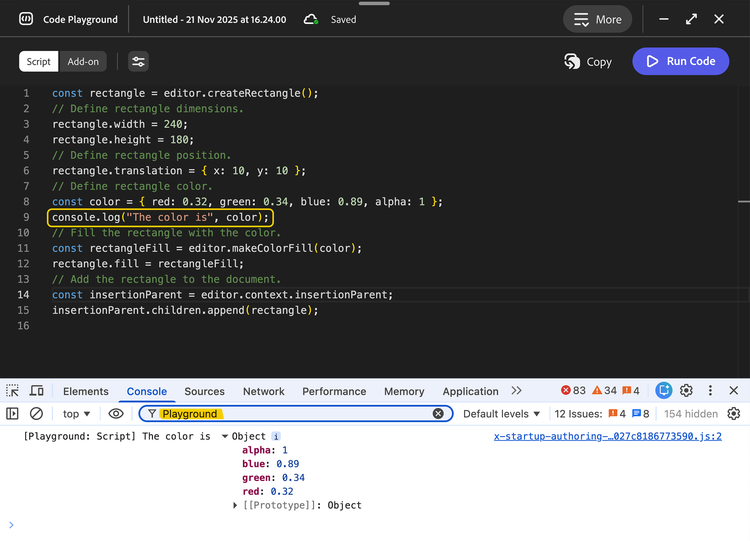
For debugging your code, you can view the logs from Code Playground in the browser's Console.
data-slots=text, text1, text2
data-variant=info
[Playground: Add-on]for Code Playground in Add-on mode.[Playground: Script]for Code Playground in Script mode.
Playground in the filter input.
Session Management
Save Your Work
The Code Playground now backs up your sessions in the cloud, ensuring your work is safely stored and protected from accidental loss. You can know whether your session is looking at the status next to the session name.
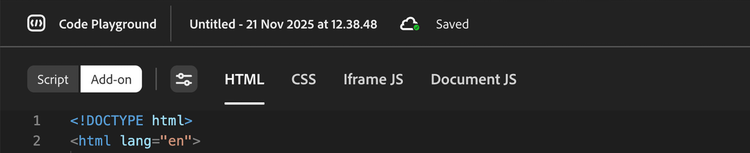
If an issue occurs, the status will update accordingly and an error toast will appear.
Your code is not saved automatically. The Code Playground saves your session only when you perform the following actions:
- Run the code.
- Save using the keyboard shortcut for Save.
- Switch to a new session.
- Exit the Code Playground (with the X in the upper right corner).
Manage and Resume Sessions
There are two ways to resume working on one of your saved sessions:
Via the Home Screen
- Click the Add-ons button in the left rail.
- Click the Add-on development toggle in the top right corner of the playground window.
- Click New sesion to create a new one, or
- Select the Playground Sessions tab to access your saved sessions.
- Click on the session you want to resume to open it in the Code Playground.
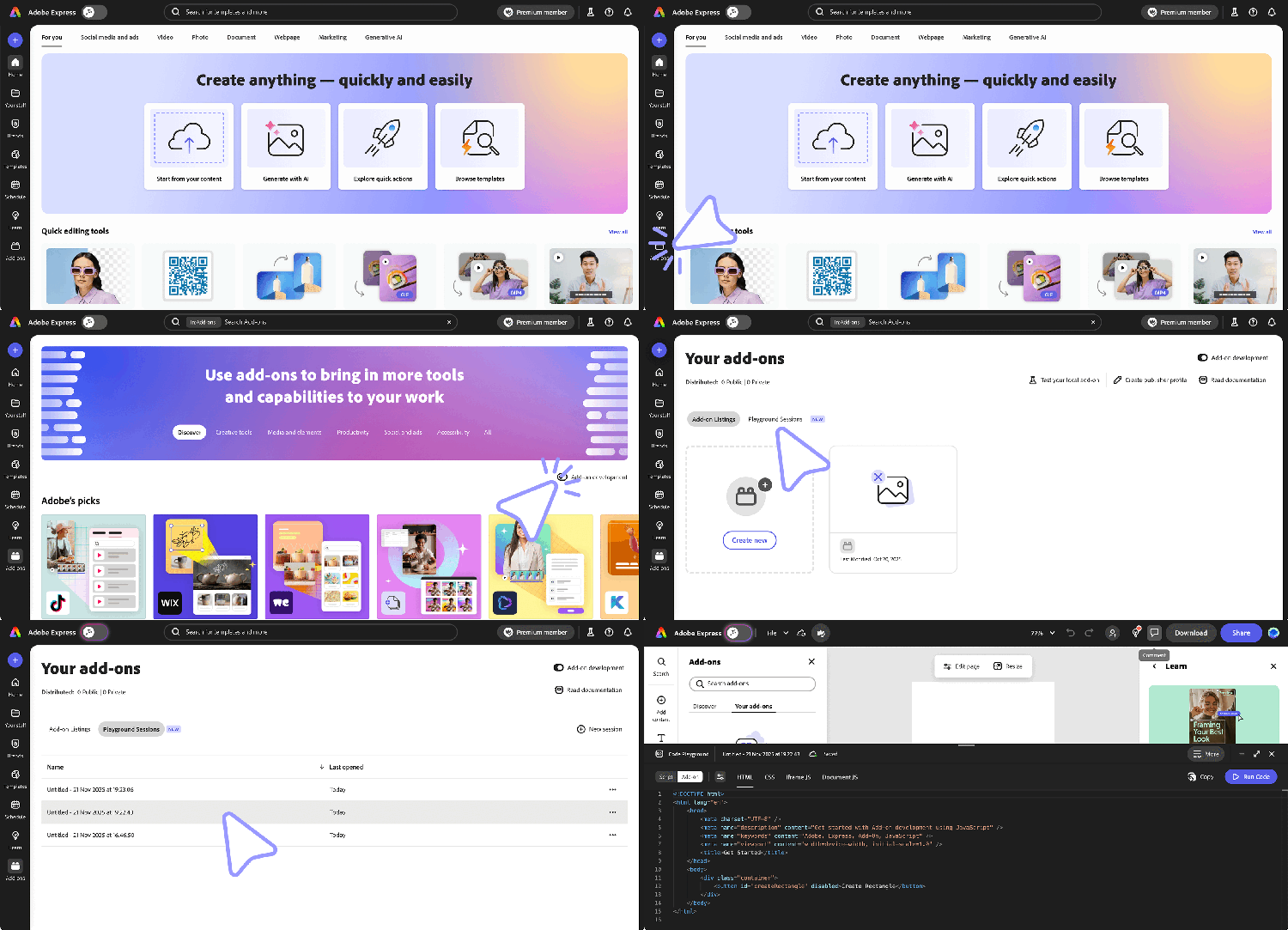
Via the Add-ons Panel
If you have a document open, you can:
- Click the Add-ons button in the left rail and select the Your add-ons tab.
- Toggle on Code Playground at the bottom of the panel; it will open with the last session you were working on.
To browse your saved sessions:
- Click the More button in the top right corner of the playground window
- Select the Manage Sessions item in the dropdown menu
- You'll see a list of your saved sessions; click on one to select it and click the Open button to resume working on it.
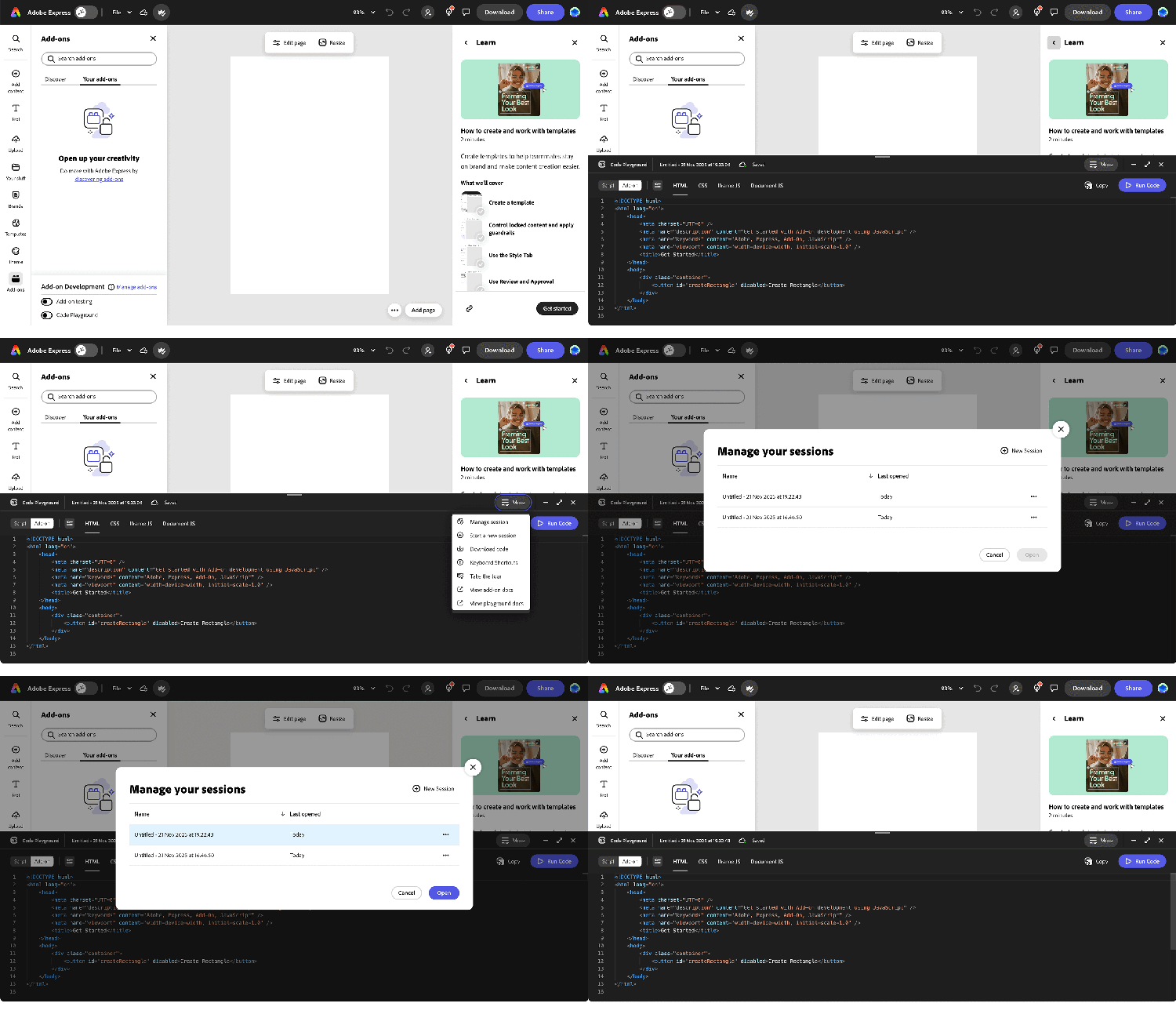
data-slots=header, text1
data-variant=info
Access "Your add-ons" Page
- Without a document open: Click the Add-ons button in the left rail, then click the Add-on development toggle in the top right
- With a document open: Click the Add-ons button in the left rail, select the Your add-ons tab, then click the "Manage add-ons" link in the Add-on Testing section
Rename a Session
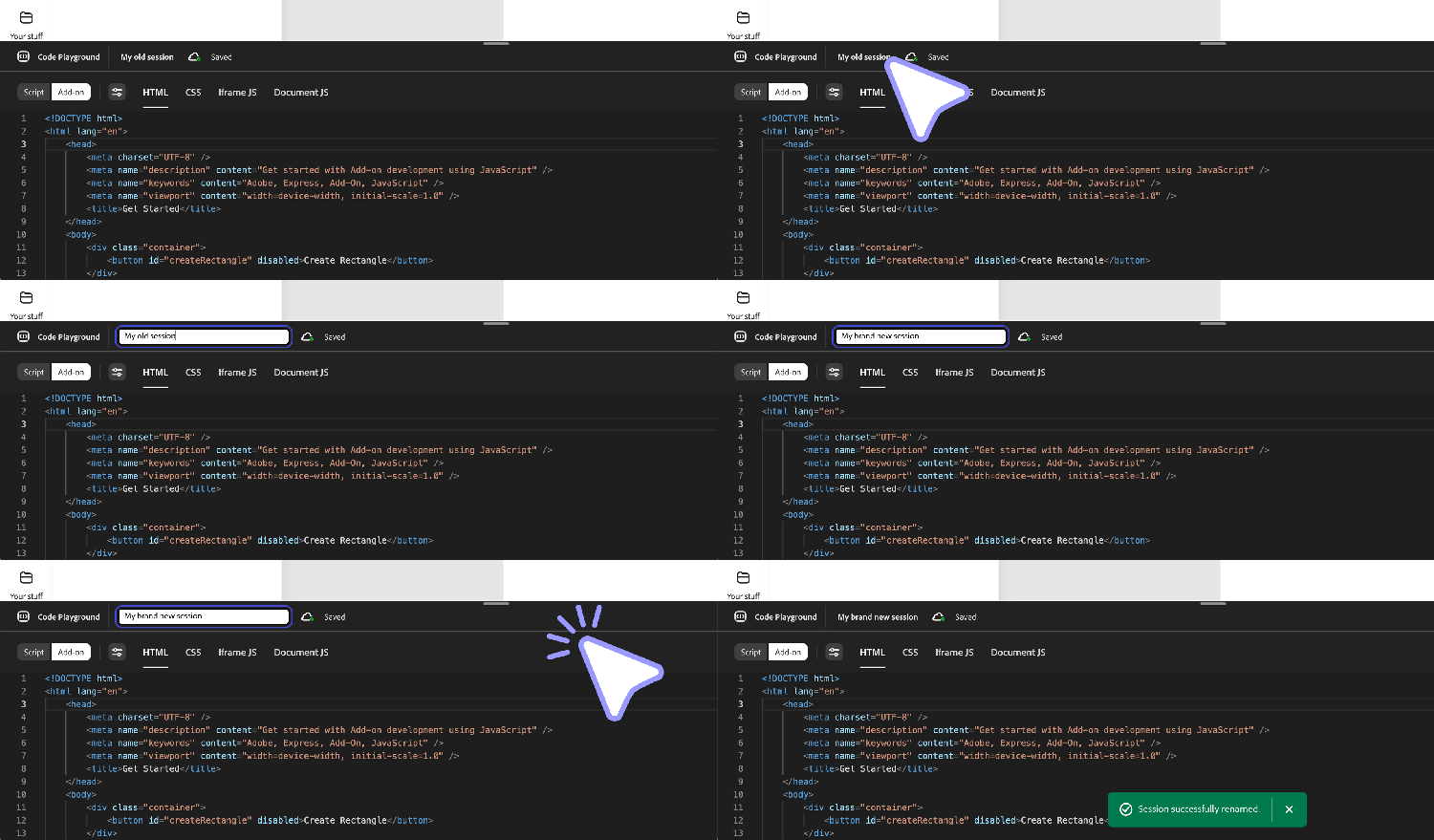
To rename a session, click on the session name and enter a new name. Click anywhere outside the input or press <kbd>Enter</kbd> to save the new name. A toast will appear to confirm the change.
Delete a Session
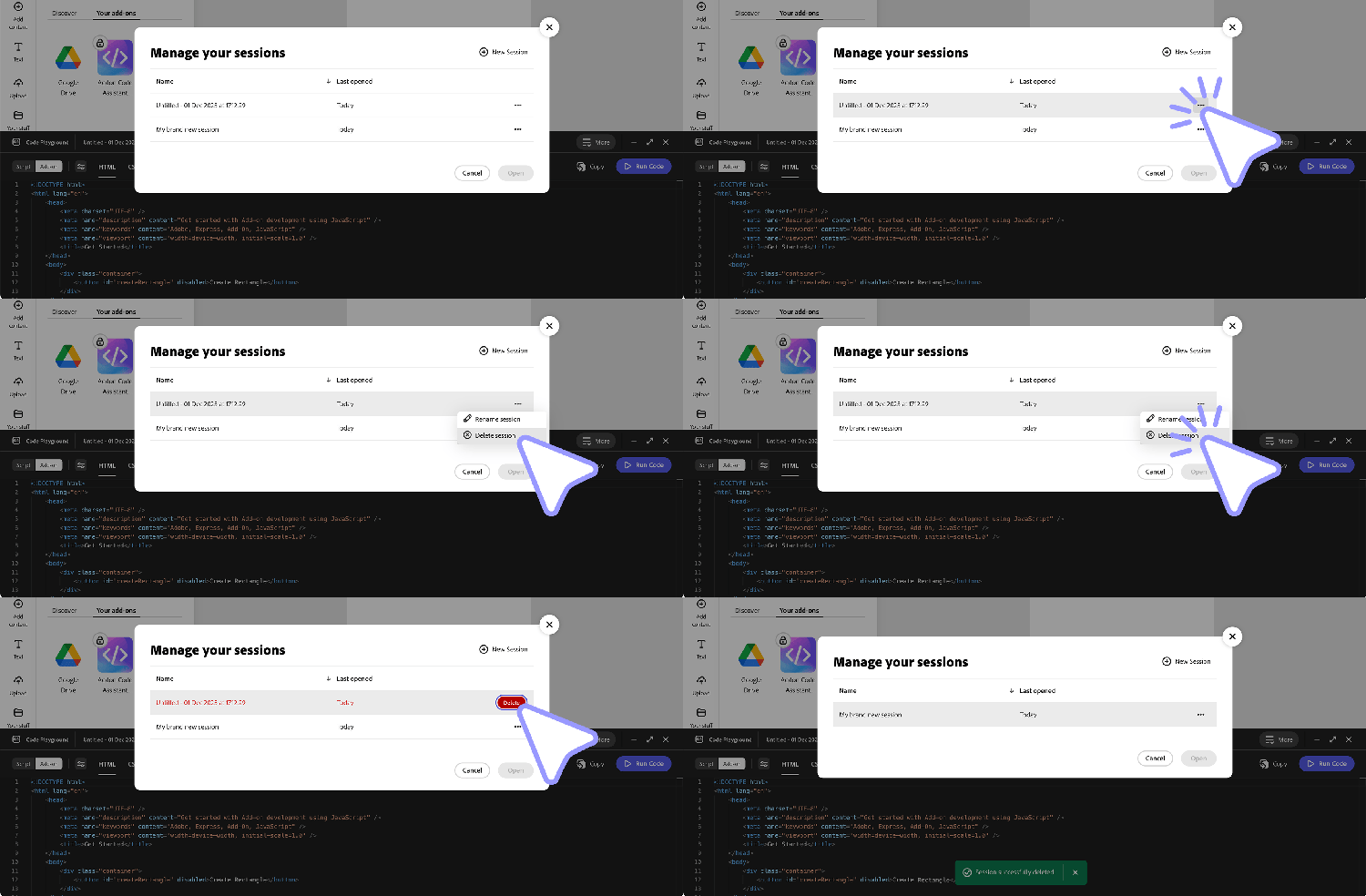
To delete a session, click on the ••• button next to the session name and click the Delete Session button. You'll need to confirm the deletion by clicking the Delete button . A toast will appear to confirm the success of the operation.
Session Limits and Lifecycle
The Code Playground supports a maximum number of sessions per user. To help manage storage and maintain system performance, sessions automatically transition through different states based on activity:
- Active: Your session is actively maintained and fully functional for development.
- Inactive: Sessions become inactive after 60 days without any activity. Simply accessing the session and running your code will reactivate it and reset the inactivity timer.
- Archived: After 90 days of inactivity, sessions are automatically archived. While you can no longer run code in an archived session, you can still access and download your code to back it up locally.
- Permanently Deleted: Sessions are permanently deleted after 120 days of inactivity.
data-slots=text
data-variant=info
Download Your Code
How to Download
Downloading your code is a great way to save your work and continue working on it locally in your CLI.
To download your code:
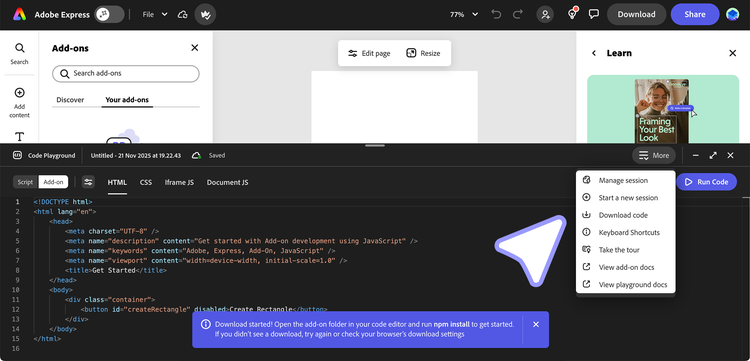
- Click the More button in the top right corner of the playground window
- Click the Download button
- This will download a zip file containing your code
Folder Structure
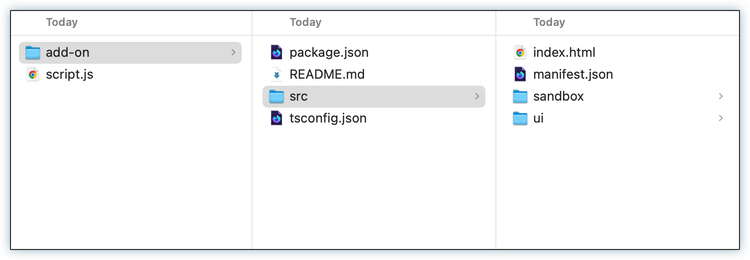
The downloaded zip file will contain a folder with the following structure:
- add-on folder
script.jsfile
Run Downloaded Code
You can run your add-on folder as a local add-on project in your CLI by following the steps in the Quickstart Guide. There is a readme file in the add-on folder that will guide you through the process as well.
Note: You cannot run the script.js file alone.
Productivity Tips
Development Workflow
- Start with Script Mode: Use Script Mode to prototype and test your core functionality.
- Iterate Quickly: Use keyboard shortcuts to save and run code frequently.
- Test Incrementally: Run your code often to catch issues early.
- Transition to Add-on Mode: Once your logic is working, move to Add-on Mode to build the UI.
- Download for Local Development: Use the download feature to continue development locally.
Troubleshooting Common Issues
See the Troubleshooting page for more details on common issues and solutions.
Next Steps
- Script Mode Guide: Learn how to use Script Mode effectively
- Add-on Mode Guide: Build complete add-ons with UI
- Troubleshooting: Get help with common issues
- Local Development: Set up a full development environment