Public add-on Distribution
Overview
This guide is provided to help ensure your add-on distribution process goes as smoothly as possible. We've provided a list of all of the things you can prepare in advance, as well as the steps to follow to actually submit your add-on for public distribution. Please note that public distribution is subject to a quality review by our team according to our Guidelines.
Preparing for Submission
This section outlines everything you'll need to be prepared for submitting your add-on for public distribution.
1. Prepare your metadata
* Indicates Required
2. Prepare your assets
.jpg/png.jpg/png.jpg/png.jpg/pngdata-slots=text
data-variant=info
3. Prepare your add-on package
The CLI contains a handy script to help with this step. Before you proceed, open your terminal and navigate to the root of your add-on project, then run the following command.
npm run package
The result will be a distributable zip of your add-on package with the name dist.zip, and can be uploaded in step 3 below. This add-on package contains the production-ready built content in the root of the zip file, similar to what's built into the /dist folder.
4. Carefully review our set of guidelines
Submission Steps
This set of steps can be followed when you have everything prepared, have diligently reviewed the guidelines, and are ready to submit your add-on for review via the Adobe Express in-app distribution experience.
Step 1: Create a new Add-on Listing
To distribute your add-on, you must create an add-on listing.
data-slots=text
data-variant=info
Provided that you've enabled Add-on Development in your user's settings as described here, you can do so in two ways, which will invoke the same in-app distribution experience.
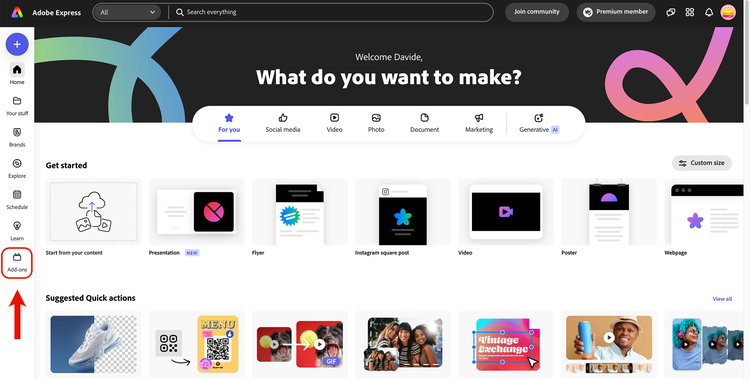
1. From the Adobe Express home page, click the Add-ons link in the left-hand navigation.
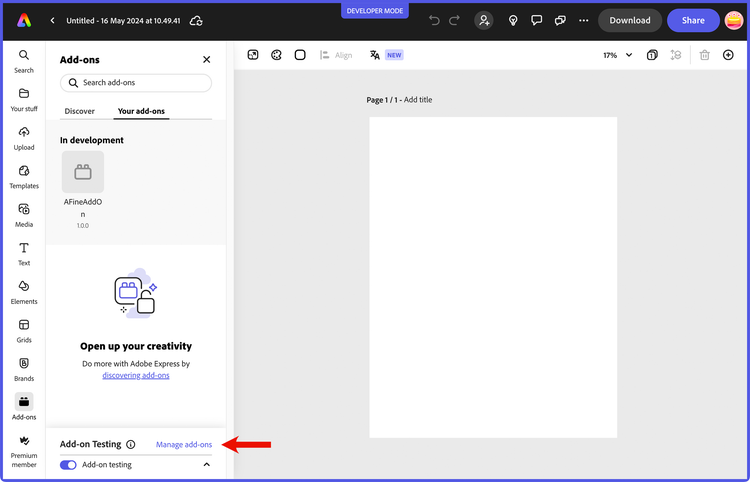
2. While loading a local add-on, click the Manage add-ons link in the Add-on Testing section.
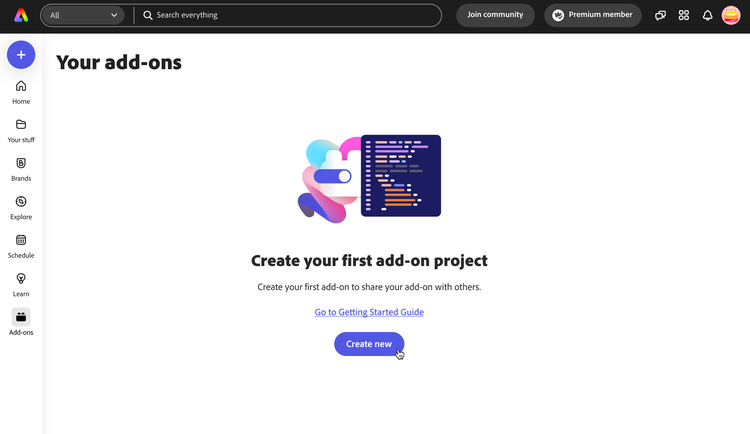
In case you haven't created any listings for your add-ons yet, you will see the following.
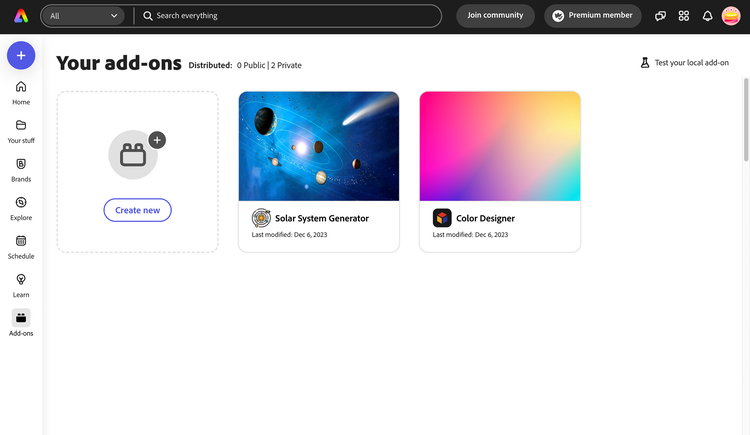
If you have existing listings, instead, your first screen will display them, alongside the possibility of adding a new one.
Select Create new from either, and type the add-on name in the following modal dialog (25 characters max). Your add-on name will be validated when you tab out (or the field loses focus) before you will be allowed to move to the next step. You will know that it's verified by a green checkmark shown, or receive an error that it exists, and you need to choose another.
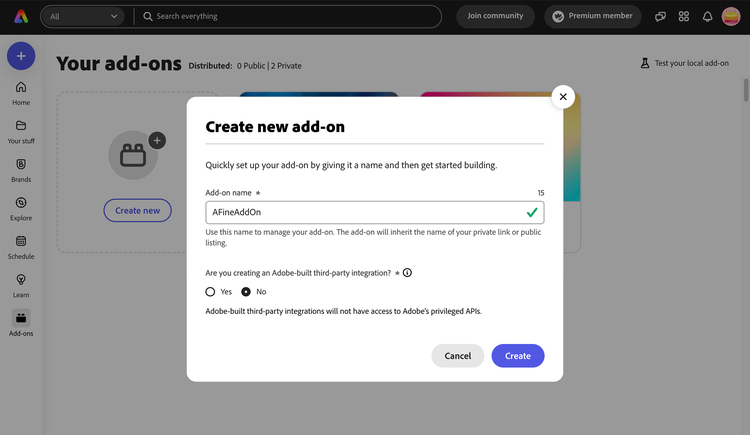
Step 2: Add-on Listing Settings
Your add-on container will be created and a settings panel like the one shown below will be presented. Please note the unique subdomain URL from where your add-on will be hosted, and a button to delete the listing if needed.
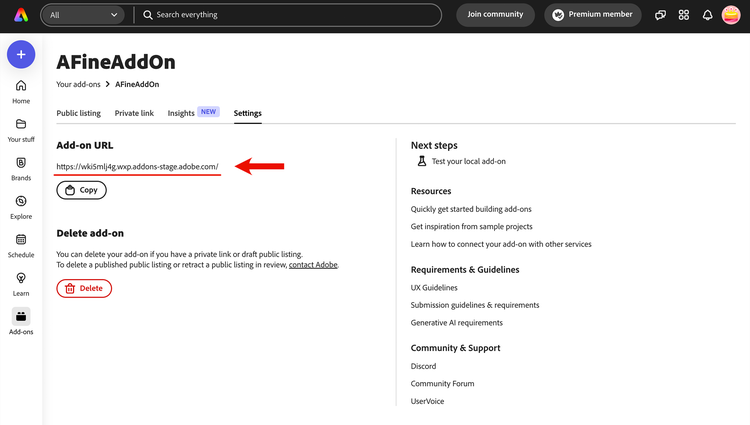
Step 3: Create a new public listing
Navigate to the Public listing tab, and click the Create public listing button to proceed.
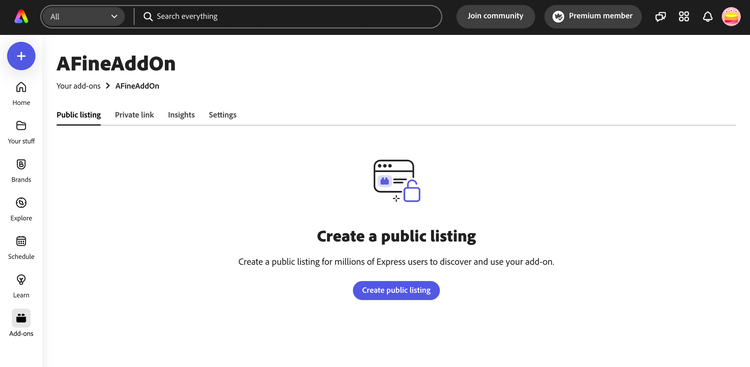
Step 4: Enter listing details
The "Create a public listing" page contains a number of form inputs, grouped into logical sections that start as blank.
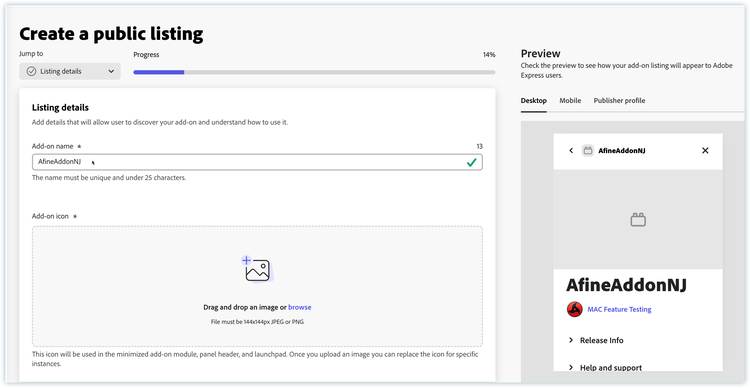
Fill the details with the requested information. The Add-on name must be unique, 25 characters max. It will be validated when you tab out (or the field loses focus) before you can move to the next step. You will know that it's verified by a green checkmark, or you'll receive an error, in which case you'll need to choose another.
The icon must be of the size, 144 px. Once you upload an icon, it will be auto-resized into Minimized add-on module icon(36 px), Panel header icon (64 px) and Launchpad icon (144 px).
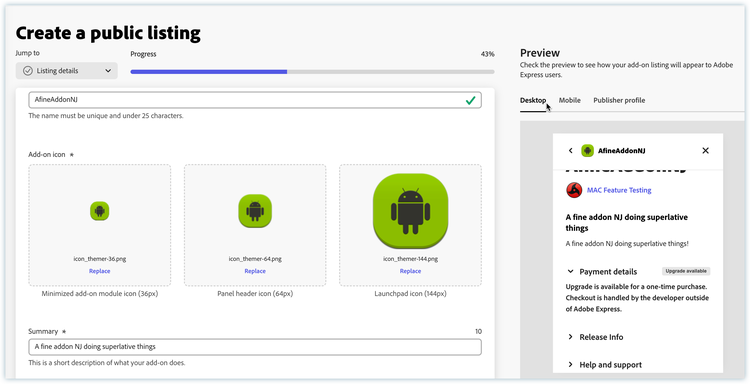
All the other textual fields have a character count that update with the remaining amount as you're typing into them. Please ensure your URLs and email addresses are properly formed to avoid unnecessary errors.
data-slots=text
data-variant=success
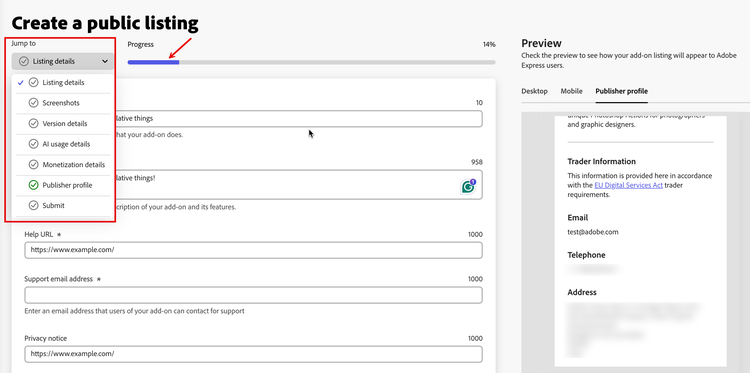
* indicates required fields. Note that you can skip entering these required fields if you are only planning to save a draft with your current edit, though you will not be able to submit it until they are completed.Please note the dropdown checklist below the "Jump to" label, in the top-left corner: you can use it to scroll to the relevant part of the document—complete sections are marked in green. Also note a Progress bar, indicating how far you are in the listing compilation.
Step 5: Upload screenshots
In the next section, you should upload 1-5 screenshots to show off your add-on and what it's all about. Please note, at least one screenshot is required.
data-slots=text
data-variant=warning
Step 6: Upload your add-on package
It's time to upload your package. Either drag and drop the add-on package .zip file, or click the browse link to select the file from your computer's filesystem.
data-slots=text
data-variant=info
The package will go through a verification process which may take a few seconds, so please be patient. In case you receive an error, please review the following warning notes.
data-slots=text1, text2, text3, text4
data-variant=warning
MANIFEST_NOT_FOUND_ERROR, instead of zipping the folder containing the add-on files, please zip only the contents. For example, manifest file would be at the root level of the extracted package.zip -r your_addon_name.zip . -x '**/.*' -x '**/__MACOSX' -x '*.DS_Store'. The package script described earlier takes care of this for you.If the zip validation is successful, you will see a green checkmark next to the Add-on package verified text; you can then add some Release Notes (1000 characters max) and check the add-on's supported languages.
Step 7: Enter the AI usage details
The rise of Generative AI offers significant benefits for add-ons and streamlines content creation and workflows. Adobe encourages user choice regarding add-ons using Generative AI, but transparency is paramount. Your AI-powered add-on must not generate illegal content, and it must be clear and transparent about how generative AI is used in your add-on.
In this section, you'll have to answer a variety of questions, depending on the type of AI-based content your add-on generates, the input it accepts, whether you test the output, etc. Carefully review our AI usage guidelines to get the latest information on Adobe's requirements and recommendations to try add-ons that employ Generative AI technology.
Step 8: Enter the monetization details
The Monetization details section allows developers to declare the payment options they support for their add-on. A selection is required for any new add-on submitted, and existing add-ons can be updated to include or change the selection. The monetization details entered can be seen in the preview of the listing (on the right) before submission, and in the add-on details once published.
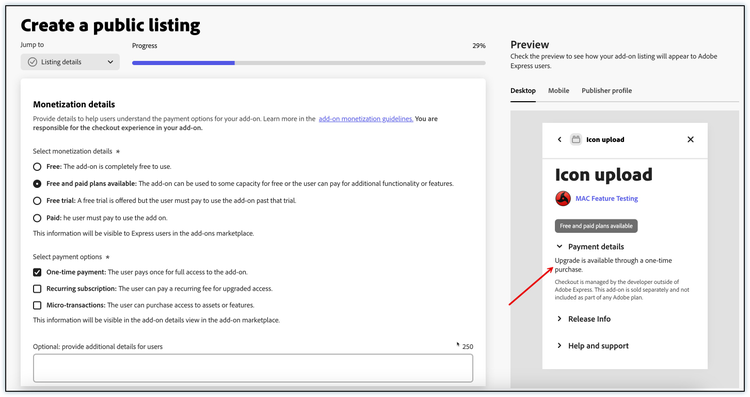
Select Monetization Details
Developers can choose one of the following monetization models:
- Free: The add-on is completely free to use.
- Free and paid plans available: The add-on can be used to some capacity for free, or users can pay for additional functionality or features.
- Free trial: A free trial is offered, but the user must pay to use the add-on after the trial ends.
- Paid: The user must pay to use the add-on.
This information will be visible to users in the Adobe Express add-ons marketplace.
Select Payment Options
Once a monetization model is selected, developers can choose from the following payment options:
- One-time payment: The user pays once for full access to the add-on.
- Recurring subscription: The user pays a recurring fee (e.g., monthly or yearly) for upgraded access.
- Micro-transactions: The user can purchase access to specific assets or features.
This information will be visible in the add-on details view in the add-ons marketplace.
Use the examples outlined in the guidelines for monetizing add-ons to help you make informed decisions about which options to choose.
Additional Details
An optional text area is provided for developers to include additional payment details, such as:
- "7-day free trial"
- "$9.99/month"
We encourage developers to use this field to clearly state any specific payment terms. The character limit for this field is 250.
Live Preview
The live preview on the right side of the page allows developers to see how their listing will appear to users. For example:
- If One-time payment is selected, the preview will display: "Upgrade is available through a one-time purchase."
- A note will also indicate: "Checkout is managed by the developer outside of Adobe Express. This add-on is sold separately and not included as part of any Adobe plan."
Carefully review our monetization guidelines to get the latest information on Adobe’s requirements and recommendations for monetizing your add-ons.
Step 9: Create a publisher profile
data-slots=text
data-variant=info
- Fill your publisher profile details.
- Upload a 250x250 logo.
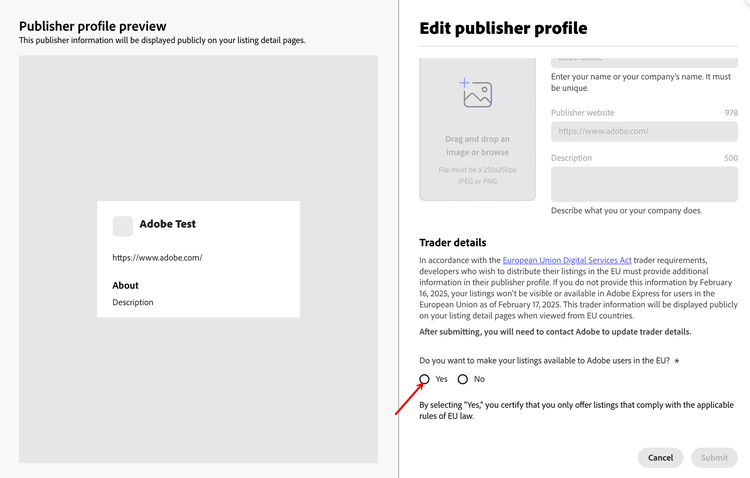
- Add your trader details: In accordance with the European Union Digital Services Act trader requirements, developers who wish to distribute their listings in the EU must provide additional information in their publisher profile. Learn more about adding trader details.
Edit publisher profile
The existing developers can now edit their publisher profile to add trader details.
Choose Yes if you wish to make your add-ons available for users in the EU.
data-variant=warning
data-slots=text1, text2, text3
Step 10: Final submission
- Enter your Notes to reviewer
- Add there any relevant information for the vetting team, including coupon codes that may allow them to test premium features for free. Carefully review all the information entered.
- Click the Submit for review button in the top-right corner.
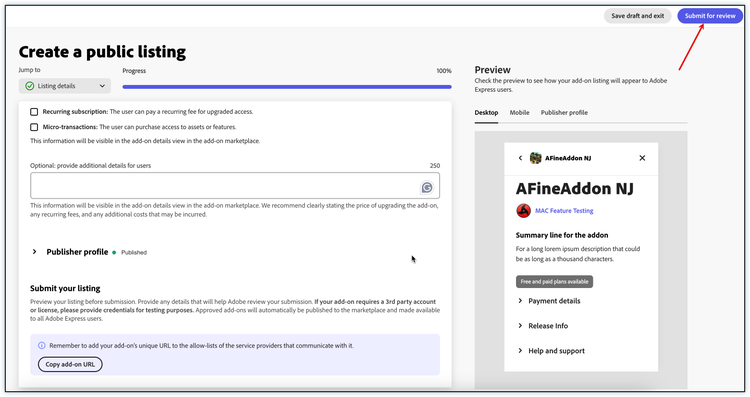
data-slots=text
data-variant=warning
In case there are any errors, a message will be displayed at the bottom of the page. Follow the instructions to fix them, and try submitting again.
Eventually, the submission will be successful. Congratulations!
Click View submission details to see the details of your add-on submission.
You can choose to revisit your submission details later if you need to update it, or if you want to download insights for your add-on. To do so, choose Manage add-ons from the add-on launchpad again, and then select your add-on listing.
data-variant=warning
data-slots=header, text1, text2
Add-on visbility for EU users
Post-Submission details and insights
When the add-on will be published, you will be able to see the insights.
Insights Overview
The Insights feature provides valuable analytics for your add-on, helping you understand its performance and user engagement. These insights are available for both public and private listings and can be downloaded as .csv files.
Types of Insights
The insights data includes the following metrics:
- Installs: The number of times your add-on has been installed.
- Uninstalls: The number of times your add-on has been uninstalled.
- Invocations: The number of times your add-on has been used.
File Naming Convention
The downloaded .csv files are named based on your add-on name and listing type:
- For public listings:
<AddOnName>_public.csv - For private listings:
<AddOnName>_private.csv
Sample Insights Data
Below is an example of what the insights data might look like:
Accessing Insights
- Navigate to the Insights tab in your add-on's management page.
- Click the Download button to retrieve the
.csvfile for the desired listing type. - Open the file in your preferred spreadsheet application to analyze the data.
By leveraging these insights, you can make informed decisions to improve your add-on's performance and user experience.
Once your add-on is reviewed, it will be available on the marketplace.