Getting credentials
Developing with the PDF Services SDK requires an Adobe-provided credential. To get one, click HERE, and complete the workflow. Be sure to copy and save the credential values to a secure location.
data-slots=text
Step 1 : Getting the access token
PDF Services API endpoints are authenticated endpoints. Getting an access token is a two-step process :
- Get Credentials Invoking PDF Services API requires an Adobe-provided credential. To get one, click here, and complete the workflow. Be sure to copy and save the credential values to a secure location.
- Retrieve Access Token The PDF Services APIs require an access_token to authorize the request. Use the "Get AccessToken" API from the Postman Collection with your client_id, client_secret (mentioned in the pdfservices-api-credentials.json file downloaded in 1) to get the access_token OR directly use the below mentioned cURL to get the access_token.
data-slots=heading, code
data-repeat=1
data-languages=Rest API
Rest API
curl --location 'https://pdf-services.adobe.io/token' \
--header 'Content-Type: application/x-www-form-urlencoded' \
--data-urlencode 'client_id={{Placeholder for Client ID}}' \
--data-urlencode 'client_secret={{Placeholder for Client Secret}}'
Step 2 : Uploading an asset
After getting the access token, we need to upload the asset. Uploading an asset is a two-step process :
- First you need to get an upload pre-signed URI by using the following API.
You can read more about the API in detail here.
data-slots=heading, code
data-repeat=1
data-languages=Rest API
Rest API
curl --location --request POST 'https://pdf-services.adobe.io/assets' \
--header 'X-API-Key: {{Placeholder for client_id}}' \
--header 'Authorization: Bearer {{Placeholder for token}}' \
--header 'Content-Type: application/json' \
--data-raw '{
    "mediaType": "{{Placeholder for mediaType}}"
}'
- On getting a
200response status from the above API, use theuploadUrifield in the response body of the above API to upload the asset directly to the cloud provider using a PUT API call. You will also get anassetIDfield which will be used in creating the job.
data-slots=heading, code
data-repeat=1
data-languages=Rest API
Rest API
curl --location -g --request PUT 'https://dcplatformstorageservice-prod-us-east-1.s3-accelerate.amazonaws.com/b37fd583-1ab6-4f49-99ef-d716180b5de4?X-Amz-Security-Token={{Placeholder for X-Amz-Security-Token}}&X-Amz-Algorithm={{Placeholder for X-Amz-Algorithm}}&X-Amz-Date={{Placeholder for X-Amz-Date}}&X-Amz-SignedHeaders={{Placeholder for X-Amz-SignedHeaders}}&X-Amz-Expires={{Placeholder for X-Amz-Expires}}&X-Amz-Credential={{Placeholder for X-Amz-Credential}}&X-Amz-Signature={{Placeholder for X-Amz-Signature}}' \
--header 'Content-Type: application/pdf' \
--data-binary '@{{Placeholder for file path}}'
Step 3 : Creating the job
To create a job for the operation, please use the assetID obtained in Step 2 in the API request body. On successful job submission you will get a status code of 201 and a response header location which will be used for polling.
For creating the job, please refer to the corresponding API spec for the particular PDF Operation.
Step 4 : Fetching the status
Once the job is successfully created, you need to poll the at the location returned in response header of Step 3 by using the following API
You can read more about the API in detail here.
data-slots=heading, code
data-repeat=1
data-languages=Rest API
Rest API
curl --location -g --request GET 'https://pdf-services.adobe.io/operation/compresspdf/{{Placeholder for job id}}/status' \
--header 'Authorization: Bearer {{Placeholder for token}}' \
--header 'x-api-key: {{Placeholder for client id}}'
Step 5 : Downloading the asset
On getting 200 response code from the poll API, you will receive a status field in the response body which can either be in progress, done or failed.
If the status field is in progress you need to keep polling the location until it changes to done or failed.
If the status field is done the response body will also have a download pre-signed URI in the dowloadUri field, which will be used to download the asset directly from cloud provider by making the following API call
You can read more about the API in detail here.
data-slots=heading, code
data-repeat=1
data-languages=Rest API
Rest API
curl --location -g --request GET 'https://dcplatformstorageservice-prod-us-east-1.s3-accelerate.amazonaws.com/b37fd583-1ab6-4f49-99ef-d716180b5de4?X-Amz-Security-Token={{Placeholder for X-Amz-Security-Token}}&X-Amz-Algorithm={{Placeholder for X-Amz-Algorithm}}&X-Amz-Date={{Placeholder for X-Amz-Date}}&X-Amz-SignedHeaders={{Placeholder for X-Amz-SignedHeaders}}&X-Amz-Expires={{Placeholder for X-Amz-Expires}}&X-Amz-Credential={{Placeholder for X-Amz-Credential}}&X-Amz-Signature={{Placeholder for X-Amz-Signature}}'
There you go! Your job is completed in 5 simple steps.
SDK
PDF Services API is also accessible via SDKs in popular languages such as Node.js, Java and .NET.
data-slots=text1, text2, text3, text4, text5, text6
- ims-na1.adobelogin.com (Required for all the clients)
-
Using United States (Default) region for processing documents:
- dcplatformstorageservice-prod-us-east-1.s3-accelerate.amazonaws.com
- pdf-services-ue1.adobe.io
- pdf-services.adobe.io (Default URI)
-
Using Europe region for processing documents:
- dcplatformstorageservice-prod-eu-west-1.s3.amazonaws.com
- pdf-services-ew1.adobe.io
- cpf-ue1.adobe.io
Java
Jump start your development by bookmarking or downloading the following key resources:
- This document
- API reference (Javadoc)
- Java Sample code
- Java library. The Maven project contains the .jar file.
Authentication
Once you complete the Getting Credentials, a zip or json file automatically downloads that contains content whose structure varies based on whether you opted to download personalized code samples.
- Personalized Download: Downloads the zip which contains
adobe-dc-pdf-services-sdk-java-sampleswith a preconfiguredpdfservices-api-credentials.jsonfile. - Non Personalized Download: Downloads the
pdfservices-api-credentials.jsonwith your preconfigured credentials.
After downloading the zip, you can run the samples in the zip directly by setting up the two environment variables PDF_SERVICES_CLIENT_ID and PDF_SERVICES_CLIENT_SECRET by running the following cammands :
-
Windows:
set PDF_SERVICES_CLIENT_ID=<YOUR CLIENT ID>set PDF_SERVICES_CLIENT_SECRET=<YOUR CLIENT SECRET>
-
MacOS/Linux:
export PDF_SERVICES_CLIENT_ID=<YOUR CLIENT ID>export PDF_SERVICES_CLIENT_SECRET=<YOUR CLIENT SECRET>
Example pdfservices-api-credentials.json file
{
    "client_credentials": {
        "client_id": "<YOUR_CLIENT_ID>",
        "client_secret": "<YOUR_CLIENT_SECRET>"
    },
    "service_principal_credentials": {
       "organization_id": "<YOUR_ORGNIZATION_ID>"
    }
}
Setup a Java environment
-
Install Java 8 or above.
-
Run
javac -versionto verify your install. -
Verify the JDK bin folder is included in the PATH variable (method varies by OS).
-
Install Maven. You may use your preferred tool; for example:
- Windows: Example: Chocolatey.
- Macintosh: Example:
brew install maven.
data-slots=text
Running the samples
The quickest way to get up and running is to download the code samples during the Getting Credentials workflow. These samples provide everything from ready-to-run sample code, an embedded credential json file, and pre-configured connections to dependencies.
- Download the Java sample project.
- Build the sample project with Maven:
mvn clean install. - Set the environment variables
PDF_SERVICES_CLIENT_IDandPDF_SERVICES_CLIENT_SECRETby running the following commands :
-
Windows:
set PDF_SERVICES_CLIENT_ID=<YOUR CLIENT ID>set PDF_SERVICES_CLIENT_SECRET=<YOUR CLIENT SECRET>
-
MacOS/Linux:
export PDF_SERVICES_CLIENT_ID=<YOUR CLIENT ID>export PDF_SERVICES_CLIENT_SECRET=<YOUR CLIENT SECRET>
- Test the sample code on the command line.
- Refer to this document for details about running samples as well as the API Reference for API details.
data-slots=text
Verifying download authenticity
For security reasons you may wish to confirm the installer's authenticity. To do so,
- After installing the package, navigate to the
.jar.sha1file. - Calculate the hash with any 3rd party utility.
- Find and open PDF Services sha1 file. Note: if you're using Maven, look in the .m2 directory.
- Verify the hash you generated matches the value in the .sha1 file.
c0bc2ec0eb15dd43d014bd885b3833539f103cf2
Logging
Refer to the API docs for error and exception details.
- For logging, use the slf4j API with a log4js-slf4j binding.
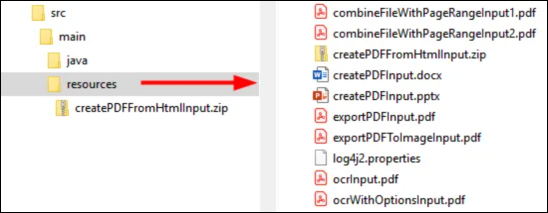
- Logging configurations are provided in src/main/resources/log4js.properties.
- Specify alternate bindings, if required, in pom.xml.
log4js.properties file
name=PropertiesConfig
appenders = console

# A sample console appender configuration, Clients can change as per their logging implementation
rootLogger.level = WARN
rootLogger.appenderRefs = stdout
rootLogger.appenderRef.stdout.ref = STDOUT

appender.console.type = Console
appender.console.name = STDOUT
appender.console.layout.type = PatternLayout
appender.console.layout.pattern = [%-5level] %d{yyyy-MM-dd HH:mm:ss.SSS} [%t] %c{1} - %msg%n

loggers = pdfservicessdk,validator,apache

# Change the logging levels as per need. INFO is recommended for pdfservices-sdk
logger.pdfservicessdk.name = com.adobe.pdfservices.operation
logger.pdfservicessdk.level = INFO
logger.pdfservicessdk.additivity = false
logger.pdfservicessdk.appenderRef.console.ref = STDOUT

logger.validator.name=org.hibernate
logger.validator.level=WARN

logger.apache.name=org.apache
logger.apache.level=WARN
Custom projects
While the samples use Maven, you can use your own tools and process.
To build a custom project:
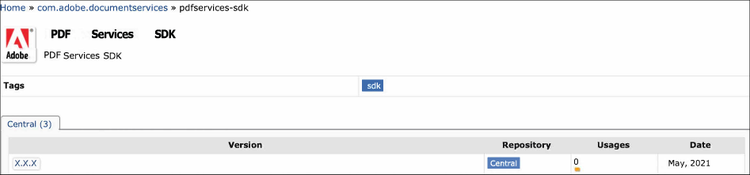
- Access the .jar in the central Maven repository.
- Use your preferred dependency management tool (Ivy, Gradle, Maven), to include the SDK .jar dependency.
- Open the pdfservices-api-credentials.json downloaded when you created your credential.
- Add the Authentication details as described above.
.NET
Jumpstart your development by bookmarking or downloading the following key resources:
- This document
- Nuget package
- .NET API reference
- .NET Sample code
- Input/output test files reside in the their respective sample directories
Prerequisites
The samples project requires the following:
- NET: version 6.0 or above
- A build Tool: Either Visual Studio or .NET Core CLI.
Authentication
Once you complete the Getting Credentials, a zip or json file automatically downloads that contains content whose structure varies based on whether you opted to download personalized code samples.
- Personalized Download: Downloads the zip which contains
adobe-dc-pdf-services-sdk-java-sampleswith a preconfiguredpdfservices-api-credentials.jsonfile. - Non Personalized Download: Downloads the
pdfservices-api-credentials.jsonwith your preconfigured credentials.
After downloading the zip, you can run the samples in the zip directly by setting up the two environment variables PDF_SERVICES_CLIENT_ID and PDF_SERVICES_CLIENT_SECRET by running the following cammands :
-
Windows:
set PDF_SERVICES_CLIENT_ID=<YOUR CLIENT ID>set PDF_SERVICES_CLIENT_SECRET=<YOUR CLIENT SECRET>
-
MacOS/Linux:
export PDF_SERVICES_CLIENT_ID=<YOUR CLIENT ID>export PDF_SERVICES_CLIENT_SECRET=<YOUR CLIENT SECRET>
Example pdfservices-api-credentials.json file
{
    "client_credentials": {
        "client_id": "<YOUR_CLIENT_ID>",
        "client_secret": "<YOUR_CLIENT_SECRET>"
    },
    "service_principal_credentials": {
       "organization_id": "<YOUR_ORGNIZATION_ID>"
    }
}
Set up a NET environment
Running any sample or custom code requires the following:
- Download and install the .NET SDK.
data-slots=text
Running the samples
The quickest way to get up and running is to download the code samples during the Getting Credentials workflow. These samples provide everything from ready-to-run sample code, an embedded credential json file, and pre-configured connections to dependencies.
-
Clone or download the samples project.
-
From the samples directory, build the sample project:
dotnet build. -
Set the environment variables
PDF_SERVICES_CLIENT_IDandPDF_SERVICES_CLIENT_SECRETby running the following commands :-
Windows:
set PDF_SERVICES_CLIENT_ID=<YOUR CLIENT ID>set PDF_SERVICES_CLIENT_SECRET=<YOUR CLIENT SECRET>
-
MacOS/Linux:
export PDF_SERVICES_CLIENT_ID=<YOUR CLIENT ID>export PDF_SERVICES_CLIENT_SECRET=<YOUR CLIENT SECRET>
-
-
Test the sample code on the command line.
-
Refer to this document for details about running samples as well as the API Reference for API details.
Verifying download authenticity
For security reasons you may wish to confirm the installer's authenticity. To do so,
- After installing the Nuget package, navigate to the .nuget directory.
- Find and open the .sha512 file.
- Verify the hash in the downloaded file matches the value published here.
jdTK6PDvEcfTai7D3N97pd0u/XrvnlEJCqTRPKDrb02zcGzaVdX/2Of3WrHOqqWUFsg7GO3yf5cKXJDFN0kdMw==
Logging
Refer to the API docs for error and exception details.
The .NET SDK uses LibLog as a bridge between different logging frameworks. Log4net is used as a logging provider in the sample projects and the logging configurations are provided in log4net.config. Add the configuration for your preferred provider and set up the necessary appender as required to enable logging.
log4net.config file
<log4net>
 <root>
   <level value="INFO" />
   <appender-ref ref="console" />
 </root>
 <appender name="console" type="log4net.Appender.ConsoleAppender">
   <layout type="log4net.Layout.PatternLayout">
     <conversionPattern value="%date %level %logger - %message%newline" />
   </layout>
 </appender>
</log4net>
Custom projects
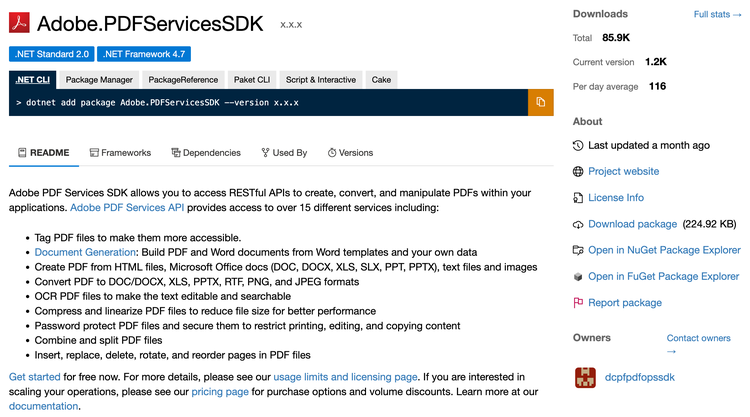
While building the sample project automatically downloads the Nuget package, you can do it manually if you wish to use your own tools and process.
- Go to Link.
- Download the latest package.
Node.js
Jumpstart your development by bookmarking or downloading the following key resources:
- This document
- Node.js API reference
- Node.js Sample code
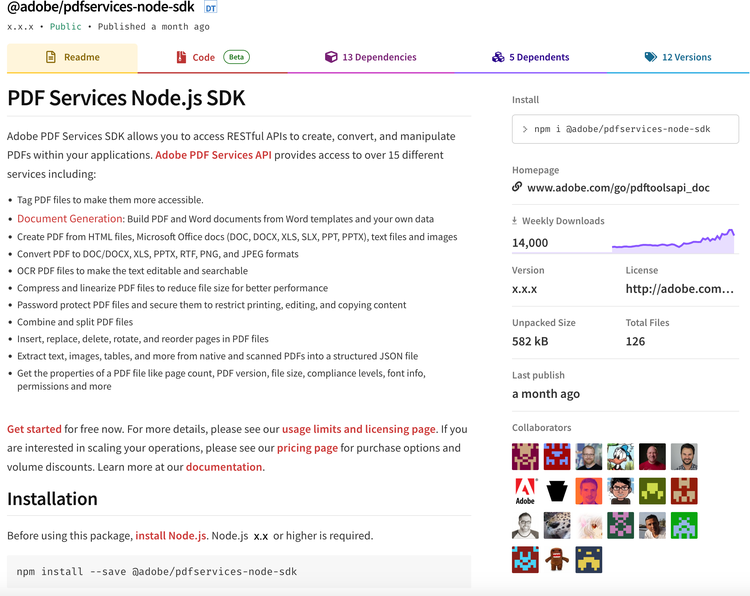
- Node.js SDK
Authentication
Once you complete the Getting Credentials, a zip or json file automatically downloads that contains content whose structure varies based on whether you opted to download personalized code samples.
- Personalized Download: Downloads the zip which contains
adobe-dc-pdf-services-sdk-java-sampleswith a preconfiguredpdfservices-api-credentials.jsonfile. - Non Personalized Download: Downloads the
pdfservices-api-credentials.jsonwith your preconfigured credentials.
After downloading the zip, you can run the samples in the zip directly by setting up the two environment variables PDF_SERVICES_CLIENT_ID and PDF_SERVICES_CLIENT_SECRET by running the following cammands :
-
Windows:
set PDF_SERVICES_CLIENT_ID=<YOUR CLIENT ID>set PDF_SERVICES_CLIENT_SECRET=<YOUR CLIENT SECRET>
-
MacOS/Linux:
export PDF_SERVICES_CLIENT_ID=<YOUR CLIENT ID>export PDF_SERVICES_CLIENT_SECRET=<YOUR CLIENT SECRET>
Example pdfservices-api-credentials.json file
{
    "client_credentials": {
        "client_id": "<YOUR_CLIENT_ID>",
        "client_secret": "<YOUR_CLIENT_SECRET>"
    },
    "service_principal_credentials": {
       "organization_id": "<YOUR_ORGNIZATION_ID>"
    }
}
Set up a Node.js environment
Running any sample or custom code requires the following steps:
- Install Node.js 14.0 or higher.
data-slots=text
npm install --save @adobe/pdfservices-node-sdk
Running the samples
The quickest way to get up and running is to download the code samples during the Getting Credentials workflow. These samples provide everything from ready-to-run sample code, an embedded credential json file, and pre-configured connections to dependencies.
-
Download the Node.js sample project.
-
From the samples root directory, run
npm install. -
Set the environment variables
PDF_SERVICES_CLIENT_IDandPDF_SERVICES_CLIENT_SECRETby running the following commands :-
Windows:
set PDF_SERVICES_CLIENT_ID=<YOUR CLIENT ID>set PDF_SERVICES_CLIENT_SECRET=<YOUR CLIENT SECRET>
-
MacOS/Linux:
export PDF_SERVICES_CLIENT_ID=<YOUR CLIENT ID>export PDF_SERVICES_CLIENT_SECRET=<YOUR CLIENT SECRET>
-
-
Test the sample code on the command line.
-
Refer to this document for details about running samples as well as the API Reference for API details.
Verifying download authenticity
For security reasons you may wish to confirm the installer's authenticity. To do so,
- After installing the package, find and open package.json.
- Find the "_integrity" key.
- Verify the hash in the downloaded file matches the value published here.
sha512-QFwmKkeFTvZhHXrklJOUbjCx8V6FftBC+DAsMCy7Q9vy5sPXQtO47rjAt6R7nzzcA/uUPfuw4/gCFNh7yRKKRQ==
Logging
Refer to the API docs for error and exception details.
The SDK uses the log4js API for logging. During execution, the SDK searches for config/pdfservices-sdk-log4js-config.json in the working directory and reads the logging properties from there. If you do not provide a configuration file, the default logging logs INFO to the console. Customize the logging settings as needed.
log4js.properties file
{
  "appenders": {
    "consoleAppender": {
      "_comment": "A sample console appender configuration, Clients can change as per their logging implementation",
      "type": "console",
      "layout": {
        "type": "pattern",
        "pattern": "%d:[%p]: %m"
      }
    }
  },
  "categories": {
    "default": {
      "appenders": ["consoleAppender"],
      "_comment": "Change the logging levels as per need. info is recommended for pdfservices-node-sdk",
      "level": "info"
    }
  }
}
Custom projects
While building the sample project automatically downloads the Node package, you can do it manually if you wish to use your own tools and process.
- Go to Link
- Download the latest package.
Public API
PDF Services API is accessible directly via REST APIs which requires Adobe-provided credential for authentication. Once you've completed the Getting Credentials workflow, a zip file automatically downloads that contains content whose structure varies based on whether you opted to download personalized code samples. The zip file structures are as follows:
- Personalized Download: Downloads the zip which contains
adobe-dc-pdf-services-sdk-java-sampleswith a preconfiguredpdfservices-api-credentials.jsonfile. - Non Personalized Download: Downloads the
pdfservices-api-credentials.jsonwith your preconfigured credentials.
After downloading the zip, you can run the samples in the zip directly by setting up the two environment variables PDF_SERVICES_CLIENT_ID and PDF_SERVICES_CLIENT_SECRET by running the following cammands :
-
Windows:
set PDF_SERVICES_CLIENT_ID=<YOUR CLIENT ID>set PDF_SERVICES_CLIENT_SECRET=<YOUR CLIENT SECRET>
-
MacOS/Linux:
export PDF_SERVICES_CLIENT_ID=<YOUR CLIENT ID>export PDF_SERVICES_CLIENT_SECRET=<YOUR CLIENT SECRET>
Example pdfservices-api-credentials.json file
{
    "client_credentials": {
        "client_id": "<YOUR_CLIENT_ID>",
        "client_secret": "<YOUR_CLIENT_SECRET>"
    },
    "service_principal_credentials": {
       "organization_id": "<YOUR_ORGNIZATION_ID>"
    }
}
Check Usage
You can check your consumption for PDF Services API by following the below mentioned steps :
-
Open the Developer Onboarding Application on your browser.
-
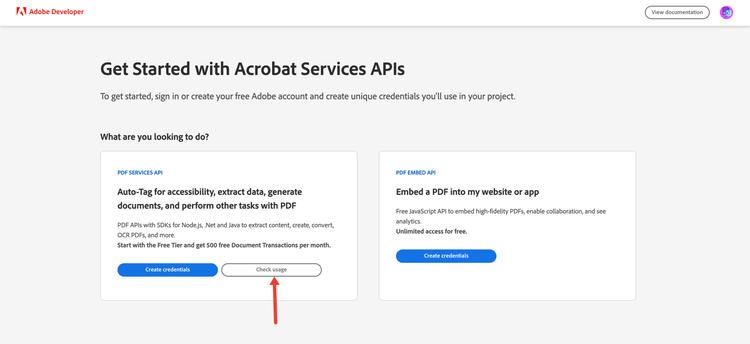
Click on the
Check Usagebutton as shown in the screenshot below :
<br/>
- A popup opens up which provides you with the option to specify the time period for which the consumption is to be checked as shown below :
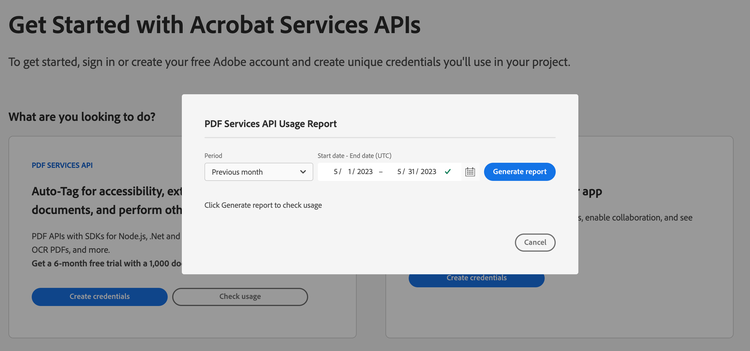
<br/>
- Select the time period for which you want to check the usage and click on
Generate Reportbutton :
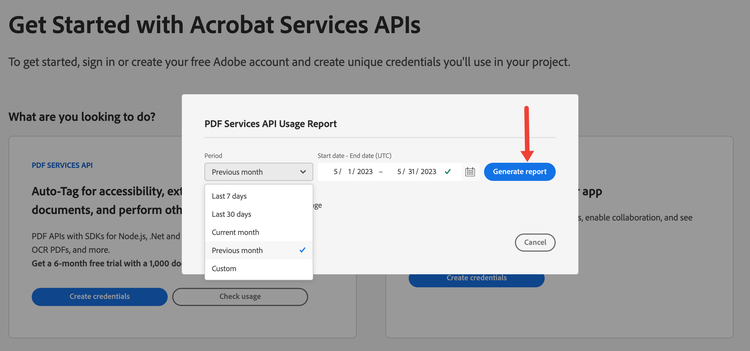
<br/>
- This will generate a report of all the API usage for your organisation. You can also download the report in a CSV format as shown below :
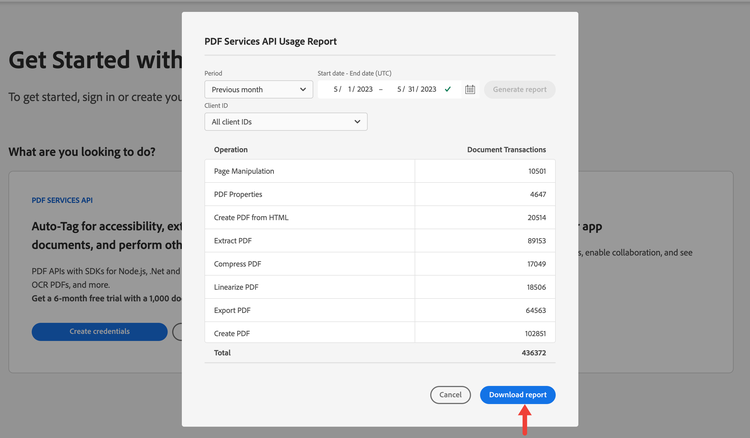
<br/>
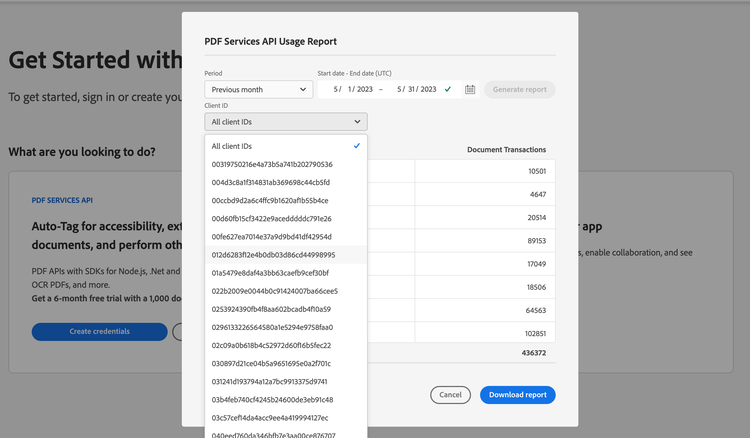
- If you want to check usage for a particular
client idjust click on the drop down menu below Client ID label and select yourclient idas shown below :