Word Add-in
Document Generation Word Add-in provides the capability to author templates to generate data-driven Word and PDF documents. It provides the capability to add different tags and enable users to author templates seamlessly. You can refer to the Add-in Demo for the explanation on how to use the add-in.
data-slots=text
Add-In Demo
Document Generation add-in is developed in such a way that you don't need to learn any code. The system does it all for you, as you'll see in the video below:
How to install
You can get the Document Generation Word Add-in from the Microsoft Office store. This add-in can be installed in both the web-based and desktop launched MS Word application. Access to the store is slightly different for each environment. Detailed instructions for both are described below.
data-slots=text
Installing the add-in for the web-based client
- Log in to your 365 Office account and open the word application.
- Navigate to the Insert tab, and click the Add-ins icon in the insert section. Office Add-ins pop-up page will open up.


- Check for the Adobe Document Generation add-in in the MY ADDINS tab on Add-ins pop-up page.
- Navigate to the STORE tab in the Office Add-ins pop-up, if the add-in is not enabled/installed.
data-slots=text
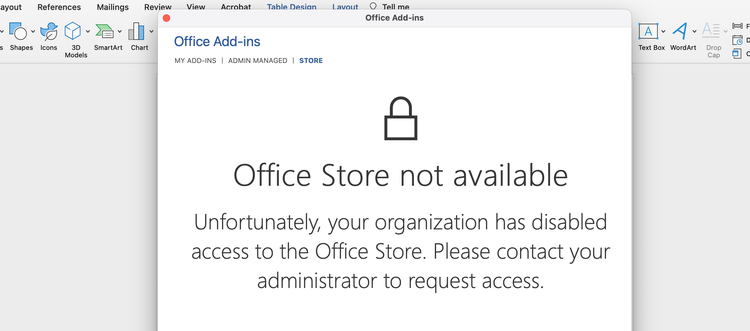
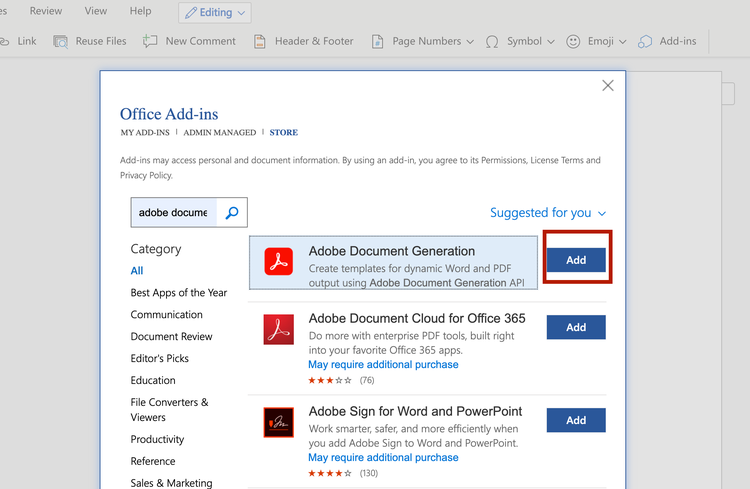
- Otherwise, In the top left search box, search for Adobe Document Generation and click on add button.
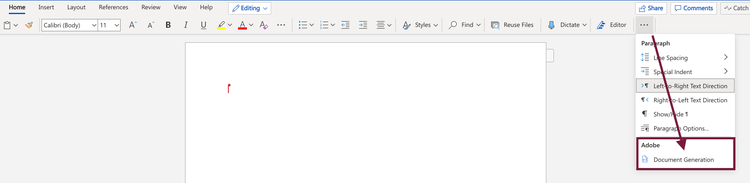
- After enabling/installing the add-in, you will find a new Adobe Document Generation add-in on the Home tab.
Installing the add-in for the desktop client
- Open your desktop Office application.
- Navigate to the Insert tab, and click the Get Add-ins option.


- Check for the Adobe Document Generation add-in in the MY ADDINS tab on Add-ins pop-up page.
- Navigate to STORE tab in the Office Add-ins popup, if add-in is not already enabled/installed.
data-slots=text
-
Otherwise, In the top left search box, search for Adobe Document Generation and click on add button to install.
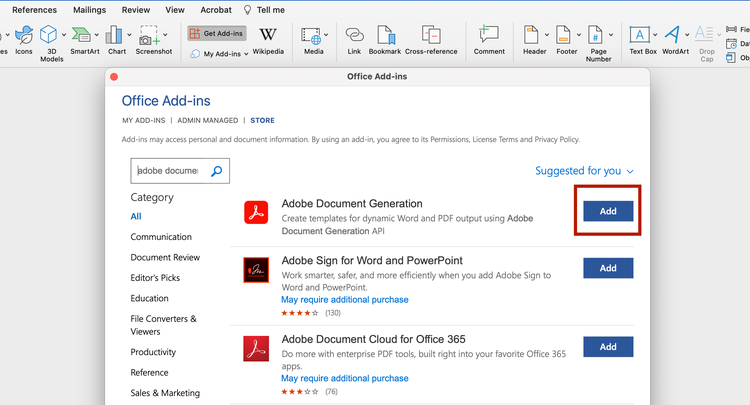
- After enabling/installing the add-in, you will find a new Adobe Document Generation add-in on the Home tab.
data-slots=text
Installing at the Tenant level
Installing at the tenant level allows the admin to expose the add-in by default, saving the users the installation steps, and ensuring that all users have access without issue.
data-slots=text
The enablement is quick and easy, taking only about 5 minutes:
- Log in as the Tenant admin, and navigate to the admin center from the app launcher.
- In the admin center, go to the Settings > Add-ins page. If you don't see the Add-in Page, go to the Settings > Integrated apps.
- On the top of the Integrated apps page, click the Add-ins link.
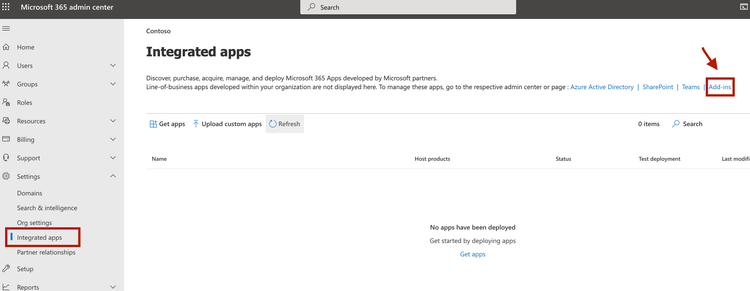
- Select Deploy Add-in at the top of the page, and then select Next.
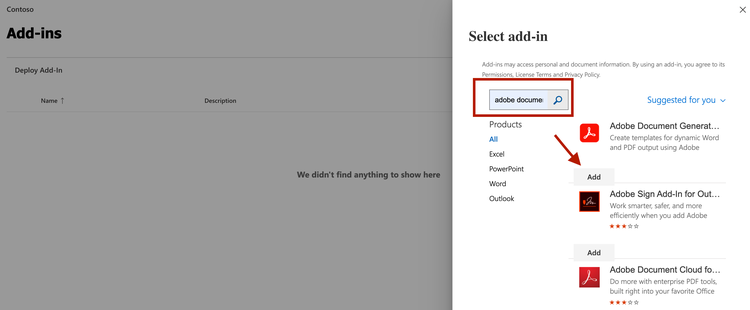
- Select the option to add an add-in from the Office Store. In the top left search box, search for Adobe Document Generation and click on add button.
-
Assign Users
- Everyone - Applies the deployment method to all users in the Tenant.
- Specific users/groups - Applies the deployment method to only the selected users or groups.
- Just me - Applies the deployment method to just the user (admin) doing the configuration
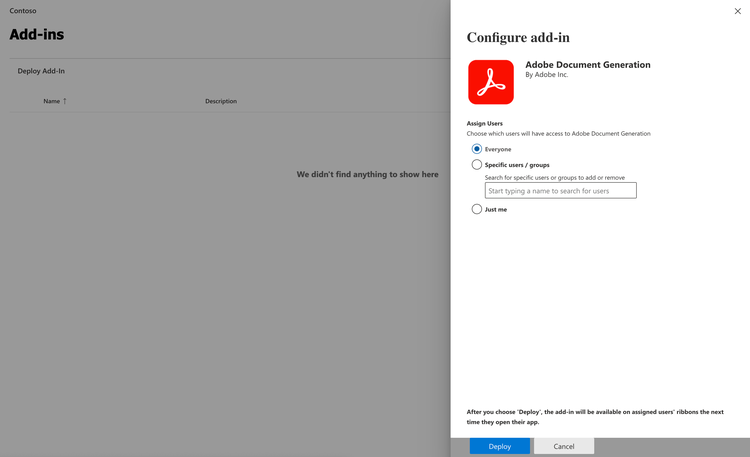
- Click Deploy after assigning users.
data-slots=text