Adobe Journey Optimizer
The Adobe Journey Optimizer extension for Adobe Experience Platform Mobile SDKs powers push notifications and in-app messages for your mobile apps. This extension also helps you to collect user push tokens and manages interaction measurement with Adobe Experience Platform services.
The following documentation details how to use the extension and required configurations to get started with Adobe Journey Optimizer for Adobe Experience Platform services, app stores, and your apps.
Before starting
-
Read the tutorial on getting started with push configuration to learn how to configure push channels in Adobe Journey Optimizer.
-
Update your app's Datastream in Adobe Experience Platform Data Collection
-
Integrate with following extensions:
Update Datastream with a Profile dataset
Navigate to a previously configured Datastream by following the instructions in the configure datastreams tutorial in Adobe Experience Platform Data Collection and select Add Service. In the service dropdown select Adobe Experience Platform.
- In the Event Dataset dropdown, select a dataset previously created in the Adobe Experience Platform UI.
- In the Profile Dataset dropdown, select the AJO Push Profile Dataset.
- Ensure the Personalized Destinations box is checked.
- Ensure the Adobe Journey Optimizer box is checked.
- Select Save after making these selections.
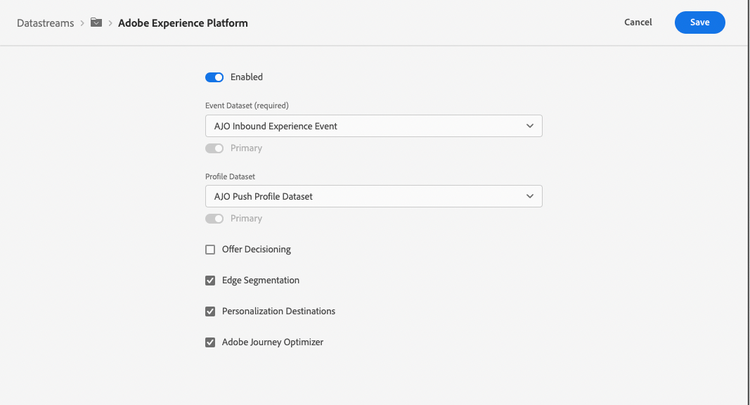
Set up a mobile property in Adobe Data Collection
To learn how to create the mobile property, please read the tutorial on creating a mobile property
Now that a mobile property is created, we can setup the Adobe Journey Optimizer extension.
Setup Adobe Journey Optimizer extension
Configure extension in the Data Collection UI
Go to the Experience Platform Data Collection UI, select mobile property and navigate to Extensions from the left navigation panel:
- Navigate to the Catalog tab, locate the Adobe Journey Optimizer extension, and select Install
- Select the pre-created AJO Push Tracking Experience Event Dataset from the Event Dataset dropdown.
- Select Save.
- Follow the publishing process to update SDK configuration.
data-variant=info
data-slots=text
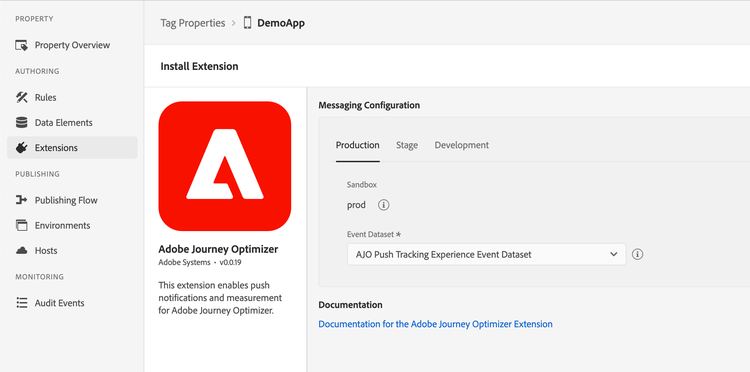
Add the Adobe Journey Optimizer extension to your app
Include Messaging extension as an app dependency
Add MobileCore, Edge and Messaging extensions as dependencies to your project.
Android Kotlin
Add the required dependencies to your project by including them in the app's Gradle file.
implementation(platform("com.adobe.marketing.mobile:sdk-bom:3.+"))
implementation("com.adobe.marketing.mobile:core")
implementation("com.adobe.marketing.mobile:edgeidentity")
implementation("com.adobe.marketing.mobile:edge")
implementation("com.adobe.marketing.mobile:messaging")
data-variant=warning
data-slots=text
Android Groovy
Add the required dependencies to your project by including them in the app's Gradle file.
implementation platform('com.adobe.marketing.mobile:sdk-bom:3.+')
implementation 'com.adobe.marketing.mobile:core'
implementation 'com.adobe.marketing.mobile:edgeidentity'
implementation 'com.adobe.marketing.mobile:edge'
implementation 'com.adobe.marketing.mobile:messaging'
data-variant=warning
data-slots=text
iOS CocoaPods
Add the required dependencies to your project using CocoaPods. Add following pods in your Podfile:
use_frameworks!
target 'YourTargetApp' do
    pod 'AEPCore', '~> 5.0'
    pod 'AEPEdge', '~> 5.0'
    pod 'AEPEdgeIdentity', '~> 5.0'
    pod 'AEPMessaging', '~> 5.0'
end
Initialize Adobe Experience Platform SDK with Messaging Extension
Next, initialize the SDK by registering all the solution extensions that have been added as dependencies to your project with Mobile Core. For detailed instructions, refer to the initialization section of the getting started page.
Using the MobileCore.initialize API to initialize the Adobe Experience Platform Mobile SDK simplifies the process by automatically registering solution extensions and enabling lifecycle tracking.
Android Kotlin
data-variant=warning
data-slots=text
import com.adobe.marketing.mobile.LoggingMode
import com.adobe.marketing.mobile.MobileCore
...
import android.app.Application
...

class MainApp : Application() {
  override fun onCreate() {
    super.onCreate()
    MobileCore.setLogLevel(LoggingMode.DEBUG)
    MobileCore.initialize(this, "ENVIRONMENT_ID")
  }
}
Android Java
data-variant=warning
data-slots=text
import com.adobe.marketing.mobile.LoggingMode;
import com.adobe.marketing.mobile.MobileCore;
...
import android.app.Application;
...
public class MainApp extends Application {
  @Override
  public void onCreate(){
    super.onCreate();
    MobileCore.setLogLevel(LoggingMode.DEBUG);
    MobileCore.initialize(this, "ENVIRONMENT_ID");
  }
}
iOS Swift
data-variant=warning
data-slots=text
// AppDelegate.swift
import AEPCore
import AEPServices
...

final class AppDelegate: NSObject, UIApplicationDelegate {
  func application(_: UIApplication, didFinishLaunchingWithOptions _: [UIApplication.LaunchOptionsKey: Any]? = nil) -> Bool {
    MobileCore.setLogLevel(.debug)
    MobileCore.initialize(appId: "ENVIRONMENT_ID")
    ...
  }
}
iOS Objective-C
data-variant=warning
data-slots=text
// AppDelegate.m
#import "AppDelegate.h"
@import AEPCore;
@import AEPServices;
...
@implementation AppDelegate
- (BOOL)application:(UIApplication *)application didFinishLaunchingWithOptions:(NSDictionary *)launchOptions {
  [AEPMobileCore setLogLevel: AEPLogLevelDebug];
  [AEPMobileCore initializeWithAppId:@"ENVIRONMENT_ID" completion:^{
      NSLog(@"AEP Mobile SDK is initialized");
  }];
  ...
  return YES;
}
@end
Configuration keys
You can update the SDK configuration, including the Messaging configuration values, programmatically by using the following information.
false, allows the push identifier to be synced every time the setPushIdentifier API is called. More details can be found in the push token sync optimizations documentationapnsSandbox environment be used for receiving push notifications. Read more about using an APNS sandbox push environment here